

 >
How to >
>
How to >
How to Change Ringtone on iPhone to Any Song in 2026
"I’m trying to set a custom ringtone on my iPhone but can’t figure out how to change it from the default. Can someone help me with the steps?"
Changing your iPhone ringtone should take about thirty seconds. But in reality, most people end up fighting file formats, hidden menus, or GarageBand exports that fail for no obvious reason.
Apple has improved a lot of things over the years, but custom ringtone still feel strangely outdated. This guide tested 4 working methods to change ringtone on iPhone to any song you like without complicated hacks, covering official iTunes Store, GarageBand offline creation, computer Finder/iTunes transfer, and trusted iPhone Ringtone Maker to add custom ringtone iPhone files instantly. Let's dive in!
Part 1: How to Change Ringtone on iPhone to Any Song
Here are different methods to change ringtone on iPhone to any song. During our test, we found that buying premade tones from iTunes Store is a direct and convenient option for beginners. Otherwise, you can also convert a selected audio into Apple's official m4r ringtone format first, and add it through GarageBand or iTunes on desktop. Besides, a dedicated iPhone Ringtone Maker helps make a custom ringtone easily without format conversion. Check the following comparison table and select a suitable method. Super detailed steps with screenshots are provided.
NOTE: Before custom creation, note that most custom ringtones must be under 30 seconds long to show up in your iPhone sound settings.
| Method | Difficulty | Computer Required | Free to Use | Notes |
|---|---|---|---|---|
| iTunes Tone Store | Easy | No | Paid | Quick but limited |
| GarageBand | Moderate | No | Free | A little clunky but reliable |
| Syncios Ringtone Maker | Very Easy | Yes | Free & Paid | Skips most format headaches |
| Finder / iTunes | Complicated | Yes | Free | Stable for bulk tones |
1. iTunes Store
Buy Ringtones from the iTunes Store:
If you got a new iPhone and wonder how to change ringtone on iPhone to your favorite song, iTunes Store is absolutely the safest and fastest method for beginners. You don't have to trim anything, rename files, or worry about whether it will sync. All purchased tones work perfectly on your latest iOS and can be installed directly on your device immediately.
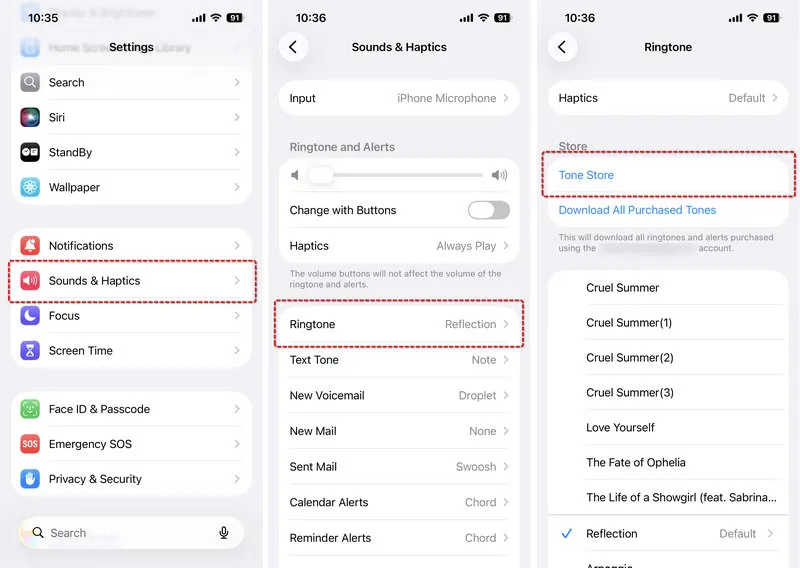
- Step 1: Inside your iPhone Settings, go to Sounds & Haptics > Ringtone > open the Tone Store.
- Step 2: You can browse popular songs, soundtracks and audio clips categorized by genre here or search for a specific track.
- Step 3: When you feel like this is the right ringtone, you can tap the price next to your desired ringtone to complete the Apple ID purchase.
- Step 4: After the purchase, you can choose to set it immediately as your default incoming call ringtone.
- Step 5: Alternatively, save the tone to your library and set it later in sound settings.
- 100% Apple official way, without DRM issues or export failures.
- No file editing or m4r/AAC format conversion needed.
- It can automatically sync across all your Apple devices.
- Fully supports the latest iOS and every iPhone generation.
- You have to pay for every individual ringtone.
- Limited song selection.
- You cannot use your personal downloaded MP3 music.
- No custom trimming or personalized audio clips allowed.
2. GarageBand
Use GarageBand to Make a Custom Ringtone:
If your goal is not simply changing the ringtone, but custom trimming, GarageBand is one of your best tools that lets you turn any local song into a personal ringtone straight on your phone. We will show you how to change ringtone on iPhone and how to fix common glitches you may encounter.
- Step 1: Install GarageBand to your Apple devices (iOS, iPadOS, MacOS).
- Step 2: Open GarageBand and create a new empty Audio Recorder project.
- Step 3: Tap the loop icon at the top-right corner, go to Files, and import your saved music track into the workspace.
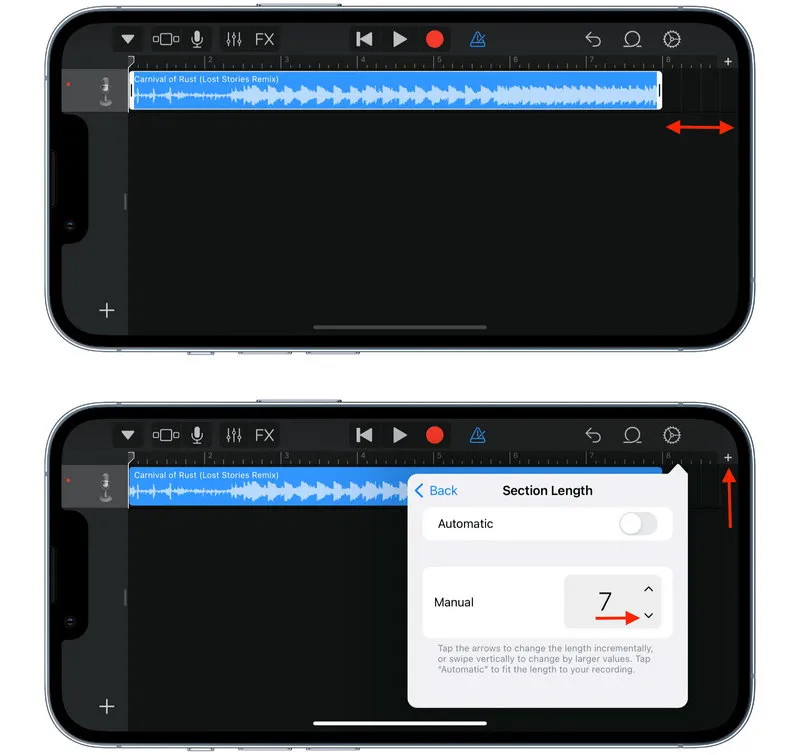
- Step 4: Drag the song onto the timeline and trim the clip to less than 30 seconds.
- Step 5: Adjust the start and end points to keep your favorite part of the song.
- Step 6: Tap the downward arrow at the top left to save your project. Long press the project file, then tap Share and choose Ringtone. Name your ringtone and tap Export.
- Step 7: Wait for GarageBand to process and convert the audio to
m4rringtone file. - Step 8: Once finished, tap "Use sound as..." and select Standard Ringtone.
iPhone or iPad: https://apps.apple.com/us/app/garageband/id408709785
Mac: https://www.apple.com/uk/mac/garageband/
If "Use sound as" doesn't appear after exporting, close GarageBand completely and open it again. Low Power Mode can interfere with the export process and cause the ringtone not to show up.
- Apple Music DRM-protected songs appear greyed out and cannot be imported: Ensure the song is downloaded locally on your device.
- Export button missing after trimming audio: Ensure your track has no blank space on the left side.
- Custom ringtone not showing up in iPhone Settings: Once exported, tap "Use sound as" immediately to set it as "Standard Ringtone".
- Audio clip corrupted after sharing to ringtone library: Not saving directly, but tap "Open In" to select your local folder.
3. Syncios Ringtone Maker
Syncios Mobile Manager is designed to back up and restore data between a mobile phone and a computer. Its Ringtone Maker is a built-in feature that lets you change the ringtone on an iPhone easily. No need to convert the format or rename the file. The only thing to worry about is the song selection. Import any song, and then you can start the customization. When you finish, the ringtone is saved directly on your iPhone. It's best for anyone who wants a simple, fast, and secure way to set a custom ringtone without manual conversion or transfer.
Besides the Ringtone Maker, Syncios also features HEIC to JPG Converter, Photo Compression, Audio Converter, and Video Converter. All-in-one software for your data management. Moreover, it enables you to import and export images, videos, music and more for free. Support the latest iOS and Android versions. If you would like to transfer files frequently between your phone and PC, Syncios Mobile Manager is highly recommended.
 Syncios Mobile Manager
- Selectively backup and restore Photo, Contacts, Message, Call log, Music, Video, Ebooks, etc.
- Export camera roll, photo library, panorama, selfie, and live photo from iOS devices to computer.
- Download photos from iCloud Photo Stream to computer.
- Convert HEIC photos to JPG photos and compress pictures freely.
- Import pictures from computer to Android/iOS devices.
- Edit, new, rename or delete Android/iOS devices album on computer.
Here is a detailed, step-by-step tutorial, even beginners can get up to speed quickly!
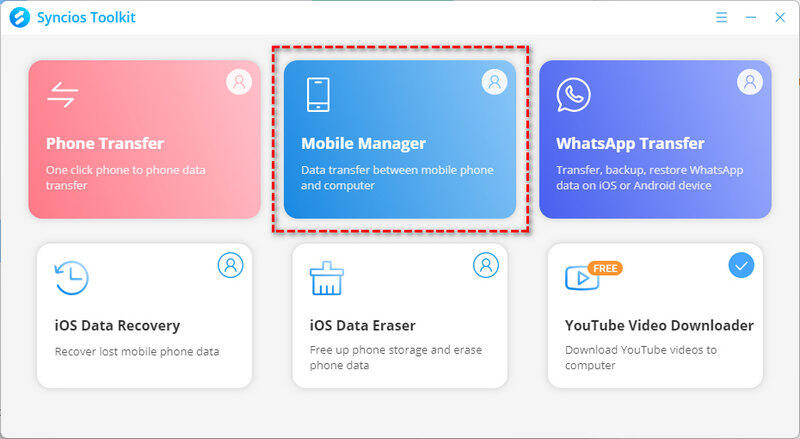
- Step 1: Launch. To change ringtones on iPhone to any song, you can't miss Syncios Ringtone Maker. Download Syncios from the above link. Then, choose to install "Mobile Manager" from the toolkit.
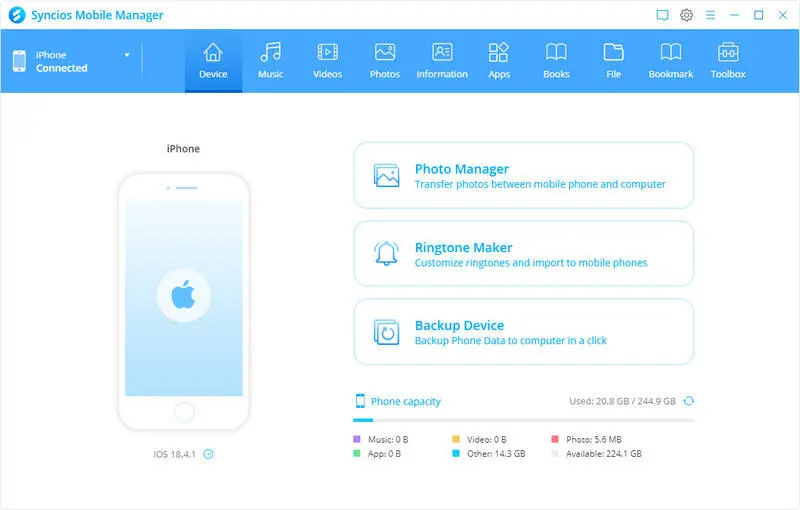
- Step 2: Connect. Launch Syncios Mobile Manager and connect your iPhone to PC using a USB cable. You can choose the Ringtone Maker directly from the following main interface. Alternatively, you can go to the "Toolbox" and select the dedicated Ringtone Maker there.
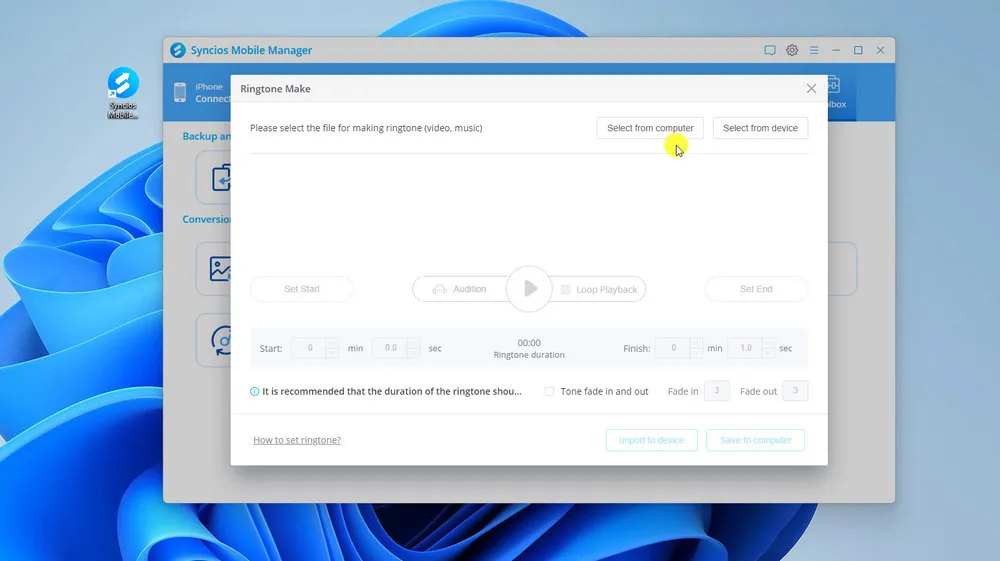
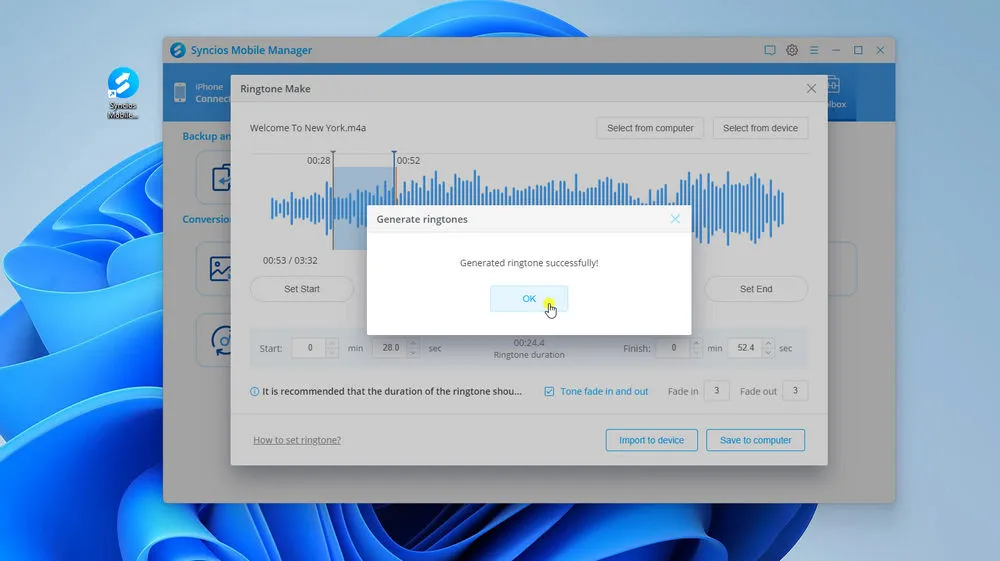
- Step 3: Import. In the Syncios Ringtone Maker interface, you can choose either to import your favorite song from your computer or from your iPhone.
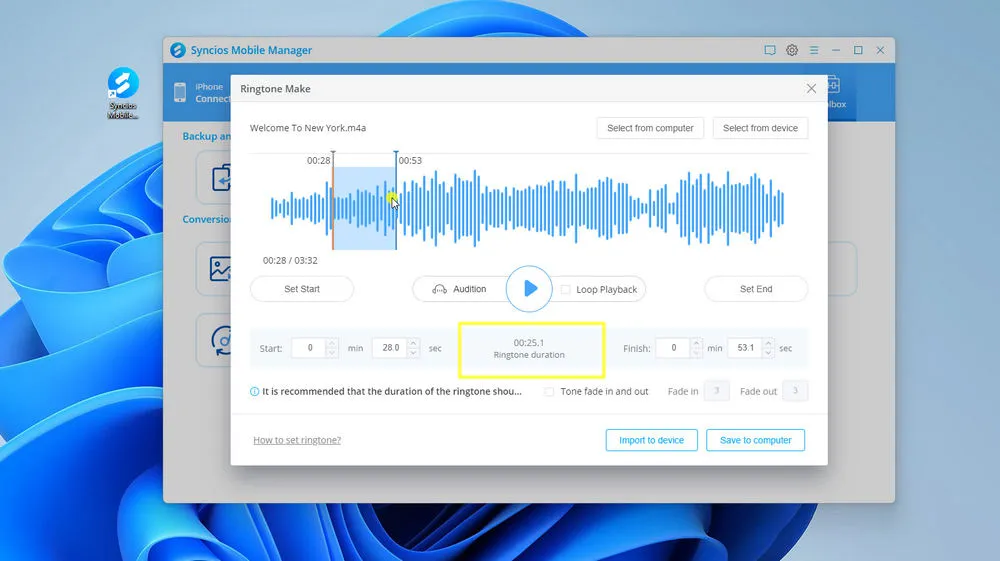
- Step 4: Trim. Now you can listen to the music to customize the start and the end point. Remember the length should not exceed 30 seconds. Besides, it allows you to choose the tone to fade in or out.
- Step 5: Apply. When you finish the customization, you can export the song to a computer, or directly to your iPhone. For example, click the button "Import to device". Done. Your ringtone has been generated successfully for your iPhone. No format conversion or file transfer.
▶️ Video Tutorial:
4. iTunes
Use iTunes / Finder on Computer:
The iTunes / Finder method feels old, but it's still the most stable option if you regularly manage music files on a computer. It lets you create AAC audio files, rename them to m4r extensions, and manually sync custom tones to your iPhone. If you like switching ringtones often, want to keep a collection or have a large music library stored on Windows or Mac, then this best for you.
- Step 1: Open Finder on Mac (Catalina and newer) or iTunes on Windows PC.
- Step 2: Add your chosen song file to your desktop music library.
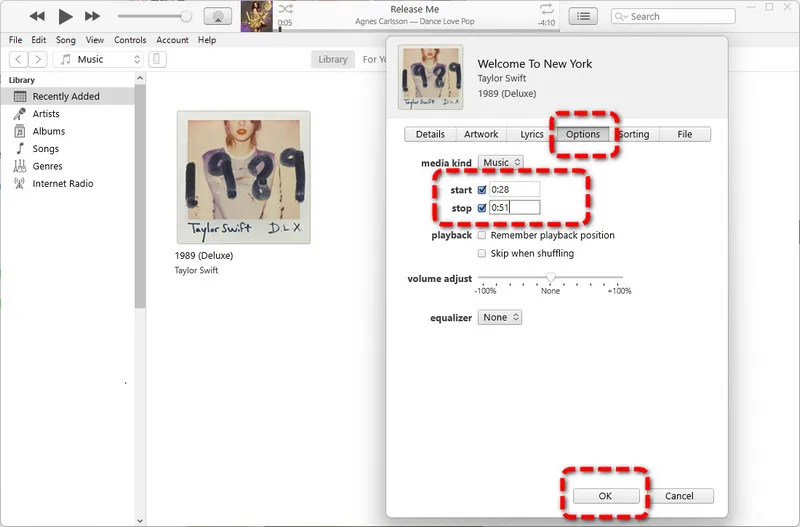
- Step 3: Right-click the track and choose "Album Info" > "Options". Then select your preferred start time and stop time as your ringtone. Make sure the two squares are checked. Remember not to go beyond 30 seconds. Next, you will see a shortened copy in the Library.
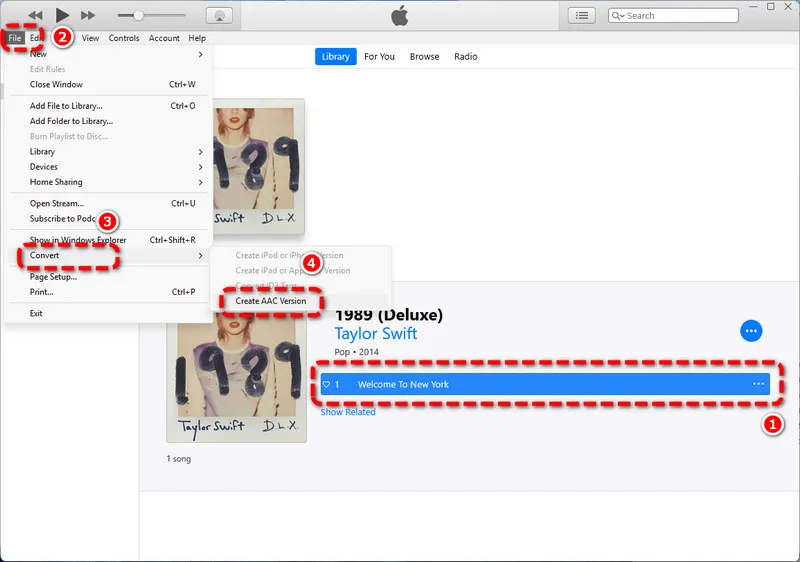
- Step 4: Now you can select the trimmed file and click "File" > "Convert" > "Create AAC Version".
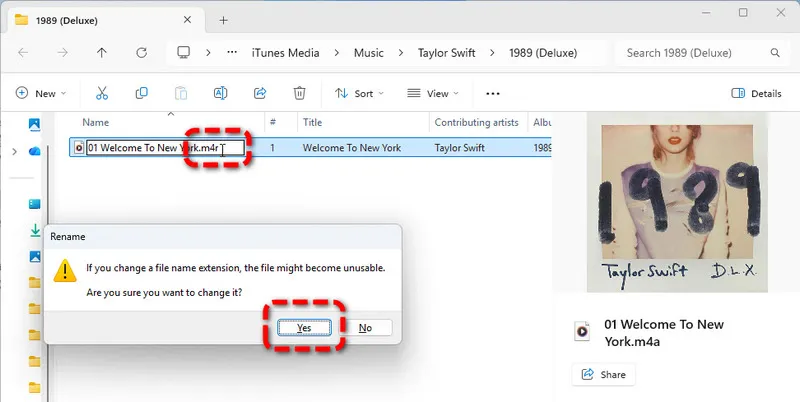
- Step 5: When it converts successfully, right-click the new song and select "Show in Windows Explorer".
- Step 6: Change the file extension from
.m4ato.m4r. Click "Yes" when it pops up. - (Optional step: Now you can delete the converted .m4a file from the iTunes Library.)
- Step 7: Connect your iPhone to iTunes, and then select "Tones". Drag the renamed
.m4rringtone directly into your iPhone tone library. - Step 8: Once the file is transferred, you can safely disconnect your device and check Settings for your new custom ringtone.
NOTE: When we proceeded to this step, we encountered an error message showing "None of the selected files were converted". If you're ever confused about it, that's because you didn't actually select this song. You should select the song as it becomes blue.
👉 We also have a quick fix video for you: iTunes Won't Create AAC - Try This Instead
NOTE: During the final transfer process, you may encounter iTunes showing a 🚫 when dragging a ringtone. That might be due to the file format, and the M4R file wasn't actually recognized as a valid ringtone. Even though the file extension was changed, there may still be issues with the internal encoding. You can restart from Step 1.
Another reason is that your iPhone has been synced with another iTunes Library. You can go to "Summary" and apply the "Manually manage music and videos".
👁️ iTunes VS. Syncios
| Feature | iTunes | Syncios |
|---|---|---|
| Difficulty | Medium | Easy |
| AAC Conversion | Required | No |
| Rename M4R | Required | No |
| Sync Issues | Possible | No |
Part 2: How to Set Custom Ringtone on iPhone
Once we have imported or created our favorite ringtone file, we can't wait to apply it. We can control whether everyone hears the same ringtone or only specific contacts have a unique sound. Let's see how to set custom ringtone on iPhone.
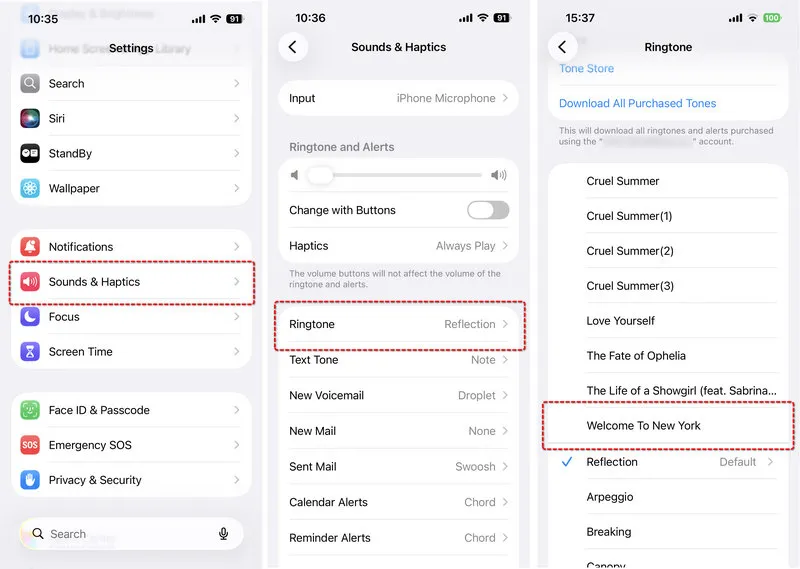
1. Set Custom Ringtone for All Calls
Setting ringtone for all calls changes your default incoming call sound, which means anyone who calls you will trigger the same tone. This is the most common setup for people who want a single custom ringtone for all notifications.
- Step 1: Open iPhone Settings app.
- Step 2: Scroll down and tap Sounds & Haptics.
- Step 3: Select Ringtone option at the top of the menu.
- Step 4: Browse your downloaded and custom ringtone list.
- Step 5: Tap your preferred tone to set it as default incoming call ringtone.
The change takes effect immediately. You don't need to restart your iPhone or save any additional settings.
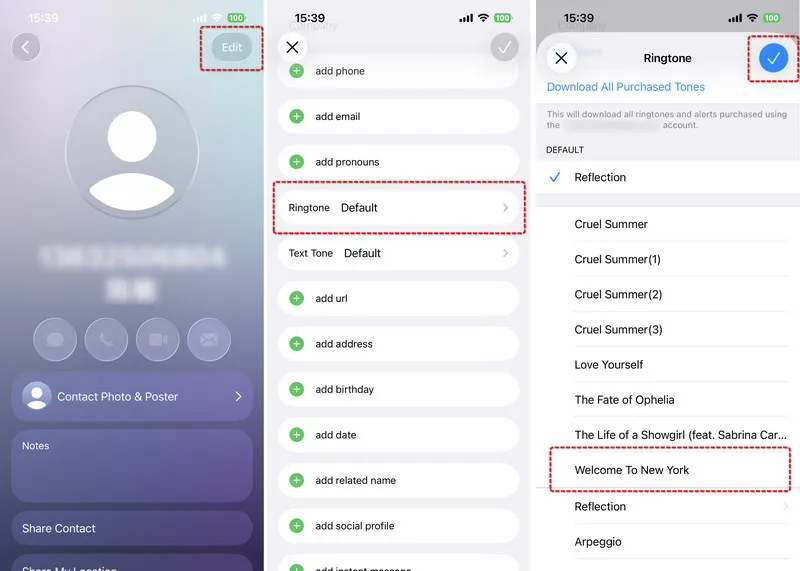
2. Set Custom Ringtone for One Contact
Setting a unique ringtone for a single contact lets you know who is calling without looking at your screen. This is useful for partners, family members, or important work contacts. Many people use this feature to tell immediately if a call is important.
- Step 1: Open the Contacts app on your iPhone.
- Step 2: Choose the specific person you want a unique ringtone for.
- Step 3: Tap Edit in the top-right corner.
- Step 4: Find and select the Ringtone option.
- Step 5: Pick your custom song tone and tap Done to save changes.
The next time that contact calls you, your iPhone will play the selected ringtone. All other calls will use your default tone.
Part 3: Why Is My Custom Ringtone Not Working?
Custom ringtone not working on your phone? Don't worry. We have also noticed some repeated problems during the making process. The same issues you may encounter and possible solutions are as follows.
Improper sync between computer and iPhone
This is one of the most common issues happen to those who are using Finder or iTunes. Sometimes Finder or iTunes shows the file as transferred, but the iPhone hasn't fully registered it. Unplugging the phone and reconnecting it usually forces the system to recognize the new tone.
DRM protection
Songs from Apple Music are locked and cannot be converted into ringtones. Even if you can play the song on your iPhone, the system blocks it from being used as a tone. To solve this, you must use a local audio file that you own outright.
GarageBand export interrupted or failed
Low Power Mode limits background processing, which sometimes interrupts the export. Turning off Low Power Mode before you create your ringtone usually prevents this issue.
Wrong file type
You should note that iPhone only accepts .m4r, does not support raw MP3 ringtone files natively. If you forget to rename your file to .m4r, iPhone will not recognize it as a ringtone, and the file will transfer but will not appear in your settings.
Length
If your audio clip exceeds the mandatory Apple 30-second ringtone length limit, it will not show up in the list, even if they export successfully. iPhone enforces this limit strictly, and there is no way around it.
FAQs About Change Ringtone on iPhone
To set custom ringtone on iPhone for specific person, you can go to Contacts, choose the person you want to customize, tap Edit, then tap Ringtone. Select the custom ringtone you want and save your changes. Done. And each contact can have a unique personal song ringtone independently.
No. You cannot use MP3 files directly, instead, the file must be converted to M4R format first. GarageBand can help you finish this conversion. But if you want an easier way, it is highly recommended to use Syncios Ringtone Maker, import music, trim music, export music and apply immediately. It automatically changes the file into the format that iPhone recognizes as a ringtone.
To download a song for custom ringtone, you need to save copyright-free music to your iPhone Files app locally. Just remember, do not use Apple Music streaming tracks, as DRM locks prevent them from being trimmed and turned into ringtones. Ensure you use downloaded offline audio files only.
Final Thoughts
Well, even in 2026, Apple still hasn't made custom ringtones feel simple. "Changing ringtones on an iPhone is like solving a Rubik’s Cube blindfolded if you’re new to it".
Whether you want to set a custom ringtone for all or unique person, obey these rules. Always keep your clips under 30 seconds, use m4r format instead of MP3, and avoid DRM-locked Apple Music tracks. No jailbreak or risky unofficial app is required. If you are a beginners who want zero effort and doesn't mind paying, iTunes Store is your best option. For more customization, Syncios Ringtone Maker offers an effortless experience, finishing the format conversion and transfer in the background. You don't have to worry about any technique issues. Just focus on the ringtones clipping with Syncios!
What's next? Download Syncios Mobile Manager now!

Ethan Mercer | Senior Writer
Related Articles

 WhatsApp Transfer
  Mobile Manager
  YouTube Downloader
  Location Changer
  Passcode Unlocker
  Syncios D-Savior