

 >
How to >
>
How to >
8 Best & Free WhatsApp Call and Video Recorders in 2026
Have you ever been on a WhatsApp call where someone shared a crucial detail, and you thought "I wish I had written that down"? Maybe it was a job offer, a client agreement, or a family member saying something you wanted to keep.
WhatsApp itself does not offer a native call recording feature, and the reasons tie directly to privacy. But that does not mean you are stuck. The right tool, set up correctly, will capture both your voice and the other person's, plus video if you are on a video call. The wrong tool will waste your time, drain your battery, or produce recordings you cannot even play back. Let's look at the best WhatsApp call and video recorders for free.

Quick Comparison of the Best WhatsApp Call and Video Recorders
Not sure which tool to choose? Compare these best WhatsApp call and video recorders to find the right option for your device. Keep in mind that recording both sides of a WhatsApp call may depend on your device, operating system, and audio settings.
| Tool | Platform | Audio Recording | Screen Recording | Your Voice | Other Person's Voice | Cost |
|---|---|---|---|---|---|---|
| iPhone Built-in Screen Recorder | iOS | Yes (microphone) | Yes | Yes | Depends | Free |
| Android Built-in Screen Recorder | Android | Yes (microphone) | Yes | Yes | Depends | Free |
| AZ Screen Recorder | Android, iOS | Yes (microphone) | Yes | Yes | Depends | Free with ads |
| Cube ACR | Android, iOS | Yes | No | Yes | Yes on compatible Android devices | Free / Premium |
| QuickTime Player + BlackHole | macOS | Yes | Yes | Yes | Yes, with system audio routed through BlackHole | Free |
| Xbox Game Bar | Windows | Yes | Yes | Yes | Yes, when system audio capture is enabled | Free |
| Camtasia | Windows, macOS | Yes | Yes | Yes | Yes, when system audio capture is enabled | Free with watermark |
| OBS Studio | Windows, macOS, Linux | Yes | Yes | Yes | Yes, when the correct system audio source is selected | Free |
Important: Recording both sides of a WhatsApp call is not guaranteed on every device. Mobile screen recorders may not capture the other person's voice because of operating system restrictions. Desktop tools require the correct audio sources to be configured. Test your setup before recording an important call, and obtain consent where required.
Part 1. Can You Record WhatsApp Voice and Video Calls
Yes. WhatsApp does not have a built-in feature for recording voice or video calls, you'll need to use your phone's screen recorder or a third-party recording tool, but capturing both sides of the conversation is not always possible.
On iPhone and Android:
Built-in screen recorders can capture the screen and, in some cases, microphone audio. However, recording the other person's voice is less reliable. On iPhone, speakerphone may allow the microphone to pick up the other person's voice. On Android, internal audio recording depends on the device and system restrictions, and WhatsApp calls may not be captured.
On Windows:
Tools like Xbox Game Bar and OBS can record your screen, system audio, and microphone. You need to select the correct audio sources to capture both sides of the call.
On Mac:
QuickTime Player can record your screen and microphone, but capturing WhatsApp's system audio usually requires an additional audio driver, such as BlackHole.
Part 2. Best WhatsApp Call and Video Recorders
Whether you want to save a WhatsApp video call on your phone or record a voice conversation on your computer, here are 8 tools worth considering.
1. iPhone Built-in Screen Recording
Compatibility: iOS
iPhone has a built-in screen recorder, so you don't need to install another app. It can record your WhatsApp video call screen and capture sound through the microphone. Your voice can be recorded directly, while the other person's voice may be picked up by the microphone if you use speakerphone. If you use earbuds, their voice is unlikely to be captured.
- Free and built into iOS.
- No additional app required.
- Saves recordings directly to Photos.
- May not capture both sides of a WhatsApp call.
- Audio quality depends on speaker volume and background noise.
- Some apps may restrict screen recording.
How to Record WhatsApp Calls
- Step 1: Open Settings > Control Center and add Screen Recording if it isn't already there.
- Step 2: Open Control Center by swiping down from the top-right corner of the screen.
- Step 3: Touch and hold the Screen Recording button, then turn on the microphone.
- Step 4: Open WhatsApp and start or answer a call. For better results, switch to speakerphone.
- Step 5: Tap Start Recording and wait for the three-second countdown.
- Step 6: To stop recording, tap the red recording indicator and select Stop.
- Step 7: Find your recording in the Photos app.
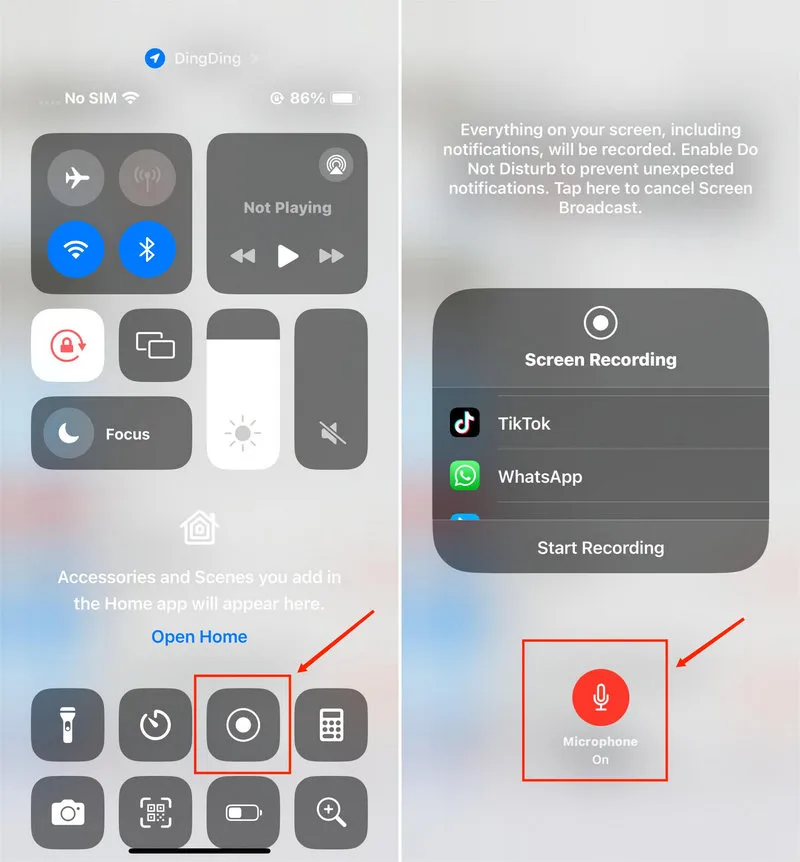
Tips: For voice only calls, put the call on speakerphone before you start recording so the mic can pick up both sides.
2. Android Built-in Screen Recorder
Compatibility: Android
Just like iPhones, Android phones have a built-in screen recorder, allowing you to capture WhatsApp voice and video calls without a third-party app. Although Android 10 introduced internal audio capture, it is primarily designed for media and game audio, not VoIP conversations. As a result, your recording may contain only your microphone audio, or no call audio at all. Some manufacturers, including Samsung, explicitly restrict screen recording during VoIP and video calls.
- Free and built into Android phones.
- No third-party app or account required.
- Recordings are saved directly to your phone.
- May not capture both sides of a WhatsApp call.
- Audio options and compatibility vary by device.
- No automatic call detection or advanced editing features.
How to Record WhatsApp Calls
- Step 1: Swipe down from the top of the screen to open Quick Settings.
- Step 2: Tap Screen Recorder. If you do not see it, tap the pencil icon to edit your quick tiles and add it.
- Step 3: Choose your audio source. For WhatsApp calls, select "Mic and device audio" if that option appears.
- Step 4: Tap Start.
- Step 5: Open WhatsApp and make or receive your call.
- Step 6: When done, pull down the notification panel and tap Stop.
- Step 7: The recording saves to your phone's Gallery app.
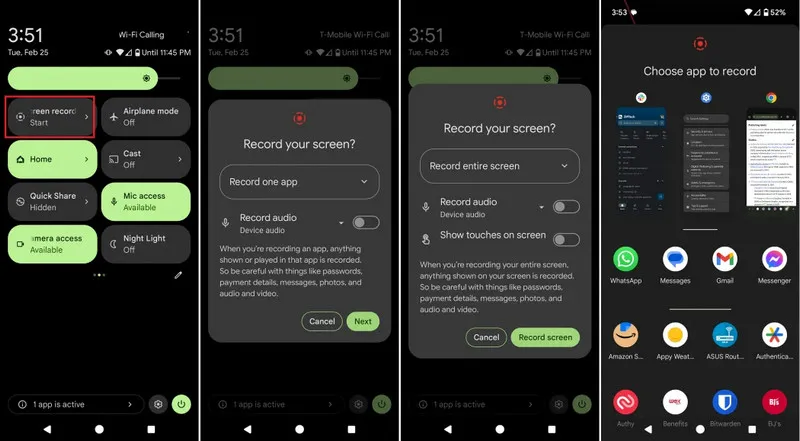
Tips: If the other person's voice is missing from your recording, your phone likely restricts internal audio for VoIP calls. In that case, try Cube ACR from the list below.
3. AZ Screen Recorder
Compatibility: iOS, Android
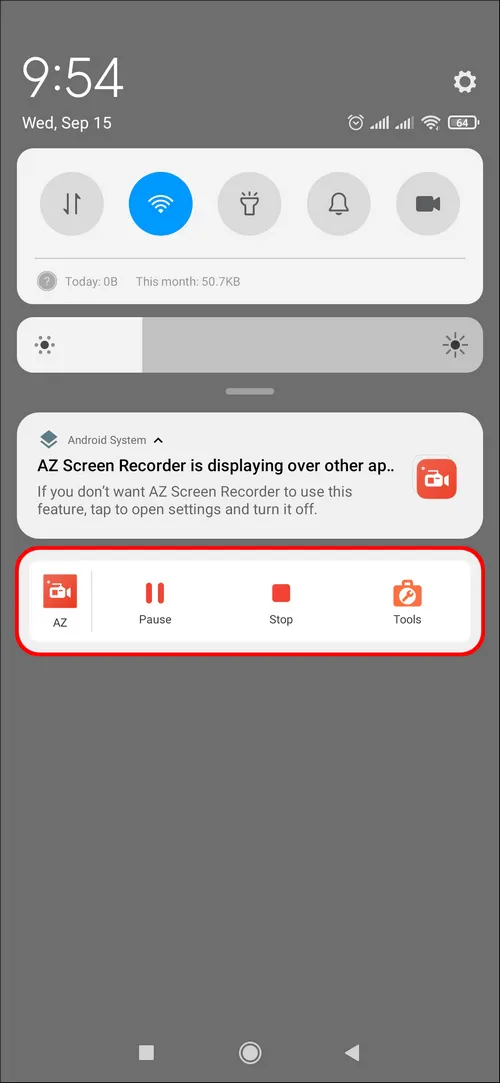
If you want more control over your WhatsApp call and video recordings, AZ Screen Recorder is worth trying. Its floating toolbar lets you start, pause, and resume recording without navigating away from WhatsApp. You can also adjust the video resolution and frame rate, use the front camera overlay, and trim recordings with its built-in editor.
- Free Android version with no watermark.
- Floating controls make recording easy to manage.
- Built-in editor for trimming and merging videos.
- Adjustable resolution and frame rate.
- Free version contains ads and in-app purchases.
- May not capture both voices during WhatsApp calls.
- iOS version has different features and limitations.
How to Record WhatsApp Calls
- Step 1: Open the app and grant the required permissions, including microphone access if you want to record your voice.
- Step 2: Tap the settings icon to choose your preferred video resolution, frame rate, and audio source.
- Step 3: Return to your home screen and tap the floating AZ Screen Recorder icon.
- Step 4: Open WhatsApp and start your call.
- Step 5: Tap the record button to begin recording.
- Step 6: When you're finished, tap Stop in the floating toolbar or notification panel.
- Step 7: Find your recording in AZ Screen Recorder, where you can trim or share it.
4. Cube ACR
Compatibility: iOS, Android
Unlike screen recorders, Cube ACR is designed specifically for recording phone calls and VoIP conversations. It supports WhatsApp voice calls, along with calls made through apps like Skype, Viber, LINE, and WeChat. Once configured, it can automatically detect supported calls and save the audio recording for later playback. You can also mark important recordings, exclude specific contacts, and manage your files directly in the app.
- Automatically records supported WhatsApp voice calls.
- Built-in player and starred recordings for easy management.
- Contact exclusion list for controlling which calls are recorded.
- Premium offers cloud backup and PIN protection.
- WhatsApp VoIP recording is available on Android, not the iOS version.
- Doesn't record video calls or screen activity.
- Recording compatibility varies by phone and Android version.
- Requires Accessibility access and contains ads.
How to Record WhatsApp Calls
- Step 1: Open the app and follow the setup instructions. Grant microphone access and enable the Cube ACR App Connector in your phone's Accessibility settings.
- Step 2: In the app settings, make sure "WhatsApp" is listed under VoIP recording sources.
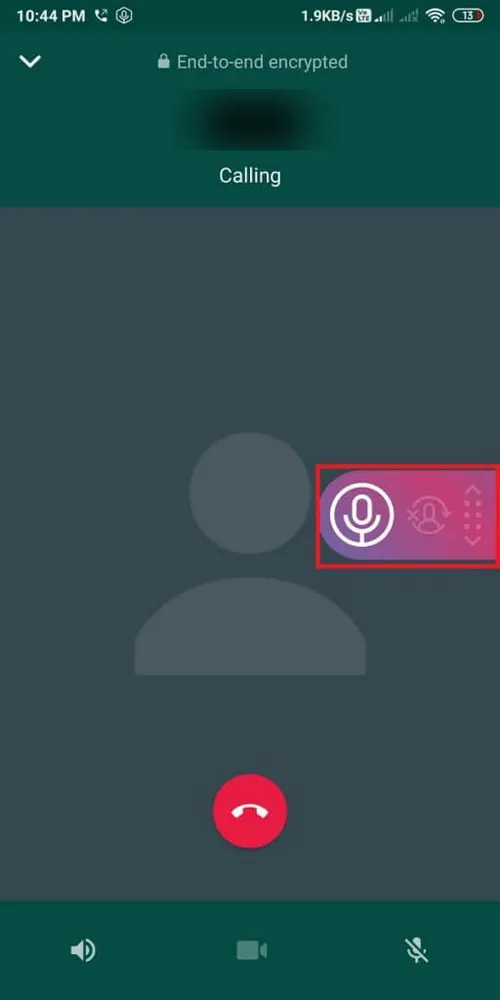
- Step 3: Start or answer a WhatsApp voice call. If automatic recording works on your device, the Cube ACR widget should appear when the call starts.
- Step 4: When the call ends, the recording saves automatically.
- Step 5: Open Cube ACR to listen back, share, or delete the recording.
5. QuickTime Player + BlackHole
Compatibility: MAC
If you use a Mac, QuickTime Player comes pre-installed and can record your screen. However, QuickTime alone cannot capture the audio coming out of your Mac. This is where BlackHole comes in. BlackHole is a free, open-source virtual audio driver that routes audio between apps on macOS.
- QuickTime Player is free and built into macOS.
- BlackHole is free and open source.
- Can route system audio into a screen recording.
- Supports both Intel and Apple Silicon Macs.
- Works with audio from WhatsApp Desktop and WhatsApp Web.
- Initial audio setup can be confusing for beginners.
- Requires creating a Multi-Output Device in Audio MIDI Setup.
- Doesn't automatically capture your microphone audio.
- WhatsApp call audio capture may vary depending on your setup.
- You need to switch your audio output back after recording.
How to Record WhatsApp Calls
- Step 1: Visit the BlackHole website and download the 2-channel version.
- Step 2: Install BlackHole by following the installer instructions. Restart your Mac only if prompted.
- Step 3: Open Audio MIDI Setup using Spotlight Search.
- Step 4: Click the + button in the bottom-left corner and select Create Multi-Output Device.
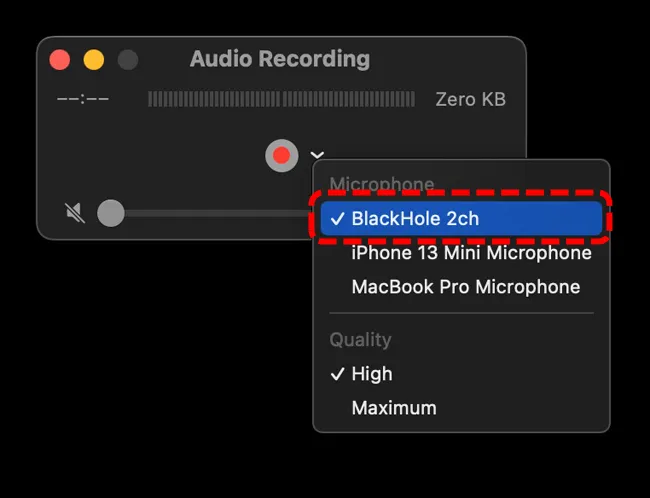
- Step 5: Select both BlackHole 2ch and your usual output device, such as your built-in speakers or headphones. Enable drift correction for the output device if the option is available.
- Step 6: Open System Settings > Sound > Output and select the new Multi-Output Device.
- Step 7: Open QuickTime Player and choose File > New Screen Recording.
- Step 8: Open the recording options and select BlackHole 2ch as the audio input or microphone.
- Step 9: Open WhatsApp Desktop or WhatsApp Web and start or answer a call.
- Step 10: Start the screen recording and choose the entire screen or the area containing the WhatsApp call.
- Step 11: When done, click the stop button in the menu bar.
- Step 12: Do not forget to switch your sound output back to your normal speakers after recording.
6. Xbox Game Bar
Compatibility: Windows
Xbox Game Bar is built into Windows. It was designed for recording gameplay, but it works perfectly for recording any app window, including WhatsApp. It captures your computer's audio and can also record your microphone, so you can save the call audio along with the video.
- Free and built into Windows.
- Quick keyboard shortcut to start and stop recording.
- Can capture app audio and microphone input.
- Records videos in MP4 format.
- Cannot record the entire desktop or a custom screen area.
- Only works with supported apps and windows.
- Audio settings may need adjustment before recording.
- Available only on Windows.
How to Record WhatsApp Calls
- Step 1: Open WhatsApp Desktop on your Windows PC and start or answer a call.
- Step 2: Press
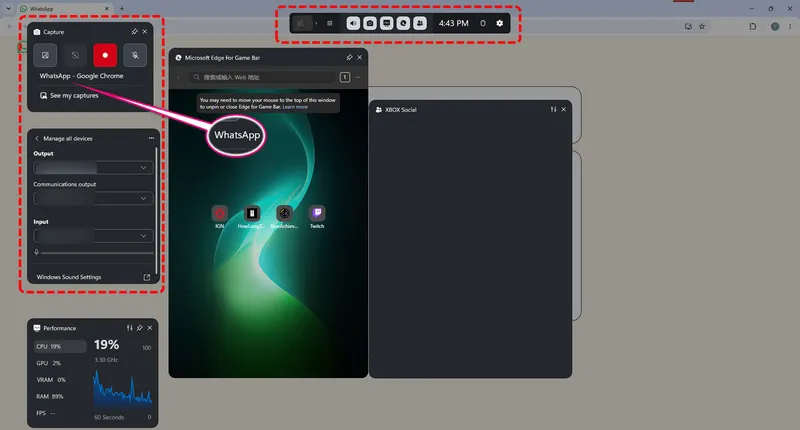
Win+Gto open Xbox Game Bar. - Step 3: Open Settings > Capturing and find the audio recording options.
- Step 4: Set audio capture to All so the recording can include app and system sounds.
- Step 5: Make sure your microphone is enabled if you also want to record your own voice. You can toggle it with
Win+Alt+M. - Step 6: Return to the WhatsApp window and press
Win+Alt+Rto start recording. A small recording timer should appear on the screen. - Step 7: When the call ends, press
Win+Alt+Ragain to stop recording. - Step 8: Find your video in Videos > Captures. The recording is saved as an MP4 file.
7. Camtasia Editor
Compatibility: Windows, Mac
Camtasia is a screen recorder and video editor for Windows and Mac. You can use it to record WhatsApp calls with system audio and your microphone, then edit the video by trimming clips, adding captions, or highlighting important moments. It also supports up to 4K recording on compatible systems. However, Camtasia requires a paid subscription to export videos without a watermark.
- Supports up to 4K screen recording on compatible systems.
- Can record system audio and microphone input simultaneously.
- Multitrack editor for trimming, annotations, captions, and effects.
- Supports webcam recording and picture-in-picture layouts.
- Available for both Windows and macOS.
- Paid subscription required to export videos without a watermark.
- Editing features may be excessive if you only need to save a call.
- Can take time for beginners to learn the editing process.
- WhatsApp call audio capture depends on your device and audio settings.
How to Record WhatsApp Calls
- Step 1: Download and install Camtasia from the official TechSmith website.
- Step 2: Open Camtasia and select New Recording from the Home window.
- Step 3: In the Camtasia Recorder, choose the screen area you want to capture. You can select the WhatsApp Desktop window or a custom area.
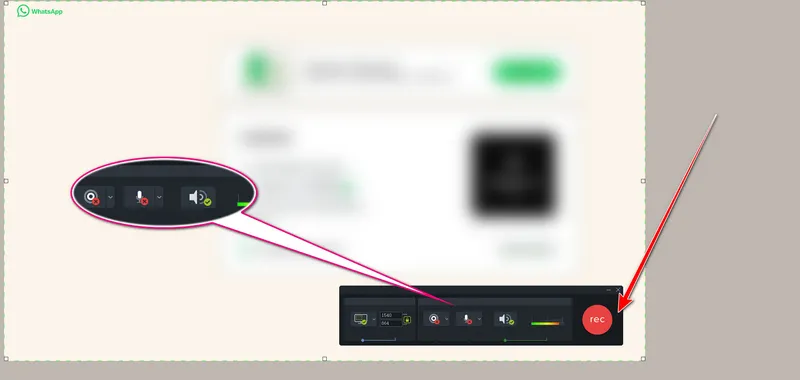
- Step 4: Enable System Audio to capture sound from your computer.
- Step 5: Turn on Microphone and select your preferred input device if you also want to record your own voice.
- Step 6: Open WhatsApp Desktop and start or answer a call.
- Step 7: Return to the Camtasia Recorder and click Record, or press
F9on Windows. - Step 8: When the call ends, click Stop or press
F10. - Step 9: Your recording will open in the Camtasia Editor, where you can trim clips, add captions or annotations, and export the finished video.
8. OBS Studio
Compatibility: Windows, Mac, Linux
OBS Studio gives you more control over WhatsApp call recording by letting you capture the WhatsApp window, system audio, and microphone input separately. You can also adjust audio levels and record multiple audio tracks for editing later. However, setting up these sources takes more time than using a basic screen recorder.
- Completely free and open source.
- Flexible control over screen, system audio, and microphone sources.
- Supports multiple audio tracks.
- Offers various recording formats, including MKV and MP4.
- No watermarks or ads.
- Interface and audio settings can be confusing for beginners.
- Initial setup takes more time than basic screen recorders.
- Doesn't include a video editor.
- May use significant system resources during recording.
How to Record WhatsApp Calls
- Step 1: Download OBS Studio from obsproject.com and install it.
- Step 2: Open OBS and find the Sources panel at the bottom of the window.
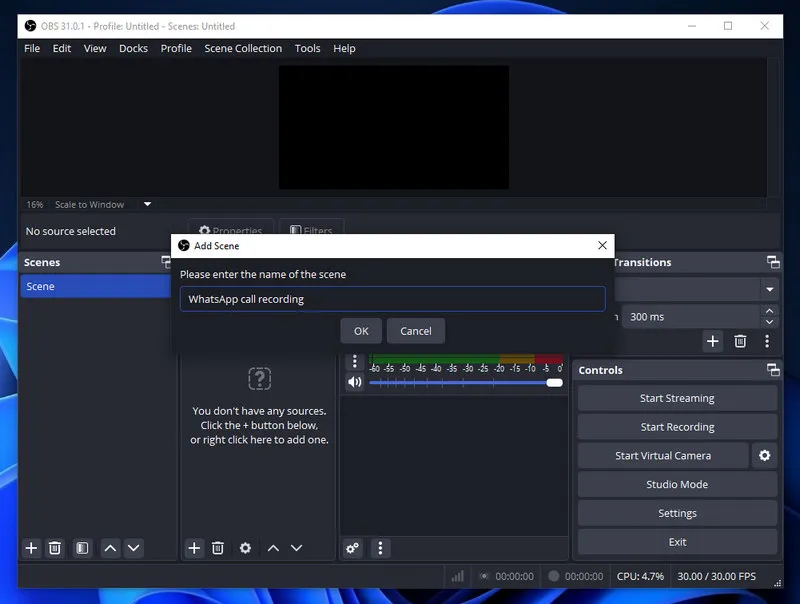
- Step 3: Click the + button and select Window Capture. Name the source "WhatsApp" and click OK.
- Step 4: Choose the WhatsApp Desktop window from the Window dropdown.
- Step 5: To capture the other person's voice, click + in the Sources panel again and select Application Audio Capture. Choose WhatsApp as the application.
- Step 6: To record your own voice, add an Audio Input Capture source and select your microphone.
- Step 7: Check the Audio Mixer to make sure the audio meters move when WhatsApp plays sound and when you speak. Adjust the volume if needed.
- Step 8: Open WhatsApp and start or answer a call.
- Step 9: Click Start Recording in the Controls panel.
- Step 10: When the call ends, click Stop Recording.
- Step 11: To find your video, go to File > Show Recordings in OBS.
Part 3. How to Keep Your WhatsApp Data Safe
Recording important WhatsApp calls is useful, but it's also worth protecting the chats and files stored on your phone. In case you lose important messages, photos, videos, and voice notes along with it, keeping a separate backup on your computer gives you another way to access this data.
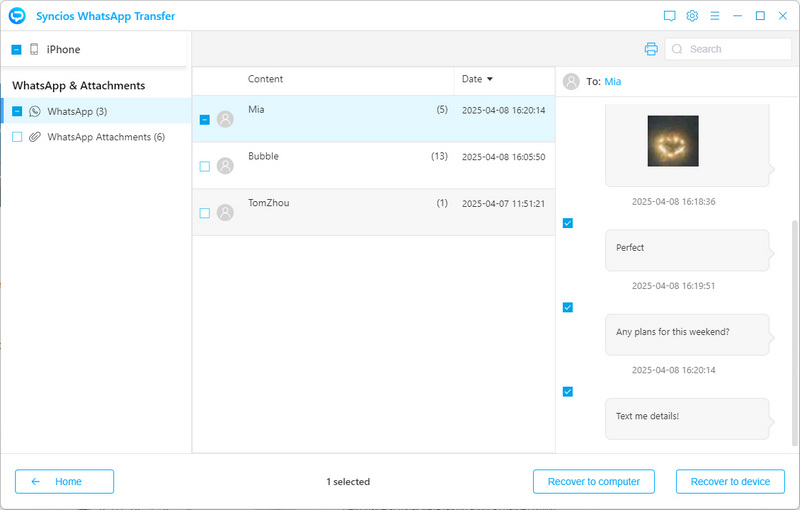
Syncios WhatsApp Transfer can help with this. It lets you backup WhatsApp data from an iPhone or Android device to your computer, including messages, photos, videos, and attachments. You can preview the backup, choose specific chats or files to restore, and export WhatsApp conversations to HTML or CSV for easier viewing on your computer. It also supports transferring WhatsApp data between iOS and Android devices and restoring data from local or iTunes backups.
This is useful if you're switching phones or want to keep a copy of important conversations outside WhatsApp. Syncios stores each backup separately, so creating a new backup won't overwrite your previous ones. You can also restore selected WhatsApp data without wiping the existing data on the target device.
 Syncios WhatsApp Transfer
- One-click back up WhatsApp chats and media attachments.
- Transfer WhatsApp between iOS and Android devices.
- Restore WhatsApp backup to any iOS/Android device.
- Preview the backup content and restore only the data you want.
- Export WhatsApp backup to HTML and CSV files.
- No jailbreak or root required, ensuring the security of the device.

How to Backup WhatsApp Data:
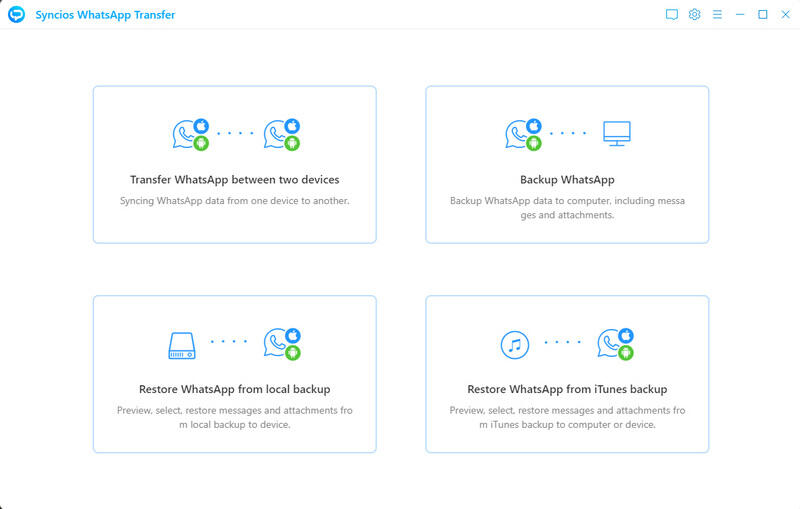
- Step 1: Select. yncios WhatsApp Transfer offers different modes. Choose "Backup WhatsApp" if you want to backup your chat log and attachments to your computer.
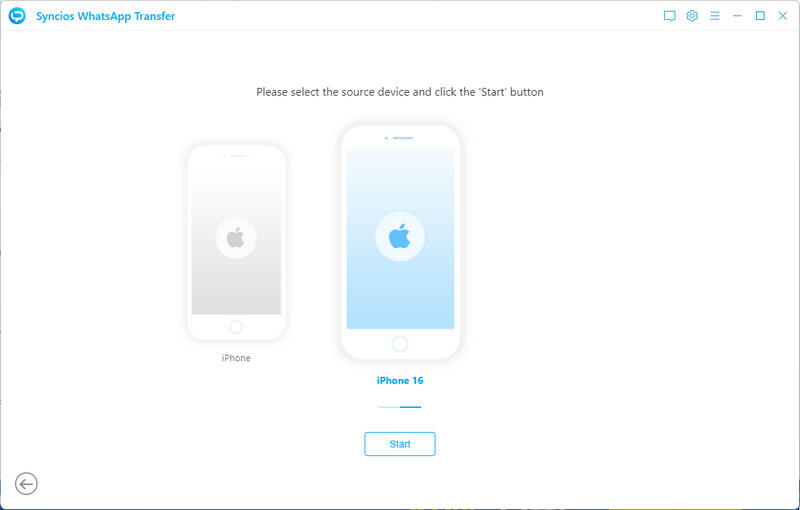
- Step 2: Connect. Next, you can connect your iPhone or Android to your computer.
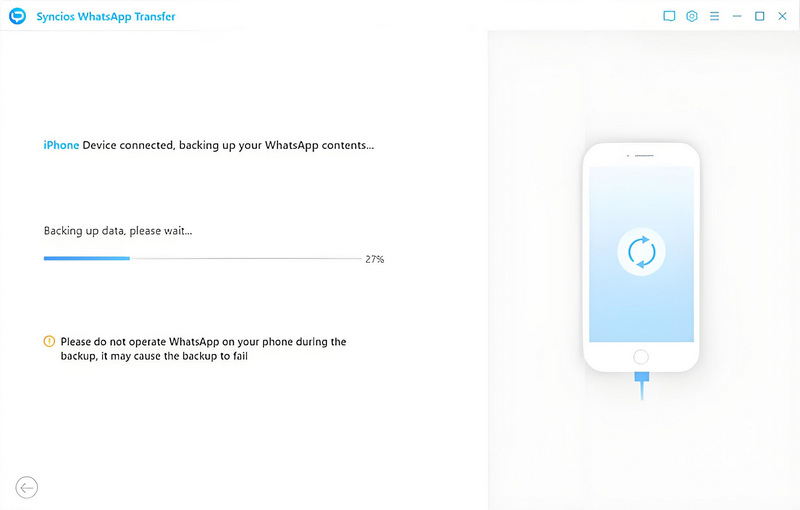
- Step 3: Start Backup. Click the "Start" button, and the program will automatically start the backup process. Wait patiently and keep the connection stable.
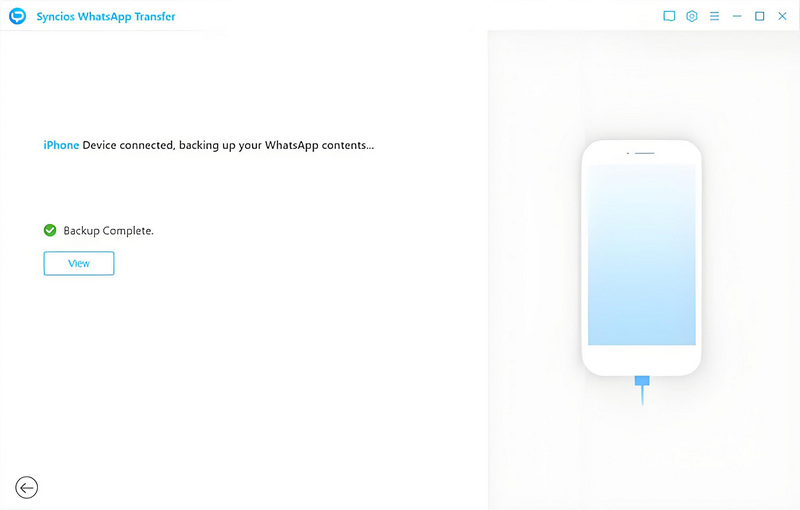
- Step 4: View Backup Files. When the backup completes, you can click the "View" button to check your WhatsApp files in Windows Explorer (you can change the path via "Settings").
NOTE: If the connection fails, refer to: iOS Device Detection or Android Device Detection.
How to Retore WhatsApp Data:
- Step 1: Select. To restore your WhatsApp data, select the mode "Restore WhatsApp from local backup".
- Step 2: Connect. Connect your mobile devices to the computer using a USB cable.
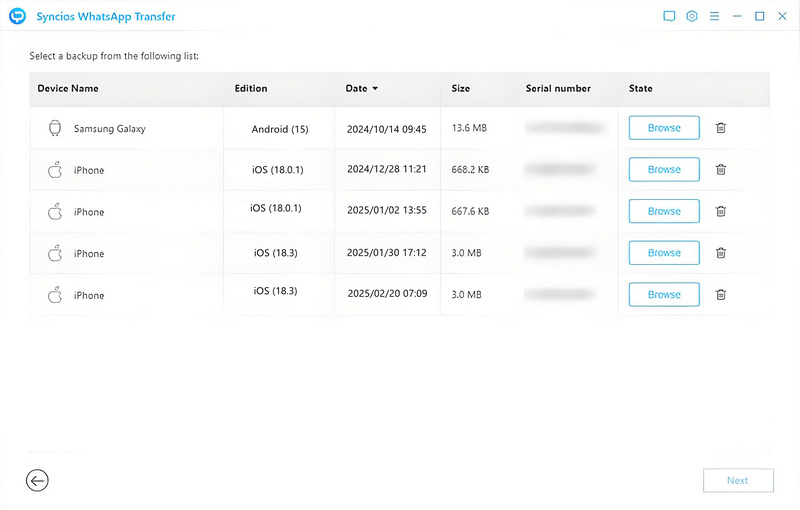
- Step 3: Browse. Syncios stores each WhatsApp backup separately. Choose the one that you want to restore.
- Step 4: Restore. Check the specific backup files and then you can choose to recover to your device. Next, it will pop up a prompt asking if you want to delete or merge the data from the target phone. Choose merge if you want to keep both.
Video Tutorial: Transfer WhatsApp from Android to iOS in One Click:
FAQs About WhatsApp Call and Video Recorder
Yes. On Windows, you can use Xbox Game Bar or OBS Studio to record WhatsApp calls. On Mac, you can use QuickTime Player with BlackHole to capture system audio. On iPhone and Android, the built-in screen recorder can record the screen, but it may not capture the voices of both people in a WhatsApp call.
Yes. Someone can use a screen recorder on a computer or a call recording app like Cube ACR on Android. These tools can record a WhatsApp call without sending you a notification. However, they cannot record WhatsApp calls successfully on every Android phone.
No. WhatsApp does not notify the other person when you screen record a voice or video call. iPhone and Android may show a recording icon on your own screen, but the other person cannot see that indicator through WhatsApp. WhatsApp also does not normally notify someone when you take a screenshot of a regular chat.
Your screen recorder may not support WhatsApp call audio. Also, some phones block apps from recording call audio, so the video may have no sound or may only include your own voice. If you are using a desktop tool, make sure your recorder is set to capture system audio and microphone input.
The rules for recording phone and WhatsApp calls vary by location. Some places require everyone on the call to agree before it is recorded. Others allow you to record a conversation without telling the other person, as long as you are part of the call. Sharing the recording may also have legal restrictions. Before recording, check the laws in your area and let the other person know when required.
Final Thoughts
The best WhatsApp call and video recorders cover every scenario, whether you are on an iPhone, an Android device, a Windows PC or a Mac. The right choice depends on your platform and what you need to capture.
No matter which tool you choose, two things will make your life easier. First, always test the recording before the actual call. Start a test call with a friend, hit record, and check that both voices come through clearly. Second, backup your WhatsApp data regularly. Tools like Syncios WhatsApp Transfer give you peace of mind by keeping your chats and media safe on your computer.
The best recording tool is the one that works when you need it, not the one with the most features. Pick the one that matches your device, do a quick test, and next time someone shares something important on a WhatsApp call, you will catch every word.
What's next? Download Syncios WhatsApp Transfer now!

Ethan Mercer | Senior Writer
Related Articles

 WhatsApp Transfer
 Mobile Manager
 YouTube Downloader
 Location Changer
 Passcode Unlocker
 Syncios D-Savior