

 >
How to >
>
How to >
How to Transfer Data from iPhone to iPhone: 5 Easy Ways in 2026
Getting a new iPhone is exciting, but moving all your important data from your old iPhone to the new one can feel complicated. You may want to transfer photos, videos, contacts, messages, apps, settings, and other personal files without losing anything.
In this compelete guide, we will introduce how to transfer data from iPhone to iPhone with step-by-step instructions, help you choose the most suitable way, and fix common problems when iPhone transfer does not work. Let's jump in.

Part 1. Before You Transfer Data from iPhone to iPhone
iPhone to iPhone data transfer can be easy if you do it right. Before starting the transfer process, it is important to prepare both your old and new iPhone. Proper preparation can help prevent common problems, such as transfer failures, slow migration speeds, or insufficient storage.
Check Your iPhone Storage (Click to Expand) ▼
First, before the transfer, you can check whether your new iPhone has enough storage space for the data from your old device. On your old iPhone, you can go to Settings > General > iPhone Storage. Review how much storage your current data uses, including photos, videos, apps, and documents. If your old iPhone contains more data than your new iPhone can hold, you may need to free up some space and remove unnecessary files before transferring.
💡 Tips: Use Syncios Mobile Manager to delete, edit, and manage your iPhone data selectively.
For Windows Users  >>>
>>>
For macOS Users >>>
Backup Your Old iPhone (Click to Expand) ▼
In case of any data loss, backing up your old iPhone is necessary. Tools like iCloud Backup, Finder, iTunes, and Syncios Mobile Manager can make a reliable backup.
Update Your iPhone (Click to Expand) ▼
Make sure both iPhones are running compatible iOS versions. Updating your iPhone before migration can reduce transfer problems. You can check for updates in Settings > General > Software Update. Tap "Update Now" if any.
Keep Both iPhone Charged (Click to Expand) ▼
Large data transfers can take a long time, especially if you have many photos and videos. It is highly recommended to keep both devices connected to power throughout the process to avoid interruptions.
Prepare Your Apple Account Information (Click to Expand) ▼
Some transfer methods require your Apple Account password to restore backups, download apps, or activate certain services. Make sure you know your Apple Account credentials before starting.
Part 2. Which Way Is Best to Transfer Data from iPhone to iPhone
In fact, we found that most iPhone users actually know the data transfer methods, they just don't know which one to choose. They always ask "which way is best to transfer data from iPhone to iPhone?" Well, it depends on your situation. You may find your answers in the following comparison table.
| Method | Best For | iCloud Needed | Computer Needed | Full Data Transfer | Easy |
|---|---|---|---|---|---|
| Quick Start | New iPhone setup | No | No | Yes | ⭐⭐⭐⭐ |
| iCloud | Wireless transfer | Yes | No | Yes | ⭐⭐⭐ |
| Finder | Environment without the network | No | Mac | Yes | ⭐⭐ |
| Apple Devices / iTunes | Environment without the network | No | PC | Yes | ⭐⭐⭐ |
| Syncios Data Transfer | More control or selective transfer | No | PC / Mac | Yes | ⭐⭐⭐⭐⭐ |
| AirDrop | Selected files | No | No | No | ⭐⭐ |
Part 3. What Data Can You Transfer from iPhone to iPhone
If you are also unsure what data can be transferred, don't worry. Our table has you covered!
| Data Type | Quick Start | iCloud | Finder/iTunes | Syncios | AirDrop |
|---|---|---|---|---|---|
 Photos & Videos Photos & Videos |
 |
|
|
|
|
 Music * Music * |
|
— | |
|
— |
 Contacts Contacts |
|
|
|
|
— |
 Messages Messages |
|
|
|
|
— |
 Call History Call History |
|
|
|
|
— |
 Calendars & Notes Calendars & Notes |
|
|
|
|
— |
 Apps * Apps * |
|
|
|
|
— |
 eBooks eBooks |
|
|
|
|
— |
 Bookmarks Bookmarks |
|
|
|
|
— |
 Safari History Safari History |
|
|
|
|
— |
| WhatsApp & App Data * | |
|
|
|
— |
| Passwords * | |
|
|
— | — |
| Health Data * | |
|
|
— | — |
| eSIM * | |
— | — | — | — |
| Method | Supported Data Types |
|---|---|
| Quick Start | WhatsApp & App Data*, Passwords*, Health Data*, eSIM* |
| iCloud | WhatsApp & App Data*, Passwords*, Health Data* |
| Finder / iTunes | WhatsApp & App Data*, Passwords*, Health Data* |
| Syncios Data Transfer | WhatsApp & App Data* |
| AirDrop | |
* The data transfer may vary depending on the app, iOS version, Apple ID, backup settings or carrier support.
Part 4. Five Ways to Transfer Data from iPhone to iPhone
1. Transfer iPhone Data with Quick Start
Speaking of how to transfer data from iPhone to iPhone, Apple's official solution, Quick Start, is always the first considerable option. It is designed specifically for users who are setting up a new iOS device and want to move their existing content quickly. With Quick Start, you can transfer many types of data, including photos, videos, contacts, messages, apps, device settings and more.
How to Transfer Data from iPhone to iPhone with Quick Start
- Step 1: Turn on your new iPhone and put it near your old iPhone.
- Step 2: Make sure Bluetooth is enabled on your old iPhone.
- Step 3: A Quick Start screen will appear on your old iPhone.
- Step 4: Tap Continue and follow the instructions.
- Step 5: Use your old iPhone to scan the animation shown on your new iPhone.
- Step 6: Enter your old iPhone passcode on the new device.
- Step 7: Choose "Transfer from iPhone" * when asked.
- Step 8: Keep both iPhones close together and connected to power until the transfer finishes.
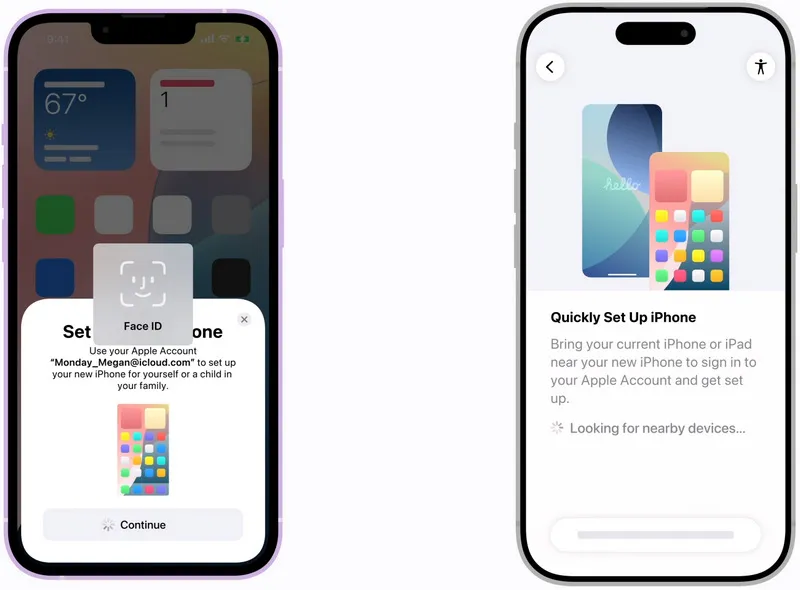
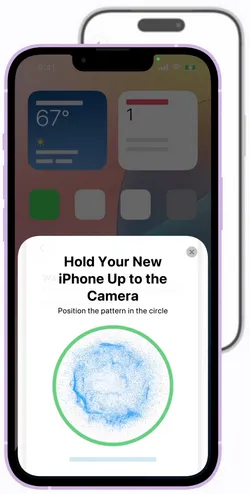
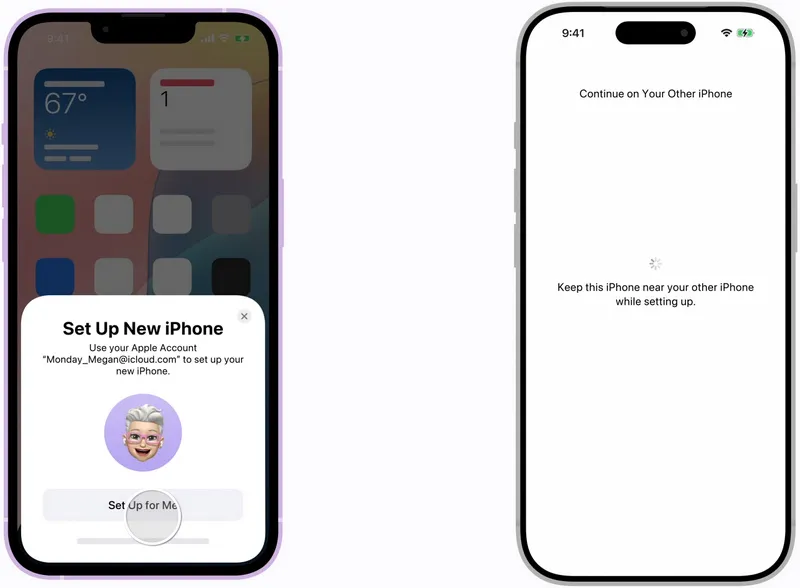
The transfer time depends on how much data you have. If your old iPhone contains a large number of photos, videos, or apps, the process may take longer.
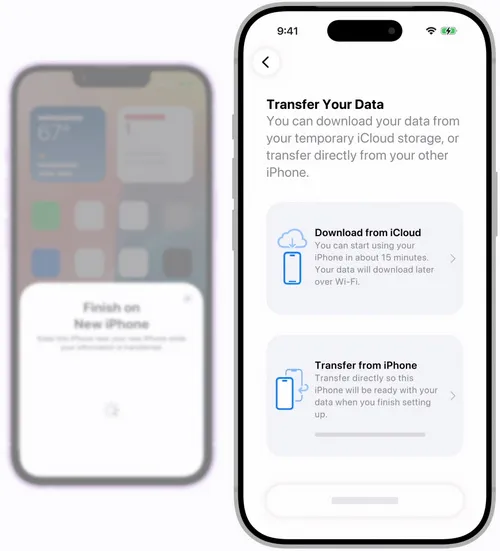
* Note: During setup, Quick Start may offer two different ways to move your data. You can choose to transfer directly from your old iPhone or download your information from iCloud. Direct transfer is usually better when you still have access to your old iPhone, both devices are available at the same time, and you want to move data without relying on internet speed.
2. Transfer iPhone Data with iCloud
iCloud is another official way to move your data to a new iPhone. This method is especially useful when your old iPhone is unavailable or when you already have a recent iCloud backup. Before restoring your new iPhone, you need to create a backup from your old device. You can go to Settings > Apple Account > iCloud > iCloud Backup > Back Up Now.
After your backup is complete:
- Step 1: Turn on your new iPhone.
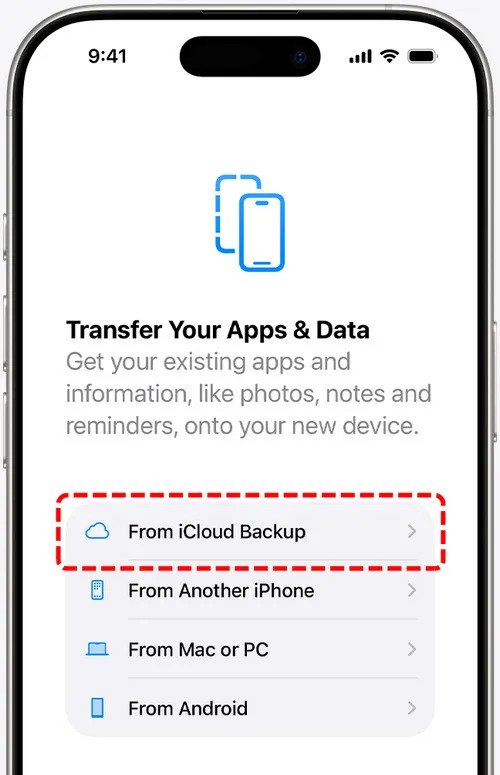
- Step 2: Simply follow the setup instructions. Connect to WiFi and enter the App & Data screen.
- Step 3: Select "Restore from iCloud Backup".
- Step 4: Sign in with your Apple Account.
- Step 5: Choose the latest backup.
- Step 6: Now your new iPhone will download available data and settings from iCloud.
3. Transfer iPhone Data with Finder, Apple Devices, or iTunes
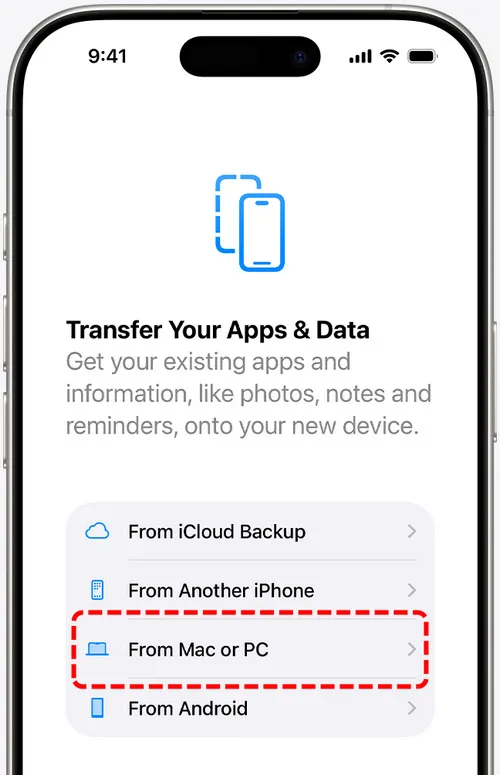
If you prefer transferring your iPhone data through a computer, you can use Apple's computer backup solutions. This method creates a local backup of your old iPhone and then restores that backup to your new device.
NOTE: If you have already set up your new iPhone, you need to erase it to proceed. Don't want to erase data on your new iPhone? Try Syncios Data Transfer to move all or selected data between iPhones without data deletion.
- Mac users (macOS Catalina and later): Use Finder.
- Windows 10 / 11 users: Use Apple Devices app.
- Older Windows systems: Use iTunes.
Transfer iPhone Data Using Finder on Mac
- Step 1: Connect your old iPhone to your Mac with a USB cable.
- Step 2: Open Finder and select your iPhone.
- Step 3: Choose "Back Up Now" to create a local backup.
- Step 4: Connect your new iPhone to the Mac.
- Step 5: Select Restore from this backup during setup.
- Step 6: Finder will transfer your backup data to your new iPhone.
Transfer iPhone Data Using Apple Devices on Windows
- Step 1: Install and open Apple Devices on your Windows PC.
- Step 2: Connect your old iPhone.
- Step 3: Create a backup.
- Step 4: Connect your new iPhone.
- Step 5: Restore the backup to your new device.
Compared with Quick Start, this method requires a computer. If you already keep local iPhone backups, or your internet connection is slow, or you want to keep a backup file on your computer, or you prefer transferring data without relying on cloud storage, this computer transfer is useful for you.
We know that Apple's own transfer methods are mainly designed for complete device migration. However, what if you have already set up your new iPhone and used it for a while? What if you want more control over the iPhone data? That's where Syncios helps, especially when you only need to transfer specific files instead of moving everything at once.
4. Transfer iPhone Data with Syncios
Syncios Data Transfer lets you transfer various types of data between iPhones, including contacts, messages, videos, photos, music, call logs, apps, bookmarks, ebooks, notes, calendars, Safari history, voicemail, WhatsApp, LINE and more. Just a few clicks and all your data is transferred, with all data intact on your target phone. No erase.
The best part is that you can choose which data type you would like to move. Not all, but selectively. It is not only used for the new migration, but for data transfer any time. Besides, it allows you to backup your iPhone data to a computer and restore it to another device. Backup whenever you want to prevent data loss.
So Syncios Data Transfer can provide more flexibility. Unlike Apple's method, which is designed mainly for setting up a new iPhone, Syncios focuses more on giving users control over individual types of data.
 Syncios Data Transfer
- One-click data transfer between iOS and Android.
- Transfer contacts, messages, call logs, music, photos, videos, apps, and more.
- Backup Android or iOS phone data to computer without iTunes or iCloud.
- Selectively restore local backup data to phone.
- Restore iTunes backups to iOS or Android.
- Sync media files from iTunes library to phone.
- Step 1: Connect. Launch Syncios Data Transfer on your PC or Mac. Then connect both your source and target iPhones to your computer using a USB cable. If you find that the iPhone order is wrong, you can simply click the "Flip" button in the middle to switch the position.
- Step 2: Select. Simply click the "Next" button and Syncios will show you all the available data, including photos, videos, contacts and more. You can select all data or only specific types to transfer from iPhone to iPhone.
- Step 3: Transfer. When you finish the selection, you can click the "Next" button to start the transfer. Wait for the transfer to be successful. Then, you can open your target iPhone to check if all the data has been moved in.
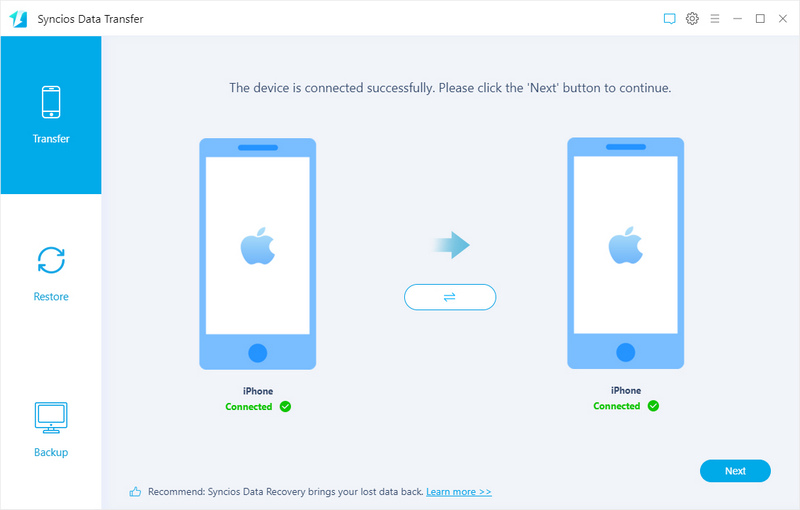
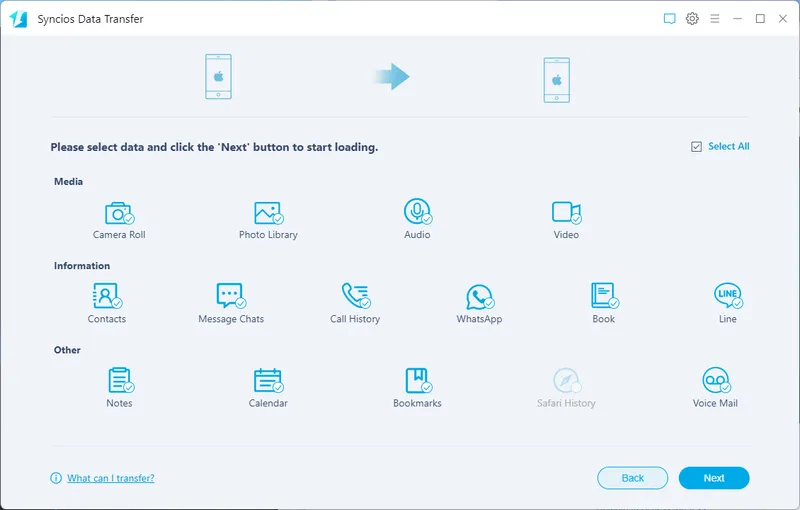
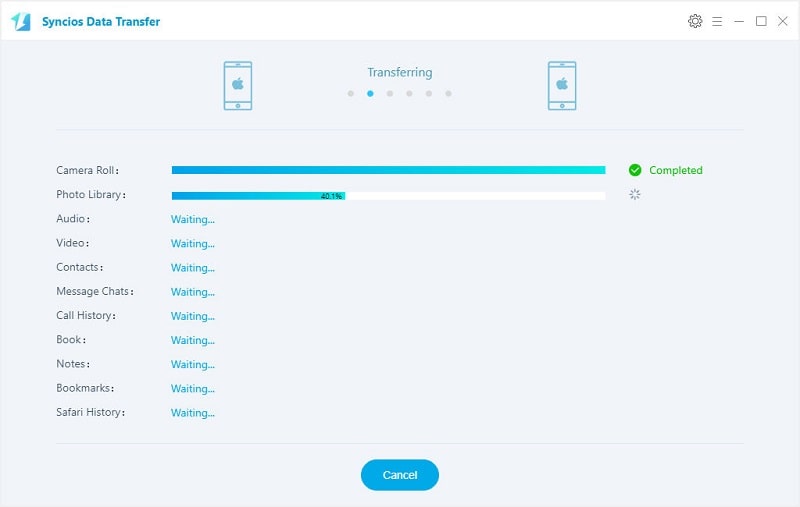
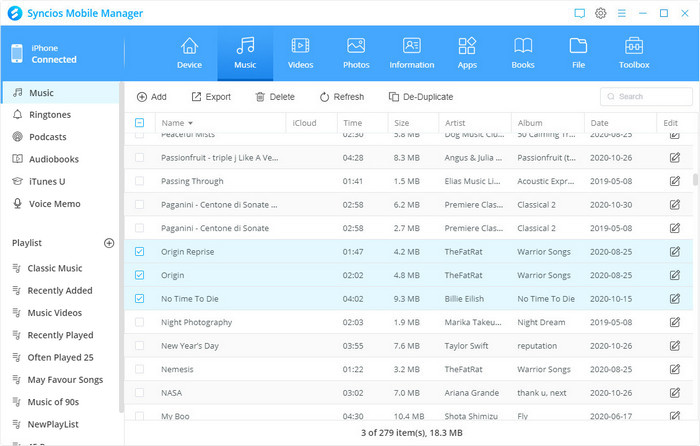
Syncios Data Transfer gives you the flexibility to transfer what you want between phones. But some users still ask what if they want to transfer or backup a couple of photos, music, contacts, etc.? We recommend Syncios Mobile Manager.
Which music, which photo, which album, which apps would you like to backup or transfer? You can preview clearly inside the program. Export, import, edit, delete and perform more operations with Syncios Mobile Manager.
5. Transfer iPhone Data with AirDrop
AirDrop is another convenient way to send files between iPhones. Although it's limited, it allows you to quickly share photos, videos, documents, and other supported files wirelessly.
- Step 1: Turn on Bluetooth and WiFi on both iPhones.
- Step 2: Enable AirDrop from Control Center.
- Step 3: Select the files you want to send.
- Step 4: Choose the other iPhone as the receiving device.
- Step 5: When it converts successfully, right-click the new song and select "Show in Windows Explorer".
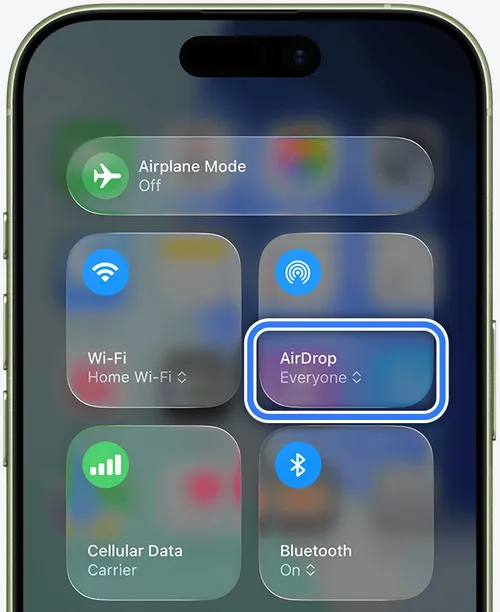
NOTE: AirDrop is not a complete iPhone-to-iPhone transfer method. It cannot transfer Apps, System settings, Messages, Complete backups, Most app data. Therefore, AirDrop is suitable for transferring a few files, but it is not recommended when you are moving everything from an old iPhone to a new iPhone.
Part 5. Fix iPhone-to-iPhone Transfer Not Working
Although transferring data from iPhone to iPhone is usually straightforward, you may still encounter problems during the process. Below are common issues and solutions.
1. Quick Start Not Showing Up
If the Quick Start prompt does not appear on your old iPhone, try the following solutions.
- Step 1: Check Bluetooth and WiFi. Quick Start requires Bluetooth to discover the nearby device and WiFi to complete the transfer.
- Step 2: Make sure both features are enabled.
- Step 3: Restart Both iPhones. Restarting both devices can fix temporary connection problems.
- Step 4: Keep devices close together. Place both iPhones next to each other and make sure there are no obstacles affecting the connection.
- Step 5: Update iOS. Older iOS versions may cause compatibility issues. Updating both devices can help Quick Start work properly.
2. iPhone Transfer Stuck or Taking Too Long
The transfer time depends on the amount of data being moved, the number of photos and videos, network conditions, device performance. For example, transferring several hundred gigabytes of photos and videos may take much longer than transferring only contacts and messages. So to improve transfer speed, you can:
- Step 1: Keep both iPhones connected to power.
- Step 2: Avoid using either device during migration.
- Step 3: Use a cable connection if available.
- Step 4: Remove unnecessary files before transferring.
3. Not Enough Storage on New iPhone
If your new iPhone does not have enough storage space, the transfer may stop or fail. Before transferring, check Settings > General > iPhone Storage. Here are ossible solutions.
- Step 1: Delete unnecessary photos or videos.
- Step 2: Remove unused apps.
- Step 3: Transfer only important files.
👉 If you do not need a full device migration, transferring selected files with Syncios Data Transfer may be a better option.
4. Transfer Failed During Setup
If your iPhone transfer fails during the setup process, try these steps:
- Step 1: Restart both iPhones. Make sure both devices are connected to power.
- Step 2: Check your WiFi connection.
- Step 3: Update both iPhones.
- Step 4: Try Quick Start again.
- Step 5: Use iCloud backup or computer backup instead.
5. Can I Transfer Data After Setting Up New iPhone?
Yes. If you want to perform a complete migration using Apple's official methods, you may need to erase the new iPhone and restart the setup process.
To erase your iPhone, go to Settings > General > Transfer or Reset iPhone > Erase All Content and Settings. Before doing this, make sure you backup any important information on your new iPhone. If you only need to move specific files, Syncios Data Transfer may allow you to transfer selected content without resetting the device.
FAQs About iPhone to iPhone Transfer
The easiest way is to use Quick Start. Place your old and new iPhone close together, follow the on-screen instructions, and choose the direct transfer option. If you cannot access your old iPhone, you can restore your new device from an iCloud backup or a computer backup.
There is no fixed answer. For most users, Quick Start may be the fastest and simplest option. But you should know that the actual transfer speed depends on the data size, transfer method, internet speed, device performance and more. A small amount of data may finish within a short period, while transferring a large photo and video library can take much longer.
Most personal data can be transferred, but some information requires additional setup after moving to the new iPhone, including Apple Pay cards, Face ID or Touch ID settings, some apps, certain downloaded content and more. If you want to know what data can be transferred, please check this table.
If you still have your old iPhone, direct transfer is usually the better choice because you can move data directly between devices. iCloud is more convenient if your old iPhone is unavailable, you already have a recent backup, or you just prefer restoring from the cloud.
Yes. You can transfer data without iCloud by using Quick Start direct transfer or Syncios Data Transfer.
Yes, if you use Quick Start direct transfer. A separate backup is not required because the data is transferred directly from the old iPhone to the new one. However, creating a backup before migration is still recommended in case something goes wrong.
If your new iPhone has already been set up, some Apple migration methods require you to erase the device before starting a complete transfer. If you want to transfer data from iPhone to iPhone without resetting, use Syncios Data Transfer.
Quick Start is the most recommended method because it is simple, built into iOS, and designed specifically for moving data to a new iPhone. Syncios Data Transfer is also best if you have already set up your iPhone or want to move data selectively. However, the best method depends on your situation.
Final Thoughts
How to transfer data from iPhone to iPhone? Which method should I choose? If you are still struggling, this ultimate guide has everything you need. Apple's official methods let you transfer the entire device, while Syncios Data Transfer also offers you a reliable and flexible way to transfer specific data types.
You don't have to go with the crowd, just choose the method that best matches your situation. After the transfer, don't forget to check your target iPhone. Then, you can enjoy it.
What's next? Download Syncios Data Transfer now!

Ethan Mercer | Senior Writer
Related Articles

 WhatsApp Transfer
  Mobile Manager
  YouTube Downloader
  Location Changer
  Passcode Unlocker
  Syncios D-Savior