

 >
iPhone >
>
iPhone >
How to Transfer Data from Old iPhone to iPhone 18 Pro / 18 Pro Max
Got a new iPhone 18 Pro or iPhone 18 Pro Max? The first thing you worry about is the data on your old iPhone. Photos, contacts, messages, music, apps, notes, and more all need to move to the new phone before you can fully switch over.
Fortunately, you do not have to move everything manually. Apple provides several ways to transfer data to a new iPhone 18 Pro / 18 Pro Max, and Syncios Data Transfer gives you another option when you want more control over what you move.
- Part 1. Which Way Should You Use to Transfer Data
- Part 2. Before You Transfer Data to iPhone 18 Pro / 18 Pro Max
- Part 4. What Data Can You Transfer
- Part 5. What If Your iPhone 18 Pro Is Already Set Up
- Part 6. What to Do When iPhone Transfer Gets Stuck
- FAQs About Transferring Data to iPhone 18 Pro / 18 Pro Max
Part 1. Which Way Should You Use to Transfer Data
You do not necessarily need to use the same method as someone else. Before starting, we will help you to choose the method that matches your situation.
| Method | Best For | Old iPhone Needed | Computer Needed | iCloud Needed |
|---|---|---|---|---|
| Quick Start | Moving to a new iPhone during setup | Yes | No | No |
| iCloud Backup | Restoring your data from a backup | Not necessarily | No | Yes |
| Finder or Apple Devices | Restoring a local computer backup | Not necessarily | Yes | No |
| Syncios Data Transfer | Transferring selected data between phones | Yes | Yes | No |
Part 2. Before You Transfer Data to iPhone 18 Pro / 18 Pro Max
A little preparation can prevent problems during the transfer.
1. Check the Storage
On your old iPhone, go to Settings > General > iPhone Storage and check how much space your current data is using. Then check the available storage on your iPhone 18 Pro or 18 Pro Max. If the new iPhone does not have enough space for the data you want to move, the transfer may not complete successfully.
2. Backup Old iPhone
Even when you plan to transfer directly from one iPhone to another, making a backup first is a good precaution. You can use iCloud or a computer backup. Syncios Mobile Manager is also recommended to selectively backup your iPhone data to a computer for free.
3. Check WiFi and Bluetooth
If you plan to use Quick Start, your old iPhone should be connected to WiFi and have Bluetooth turned on. Apple recommends keeping the two devices near each other and connected to power during the migration.
Part 3. How to Transfer Data from Old iPhone to iPhone 18 Pro / 18 Pro Max
If you are ready, follow our steps now to transfer your old iPhone data to your iPhone 18 safely and reliably.
Method 1. Quick Start
If you still have your old iPhone and your new iPhone 18 Pro / 18 Pro Max has not been fully set up, Quick Start is usually the easiest option. The process is built into iPhone setup, so you do not need to install another app or use a computer.
- Step 1. Turn on Your iPhone 18 Pro / 18 Pro Max
- Turn on the new iPhone and follow the setup instructions until you reach the Quick Start step.
- Step 2. Put Your Old iPhone Near the New iPhone
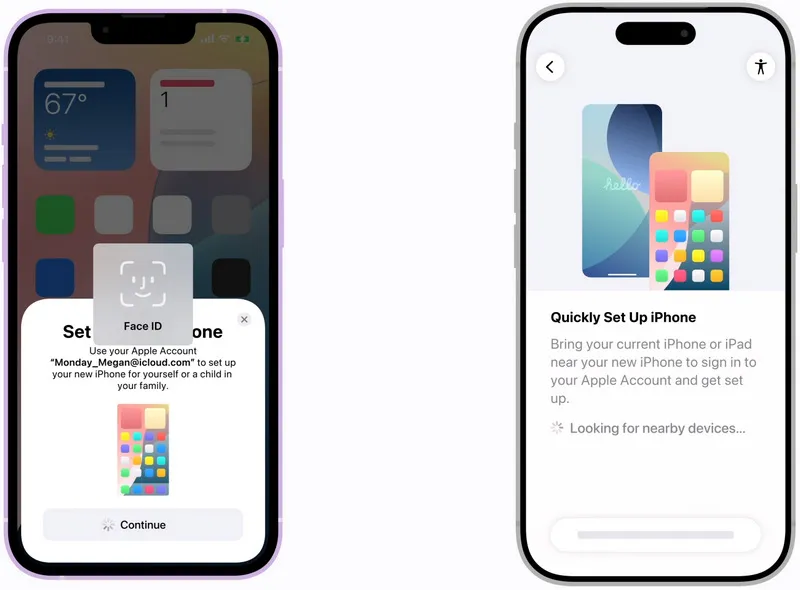
- Unlock your old iPhone and place it next to the iPhone 18 Pro / 18 Pro Max. Make sure WiFi is connected and Bluetooth is turned on and your old iPhone should display a prompt asking whether you want to set up the new device.
- Step 3. Follow the Quick Start Instructions
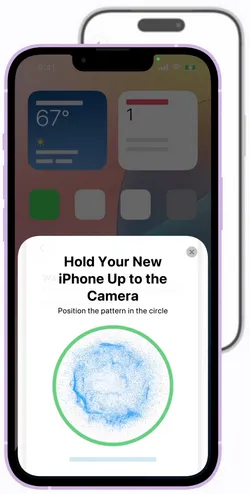
- Tap Continue on your old iPhone and follow the instructions displayed on both devices. You may be asked to use your old iPhone to scan an animation shown on the new iPhone and enter the old iPhone passcode on the new device.
- Step 4. Choose How to Move Your Data
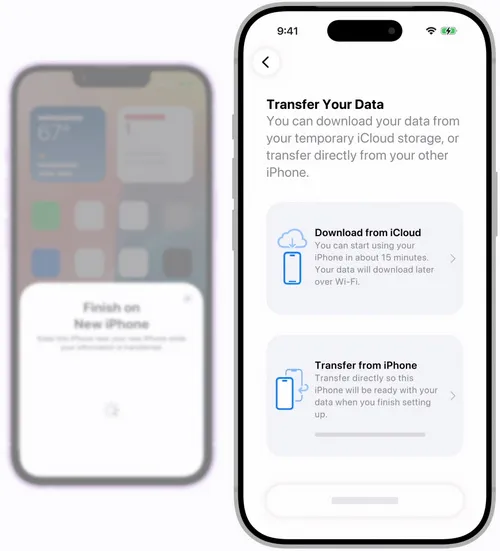
- When the transfer options appear, you can choose to transfer your information directly from the old iPhone or download it from iCloud.
- If you choose direct transfer, the data is moved from the old device to the new one. Apple notes that you need to wait for the transfer to finish before you can fully use both devices for the migration process.
- Step 5. Keep Both iPhones Connected
- Keep the two iPhones close together and connected to power until the migration is complete. The time required depends on the amount of data being transferred and other conditions such as the network connection.
Troubleshooting: What If Quick Start Does Not Appear
If the Quick Start prompt disappears or does not show up, restart both iPhones and try again. Also check that WiFi and Bluetooth are enabled on the old iPhone.
Method 2. iCloud Backup
iCloud is a good choice when you already have a recent backup of your old iPhone or when you do not want to transfer directly between the two phones. Instead of keeping the old iPhone connected throughout the process, you restore the new iPhone from the backup stored in iCloud.
- Step 1. Make Sure You Have a Recent Backup
- On your old iPhone, make sure the latest important data has been backed up to iCloud. If you need to create a new backup, complete that before moving to the new iPhone.
- Step 2. Turn On Your iPhone 18 Pro / 18 Pro Max
- Start the setup process on your new iPhone. Follow the onscreen instructions until you reach the data transfer stage.
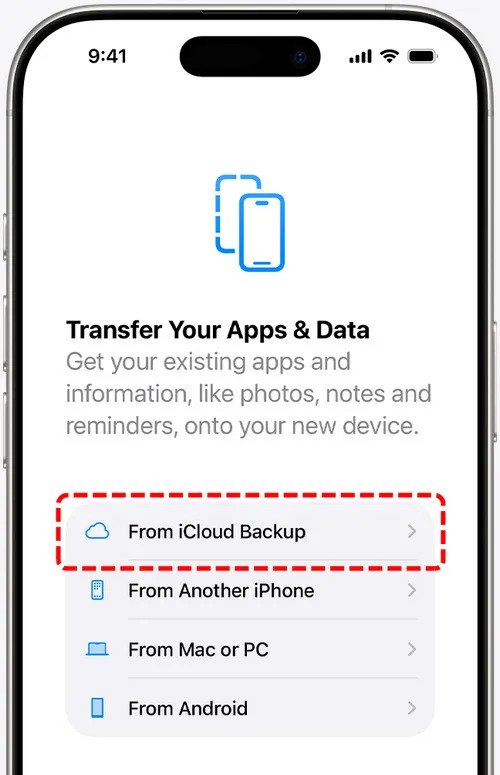
- Step 3. Choose the iCloud Restore Option
- Select the option to download or restore your data from an iCloud backup.
- Step 4. Sign In to Your Apple Account
- Use the Apple Account associated with your backup.
- Step 5. Select the Backup
- Choose the backup you want to restore and follow the remaining instructions. Your apps and data can continue downloading after the initial setup, so keep the new iPhone connected to WiFi and power while the process finishes.
Method 3. Finder or Apple Devices
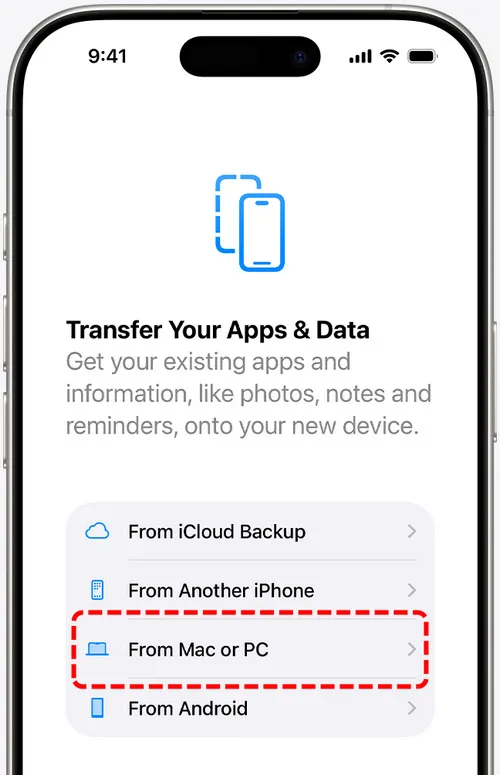
A computer backup is another option if you prefer to keep your iPhone backup locally. On a Mac, you can use Finder. On a Windows PC, Apple provides the Apple Devices app for managing iPhone backups and restores. This method can be useful when you already have a local backup or do not want to rely on iCloud for the transfer.
On a Mac with Finder
- Step 1. Connect your old iPhone to your Mac
- Use a USB cable to connect the old iPhone.
- Step 2. Open Finder
- Select the iPhone in Finder and create a backup.
- Step 3. Connect the new iPhone
- After the backup is complete, connect your iPhone 18 Pro or iPhone 18 Pro Max.
- Step 4. Choose the backup
- During setup, select the option to restore from the computer backup.
- Step 5. Wait for the Restore to Finish
- Keep the iPhone connected until the restore process is complete.
On Windows with Apple Devices
- Step 1. Connect your old iPhone
- Open the Apple Devices app and connect your old iPhone to the computer.
- Step 2. Create a Backup
- Follow the Apple Devices instructions to create a local backup.
- Step 3. Connect the New iPhone
- Disconnect the old iPhone after the backup is complete and connect the iPhone 18 Pro.
- Step 4. Restore the Backup
- Choose the backup you created and follow the instructions to restore it to the new iPhone.
NOTE: One important point is that Apple's computer based restore process is tied to the setup process. If your new iPhone 18 Pro / 18 Pro Max has already been set up, you need to erase it before restoring a backup this way. Don't want to erase new data from iPhone? Use Syncios Data Transfer to selectively transfer the data you like.
Method 4. Syncios Data Transfer
Sometimes you do not actually want to start over with a complete backup. Maybe your new iPhone is already set up. Maybe you only need to move photos and contacts. Or perhaps your old iPhone contains a large amount of data and you only want to move certain types of content. This is where Syncios Data Transfer can be useful.
Syncios Data Transfer lets you transfer various data to your new iPhone 18 Pro / 18 Pro Max, including photos, videos, contacts, messages, music, call logs, notes, calendars, and more, and also supports local backup and restore. Connect your source phone and target phone, select the supported data, and then you can have a copy of the other phone data.
 Syncios Data Transfer
- One-click data transfer between iOS and Android.
- Transfer contacts, messages, call logs, music, photos, videos, apps, and more.
- Backup Android or iOS phone data to computer without iTunes or iCloud.
- Selectively restore local backup data to phone.
- Restore iTunes backups to iOS or Android.
- Sync media files from iTunes library to phone.
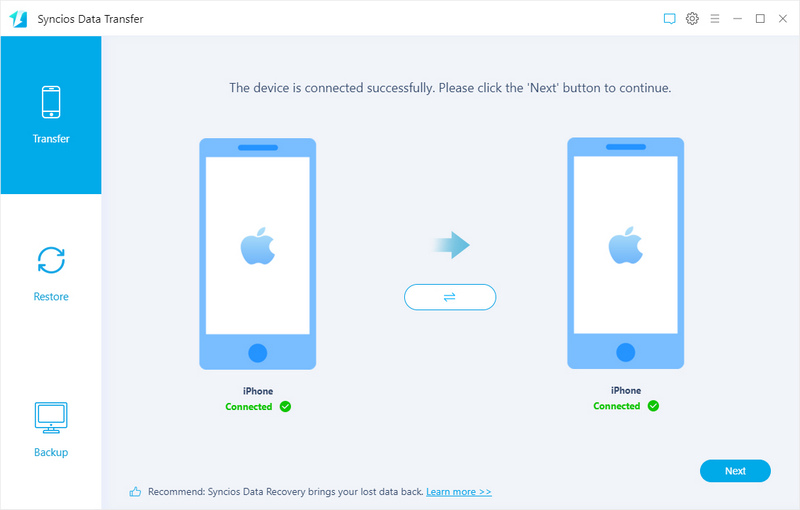
- Step 1: Connect. Install Syncios Data Transfer on your computer and open the program. Connect your old iPhone and your iPhone 18 Pro or iPhone 18 Pro Max to the computer with USB cables. Tap "Trust" if it prompts "Trust This Computer". Then you can switch the places by clicking the "Flip" button in the middle.
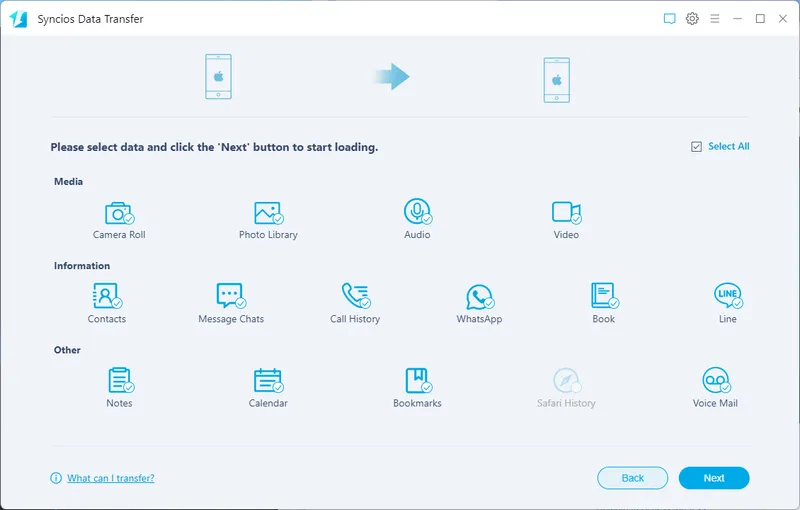
- Step 2: Select. Continue to the data selection screen. Syncios shows the supported data available for transfer. You can choose the data types you need instead of transferring everything at once.
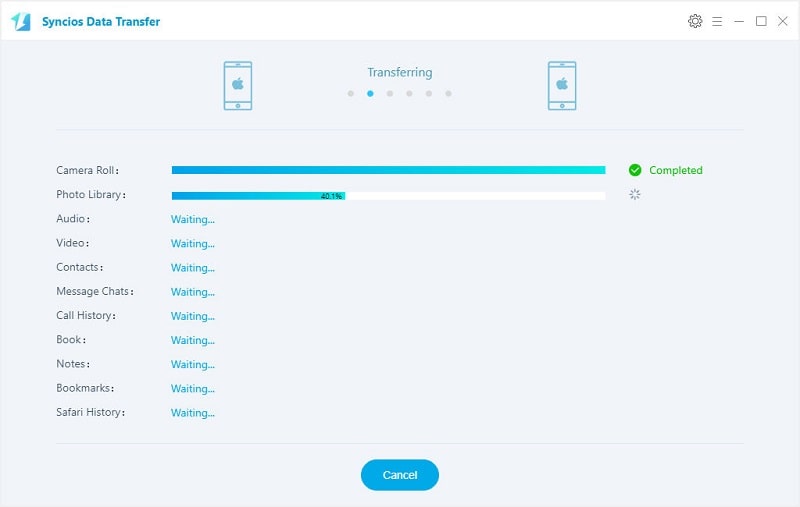
- Step 3: Transfer. After selecting the data, start the transfer and keep both iPhones connected to the computer until the process is complete. Avoid disconnecting either device during the transfer. When the transfer finishes, open the relevant apps on your iPhone 18 Pro or iPhone 18 Pro Max and check that the transferred content is there.
Part 4. What Data Can You Transfer
We know that you care about what data can be transferred most. So check the following table. The exact data available depends on the transfer method and the type of content involved, and do not assume that every type of content works exactly the same way across all methods. Apps, passwords, health information, eSIM data, and some app specific content can have additional requirements or limitations.
| Data Type | Quick Start | iCloud | Finder / iTunes | Syncios Data Transfer |
|---|---|---|---|---|
 Photos & Videos Photos & Videos |
 |
|
|
|
 Music * Music * |
|
— | |
|
 Contacts Contacts |
|
|
|
|
 Messages Messages |
|
|
|
|
 Call History Call History |
|
|
|
|
 Calendars & Notes Calendars & Notes |
|
|
|
|
 Apps * Apps * |
|
|
|
|
 eBooks eBooks |
|
|
|
|
 Bookmarks Bookmarks |
|
|
|
|
 Safari History Safari History |
|
|
|
|
| WhatsApp & App Data * | |
|
|
|
| Passwords * | |
|
|
— |
| Health Data * | |
|
|
— |
| eSIM * | |
— | — | — |
* The data transfer may vary depending on the app, iOS version, Apple ID, backup settings or carrier support.
Part 5. What If Your iPhone 18 Pro Is Already Set Up
This is a common situation. You turn on the new iPhone 18, sign in, download a few apps, take some photos, and only then realize that important data is still on the old phone. For a full restore using Apple's method, you may need to erase the new iPhone and start the setup process again. Restoring a computer backup in this situation requires erasing the device first.
If you do not want to erase what is already on your new iPhone, a selective transfer way can be more convenient. With Syncios Data Transfer, you can connect the old and new iPhones to a computer and select supported data to transfer. This makes it useful when you only need to move particular types of content rather than restore an entire backup.
Part 6. What to Do When iPhone Transfer Gets Stuck
A transfer that seems stuck does not always mean something is wrong. Large photo and video libraries can take considerably longer to move than smaller amounts of data. If the process is taking longer than expected, try the following.
Check the Connection
For Quick Start, make sure WiFi is working and Bluetooth is turned on. Keep both iPhones close together.
Keep Both Phones Connected to Power
A large migration can take time, so connect both devices to power and leave them alone during the transfer.
Check Available Storage
If the new iPhone does not have enough space, remove unnecessary content or choose a more selective transfer method.
Restart Both iPhones
If Quick Start does not appear or the setup process stops unexpectedly, restart both iPhones and try again. It can be very useful when the Quick Start setup prompt disappears.
Try Another Transfer Method
If one method is not working for your situation, you do not have to keep repeating the same process. For example, you can switch from direct Quick Start transfer to an iCloud or computer backup. If you only need selected content, you can also use Syncios Data Transfer for supported data.
FAQs About Transferring Data to iPhone 18 Pro
Yes. You do not have to use iCloud to move your data. If you still have your old iPhone, you can use Quick Start and transfer directly from the old device. If you have a local computer backup, you can use Finder on Mac or Apple Devices on Windows. If you want to transfer selected data between two iPhones through a computer, Syncios Data Transfer is another option.
Yes. A complete Apple backup restore may require you to erase the new iPhone first. If you only need selected data, Syncios Data Transfer can transfer supported content between the two connected iPhones without requiring you to restart the entire setup process.
Yes. Syncios Data Transfer lets you choose certain data types like photos or contacts before starting the transfer, which can be useful when you do not want to move everything from the old iPhone.
First, make sure WiFi and Bluetooth are enabled on the old iPhone, keep both devices close together, and restart both devices if the Quick Start prompt does not appear. You can also switch to an iCloud backup, computer backup, or another supported transfer method if Quick Start continues to fail.
Final Thoughts
Moving from an old iPhone to the iPhone 18 Pro or 18 Pro Max does not have to mean starting from scratch. For most people who still have their old iPhone, Quick Start is the easiest place to begin. If you already have an iCloud or computer backup, restoring from that backup may make more sense. When you need to move only certain types of data, or when the new iPhone has already been set up and you do not want to go through the setup process again, Syncios Data Transfer gives you another way to move supported data between the two iPhones.
What's next? Download Syncios Data Transfer now!

Ethan Mercer | Senior Writer
Related Articles

 WhatsApp Transfer
  Mobile Manager
  YouTube Downloader
  Location Changer
  Passcode Unlocker
  Syncios D-Savior