

 >
iPhone >
>
iPhone >
How to Transfer Data from Old iPhone to iPhone Duo
Apple unveiled the iPhone Duo, its first foldable iPhone. With pre-orders starting, many iPhone users are getting ready to upgrade to this revolutionary device. One of the most important steps when switching to a new iPhone is moving all your valuable data.
This guide walks you through every available method for transferring data from your old iPhone to iPhone Duo, including Apple's official Quick Start, iCloud, and iTunes methods, as well as the recommended Syncios Data Transfer tool for selective, fast, and reliable transfer. By the end of this article, you will know exactly which method works best for your situation and how to complete the transfer without losing any data.
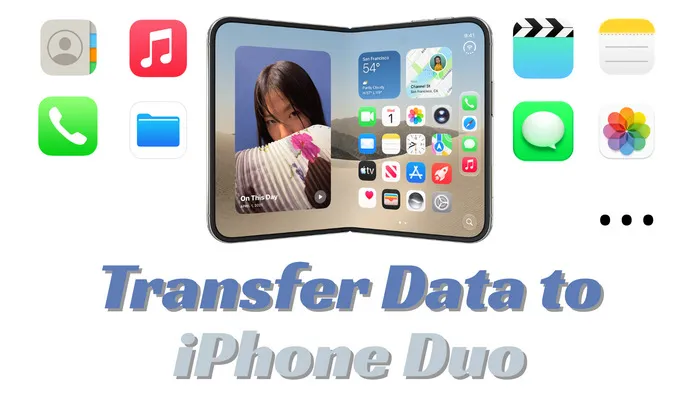
Part 1. Meet iPhone Duo and Prepare for Data Transfer
Before diving into the transfer process, it is helpful to understand what the iPhone Duo offers and what steps you should take to ensure a smooth data migration.
What is iPhone Duo
iPhone Duo is Apple's first foldable iPhone, featuring a book style design that opens to reveal a larger inner display. The device represents the most significant design change to the iPhone lineup since the original iPhone. Here are the key specifications you should know:
Display (Click to Expand) ▼
The iPhone Duo features a 5.4 inch outer display for quick interactions when closed, and a 7.6 inch inner display when unfolded. The inner display additionally features a nano texture finish to reduce reflections.
Design and Materials (Click to Expand) ▼
Crafted from grade 5 titanium with a polished mirror finish, the iPhone Duo is available in two colors: star white and night sky. The device also features a smaller Dynamic Island that can show up to three Live Activities simultaneously.
Performance and Software (Click to Expand) ▼
Powered by the A20 chip built on 2 nanometer process technology, the iPhone Duo delivers exceptional performance and efficiency.
Availability and Pricing (Click to Expand) ▼
Pricing starts at $1,999 in the United States. The device will be available through the Apple Store app, Apple website, Apple Store retail locations, and authorized carriers and resellers.
With its larger inner display and powerful hardware, the iPhone Duo is designed to handle all your existing iPhone data and apps seamlessly. Now let us look at what you need to do before starting the transfer.
What to Do Before Transferring Data
Taking a few minutes to prepare both your old iPhone and your new iPhone Duo before starting the transfer can save you time and prevent potential problems. Follow these checklist items to ensure everything goes smoothly.
1. Backup your old iPhone:
Even if you plan to transfer data directly, it is always wise to have a recent backup of your old iPhone. You can back up to iCloud by going to Settings > your name > iCloud > iCloud Backup > Back Up Now. You can also back up to your computer using Apple Devices (Windows) or Finder (Mac).
2. Update your old iPhone to the latest iOS:
Go to Settings > General > Software Update, and install any available updates. This ensures compatibility with the new iPhone Duo and prevents transfer errors caused by outdated software.
3. Charge both devices:
Plug both your old iPhone and iPhone Duo into power outlets. Data transfer can be battery intensive, and you do not want either device to shut down mid transfer. Apple recommends keeping both devices plugged in throughout the entire process.
4. Connect to a stable WiFi network:
For wireless transfer methods like Quick Start and iCloud restore, a strong and stable WiFi connection is essential. Avoid public WiFi networks, as they can be slow and unreliable for large data transfers.
5. Turn on Bluetooth on your old iPhone:
Quick Start uses Bluetooth to establish the initial connection between devices. Go to Settings > Bluetooth, and make sure it is turned on.
6. Make sure you have enough storage on iPhone Duo:
Check the storage capacity of your new iPhone Duo and ensure it has enough space to hold all the data from your old iPhone. You can check your old iPhone's storage usage by going to Settings > General > iPhone Storage.
7. Have your Apple ID and password ready:
You will need to sign in with your Apple ID during the setup process. If you use two factor authentication, make sure you have a trusted device nearby to receive verification codes.
8. Do not erase your old iPhone until the transfer is complete:
Wait until you have verified that all data has successfully transferred to your iPhone Duo before erasing or selling your old iPhone.
NOTE: If you have already set up your iPhone Duo and want to transfer data after setup, you will need to erase all content and settings first. Go to Settings > General > Transfer or Reset iPhone > Erase All Content and Settings. This will return the device to the setup screen where you can begin the transfer process. Want to transfer data after setup? Use Syncios Data Transfer to move data selectively whenever you want.
What Data Can Be Transferred to iPhone Duo
Most data from your old iPhone can be transferred to iPhone Duo.
| Data Type | Quick Start | iCloud Restore | Apple Devices / Finder | Syncios Data Transfer |
|---|---|---|---|---|
 Contacts Contacts |
 |
|
|
|
 Messages Messages |
|
|
|
|
 Call History Call History |
|
|
|
|
 Photos and Videos Photos and Videos |
|
|
|
|
 Music Music |
(re-download) |
(re-download) |
|
|
 Apps and App Data Apps and App Data |
|
|
|
Apps only |
 WhatsApp Chats WhatsApp Chats |
(via backup) |
(via backup) |
(encrypted backup) |
|
 LINE Chats LINE Chats |
(via backup) |
(via backup) |
(via backup) |
|
 Notes Notes |
|
|
|
|
 Calendars Calendars |
|
|
|
|
 Safari Bookmarks and History Safari Bookmarks and History |
|
|
|
|
 eBooks eBooks |
|
|
|
|
 Voicemail Voicemail |
|
|
|
|
| Selective Transfer (choose specific items) | No | No | No | |
| No Data Overwriting on Target | Full restore only | Full restore only | Full restore only | |
Part 2. Four Methods to Transfer Data to iPhone Duo
Now that you understand the iPhone Duo, have prepared your devices, and know what data can be transferred, let us explore each transfer method in detail.
Method 1: Use Quick Start for Wireless Transfer
Quick Start is Apple's recommended method for setting up a new iPhone. It allows you to transfer data directly from your old iPhone to your new iPhone Duo wirelessly, without needing a computer or iCloud storage.
- Step 1. Turn on your iPhone Duo and place it near your old iPhone
- Press and hold the side button on your iPhone Duo until the Apple logo appears. You will see a "Hello" screen in multiple languages. Place your new iPhone Duo next to your old iPhone. Make sure Bluetooth is turned on for both devices.
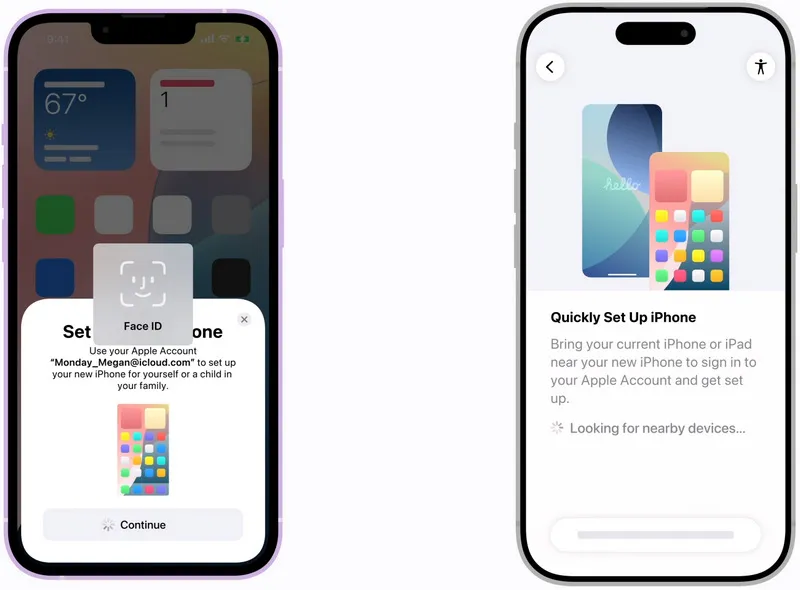
- Step 2. Confirm the Quick Start prompt on your old iPhone
- Your old iPhone will display a message that says "Set Up New iPhone" with your Apple ID. Tap Continue to proceed. If the prompt disappears, restart both devices and try again.
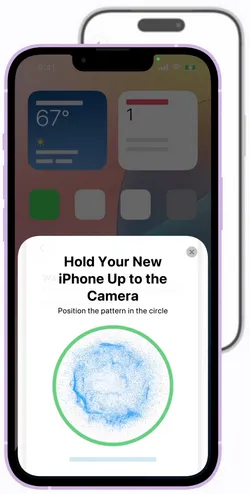
- Step 3. Scan the animation with your old iPhone camera
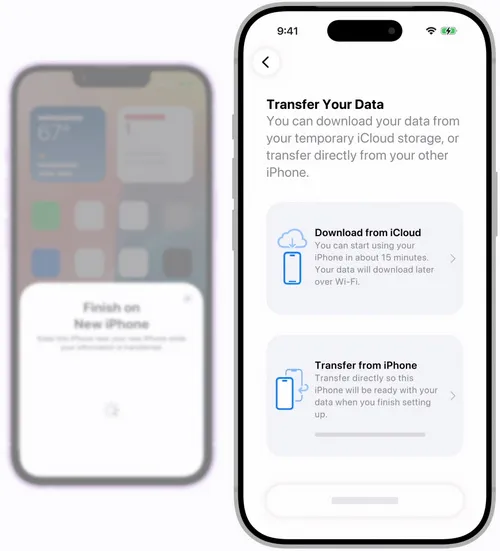
- Your iPhone Duo will display an animated pattern on the screen. Hold your old iPhone over the animation so that it appears centered in the viewfinder. Wait for a message that says "Finish on New iPhone" and then enter your old iPhone passcode on the new device when prompted.
- Step 4. Set up Face ID and choose transfer method
- Follow the on screen instructions to set up Face ID on your iPhone Duo. When you reach the "Transfer Your Apps and Data" screen, select "Transfer from iPhone" to begin the direct wireless transfer. You can also choose to transfer from iCloud if you prefer.
- If you choose direct transfer, the data is moved from the old device to the new one. Apple notes that you need to wait for the transfer to finish before you can fully use both devices for the migration process.
- Step 5. Keep both devices plugged in and wait for transfer to complete
- Keep both devices connected to power and near each other until the transfer is complete. It is normal for the process to take from 30 minutes to several hours. Do not use either device while the transfer is in progress.
- No computer required.
- No iCloud storage needed.
- Transfers most data types including app data and settings.
- Requires both devices to be in close proximity throughout the transfer.
- Cannot selectively choose which data to transfer (all or nothing).
- Requires the new device to be in initial setup state (must erase if already set up).
Method 2: Restore from iCloud Backup
Restoring from an iCloud backup is another official Apple method that allows you to transfer data to your new iPhone Duo over the internet. This method is useful if you do not have your old iPhone physically available. Apple also offers temporary iCloud storage for users who purchase a new iPhone, which can be helpful if your backup exceeds your current iCloud storage plan.
- Step 1. Make sure you have a recent iCloud backup of your old iPhone
- On your old iPhone, go to Settings > tap your name at the top > iCloud > iCloud Backup. Check the date of the last successful backup. If it is not recent, tap Back Up Now and wait for the backup to complete. You will need a WiFi connection for this step.
- Step 2. Begin setting up your iPhone Duo
- Turn on your iPhone Duo and follow the on screen setup steps. Select your language, region, and connect to a WiFi network. Set up Face ID when prompted and create a passcode.
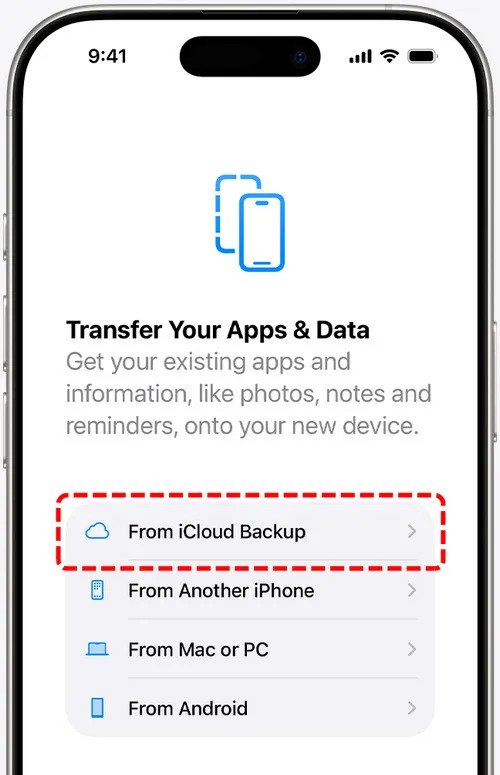
- Step 3. Select Restore from iCloud Backup
- When you reach the "Apps and Data" screen, tap "Restore from iCloud Backup." Sign in with your Apple ID and password. If you have two factor authentication enabled, you may need to enter a verification code sent to one of your trusted devices.
- Step 4. Choose the backup to restore
- You will see a list of available iCloud backups with their dates and sizes. Select the most recent backup from your old iPhone. If a message says that a newer version of software is required, follow the on screen steps to update iOS on your iPhone Duo before continuing.
- Step 5. Stay connected to WiFi and wait for the restore to complete
- Keep your iPhone Duo connected to Wi-Fi and plugged into power. The initial restore of settings and accounts may take a few minutes. After that, apps, photos, music, and other content will continue to download in the background for several hours or even days
- No computer required.
- Old iPhone does not need to be physically present.
- Temporary iCloud storage available for new device purchases.
- Requires sufficient iCloud storage.
- Transfer speed depends entirely on internet connection.
- Some purchased content may need to be re-downloaded manually.
Method 3: Restore from Apple Devices or Finder Backup
If you have access to a computer, you can use Apple Devices or Finder to create a local backup of your old iPhone and then restore that backup to your new iPhone Duo. This method is often faster than wireless methods because the data transfers through a USB cable rather than over WiFi or the internet.
- Step 1. Create a backup of your old iPhone on your computer
- Connect your old iPhone to your computer using a USB cable. Open Apple Devices (Windows) or Finder (Mac). Select your iPhone when it appears. In the Backups section, select "This Computer" and check the box for "Encrypt local backup" if you want to include saved passwords, Health data, and other sensitive information. Create a password for the encrypted backup and click "Back Up Now." Wait for the backup to complete.
- Step 2. Begin setting up your iPhone Duo
- Turn on your iPhone Duo and follow the initial setup steps. Select your language, region, connect to WiFi, set up Face ID, and create a passcode.
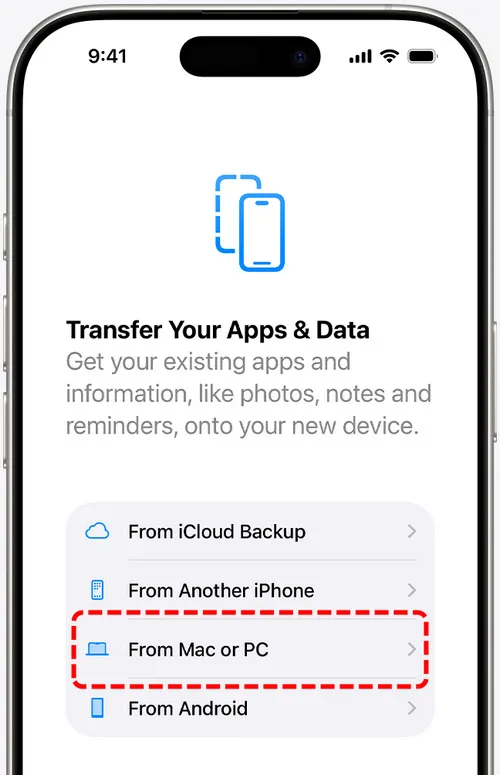
- Step 3. Select Restore from Mac or PC
- When you reach the "Apps and Data" screen, tap "Restore from Mac or PC." Connect your iPhone Duo to the same computer using a USB cable.
- Step 4. Select the backup in Apple Devices or Finder
- On your computer, select your iPhone Duo in iTunes or Finder. Choose "Restore from this backup" and select the backup you just created from your old iPhone. If the backup is encrypted, enter the password you created earlier. Click Restore and wait for the process to complete.
- Step 5. Keep the device connected until restore is complete
- Keep your iPhone Duo connected to the computer via USB until the restore is fully complete. The device may restart once or twice during the process. After the restore finishes, you can disconnect the device and complete any remaining setup steps. Some content like Apple Music and apps may continue to download in the background.
- Fast transfer speed through USB connection.
- No internet connection required after initial setup.
- No iCloud storage limitations.
- Requires USB cables for both devices.
- Encrypted backup password must be remembered or data cannot be restored.
- Requires the new device to be in initial setup state.
Method 4: Syncios Data Transfer (Recommended)
Syncios Data Transfer is a professional phone to phone data transfer tool that allows you to move data between iOS and Android devices with just one click. It supports transferring up to 15 types of data, including contacts, messages, call logs, WhatsApp, LINE, music, photos, videos, apps, Safari history, bookmarks, notes, calendars, eBooks, and voicemail. Unlike Apple's official methods, Syncios Data Transfer allows you to selectively choose exactly which data to transfer and does not overwrite any existing data on your iPhone Duo.
Syncios Data Transfer is available for both Windows and Mac computers and is fully compatible with the latest iOS versions, including the new iPhone Duo. It also offers additional features such as one click backup and restore, iTunes backup recovery, iCloud data recovery, and iTunes library sync, making it a complete data management solution for your mobile devices.
 Syncios Data Transfer
- One-click data transfer between iOS and Android.
- Transfer contacts, messages, call logs, music, photos, videos, apps, and more.
- Backup Android or iOS phone data to computer without iTunes or iCloud.
- Selectively restore local backup data to phone.
- Restore iTunes backups to iOS or Android.
- Sync media files from iTunes library to phone.
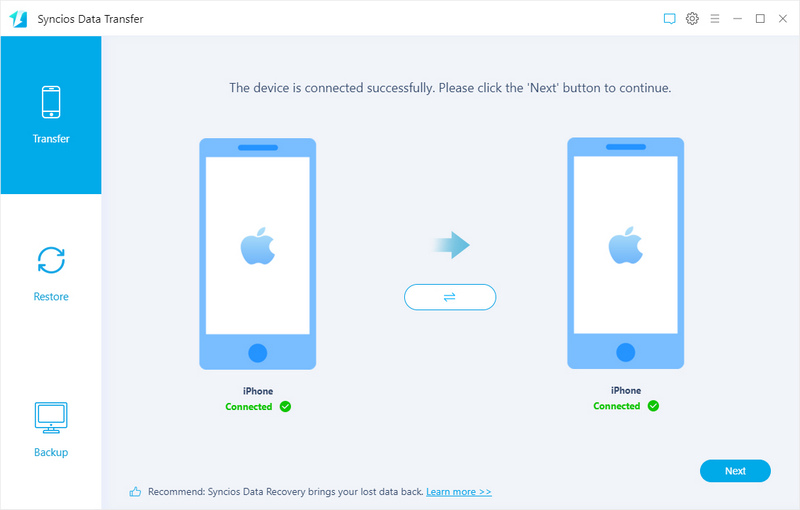
- Step 1: Connect. Download Syncios Data Transfer for your Windows or Mac computer and use USB cables to connect both your old iPhone and your new iPhone Duo to your computer.
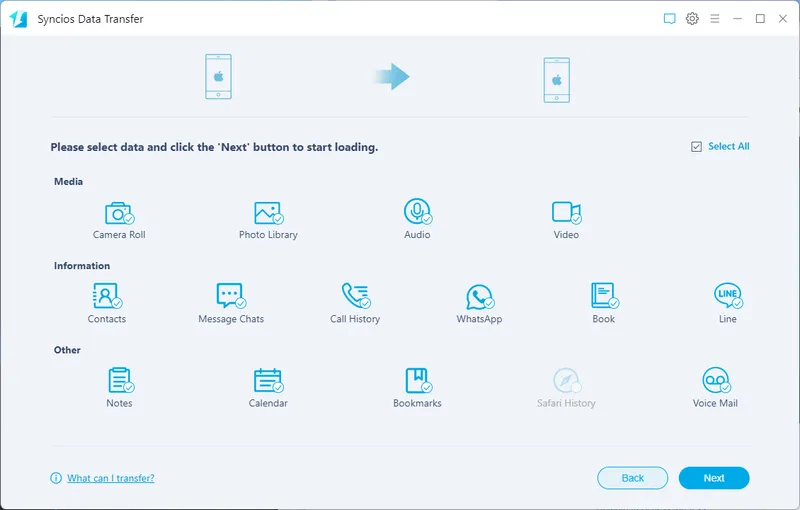
- Step 2: Select. On the main interface of Syncios Data Transfer, select the "Phone to Phone Transfer" mode. It will display a list of all transferable data types in the middle panel. You can select all data types or choose only specific ones.
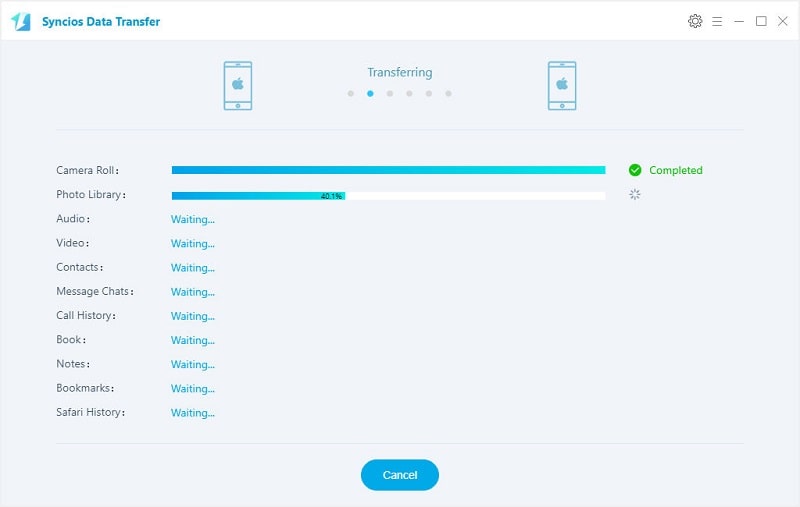
- Step 3: Transfer. Click the "Next" button to begin the transfer process. Syncios Data Transfer will now copy the selected data from your old iPhone to your iPhone Duo. You can monitor the progress in real time on the screen. Do not disconnect either device during the transfer process.
Part 3. Data Transfer Methods Compared
With four different methods available for transferring data to your iPhone Duo, it can be helpful to compare them side by side to understand their pros and cons. Check the following table.
| Feature | Quick Start | iCloud Restore | Apple Devices / Finder | Syncios Data Transfer |
|---|---|---|---|---|
| Computer Required | No | No | Yes | Yes |
| Internet Required | WiFi only | Yes (high speed recommended) | No | No |
| iCloud Storage Needed | No | Yes (sufficient for full backup) | No | No |
| Transfer Speed | Moderate (WiFi dependent) | Slow (internet dependent) | Fast (USB) | Fast (USB) |
| Selective Transfer | No | No | No | |
| No Data Overwriting | No (full restore) | No (full restore) | No (full restore) | |
| Works After Initial Setup | No (must erase) | No (must erase) | No (must erase) | |
| Cross Platform (iOS to Android) | No | No | No | |
| Additional Tools | No | No | No | Yes (backup, iTunes, iCloud, library sync) |
| Best For | Users with small data and strong WiFi | Users without old phone or computer | Users with computer and large data | Users wanting selective transfer, no overwrite, and extra features |
FAQs About Transferring Data to iPhone Duo
Yes, you can transfer most data from your old iPhone to iPhone Duo. Using ,Quick Start or iCloud backup, you can transfer contacts, messages, photos, videos, app data, settings, and more. With Syncios Data Transfer, you can selectively transfer up to 15 types of data including contacts, messages, call logs, WhatsApp, LINE, music, photos, videos, apps, Safari history, bookmarks, notes, calendars, and eBooks without overwriting existing data on your new device. Some types of data such as Apple Pay cards and Face ID settings cannot be transferred and will need to be set up manually on the new device.
No, you do not necessarily need a computer. Apple's Quick Start feature allows wireless transfer directly between two iPhones, and iCloud backup can be restored over WiFi without a computer.
No, transferring data to your new iPhone Duo does not delete anything on your old iPhone. All transfer methods, including Quick Start, iCloud restore, iTunes restore, and Syncios Data Transfer, copy data from the old device to the new one without removing the original data. Your old iPhone will remain exactly as it was. You can safely keep using your old iPhone as a backup or secondary device until you are certain everything has transferred correctly.
If a transfer is interrupted or fails, do not panic. First, check that both devices are still connected to power and that the WiFi connection (for wireless methods) or USB connection (for computer methods) is stable.
If you were using Quick Start or iCloud restore and the process failed, you may need to erase your iPhone Duo and start the setup process again from the beginning. If you were using Syncios Data Transfer, you can simply retry the transfer because the software does not overwrite existing data and can resume or restart the transfer without causing any issues. Before attempting any transfer again, make sure both devices have sufficient battery or are plugged in, and that your internet connection is stable.
Final Thoughts
Transferring data from your old iPhone to the new iPhone Duo is an important step in the upgrade process, and choosing the right method can make the difference between a smooth transition and a frustrating experience.
Apple's official methods all work well for full device transfers but may have important limitations. They require the new device to be in initial setup state, they do not allow selective data transfer, and they overwrite all existing data on the target device. For the most flexible, fastest, and safest transfer experience, we recommend using Syncios Data Transfer.
Get started with your iPhone Duo data transfer today and experience the future of foldable iPhone technology with all your important data by your side.
What's next? Download Syncios Data Transfer now!

Ethan Mercer | Senior Writer
Related Articles

 WhatsApp Transfer
  Mobile Manager
  YouTube Downloader
  Location Changer
  Passcode Unlocker
  Syncios D-Savior