>
How to >
GPS Location >
>
How to >
GPS Location >
How to Pause Location on Life360 [9 Ways]
Life360 helps parents keep tabs on kids' whereabouts and ensure their safety. It is also popular among partners making each other more intimate in daily life.
But people need a little space. Whether you are a teenager craving independence, or an adult who values privacy in relationships, sometimes appropreaite boudary makes life happier. So if the real-time location sharing on Life360 disturbs you, keep reading for 9 reliable methods to pause location on Life360 discreetly or temporarily.
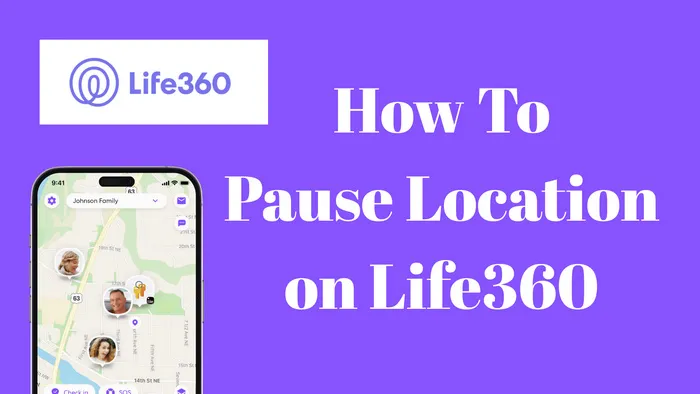

Part 1: What Is Life360?
Life360 boasts of sharing location in real-time, widely used among families. The user-friendly interface and safety-focused features make it a top choice for most parents to stay connected and feel at rest. It is not only about GPS tracking.
1. Real-Time Location Sharing:
Real-time location sharing is the core feature of Life360, allowing family members to create "Circles" and see the exact location on a map 24/7 through GPS tracking. In this way, parents will know if kids go home safely, go out or drive secretly.
2. Place Alerts:
This feature plays an important role in keeping parents informed of safety without texting and texting. It will send notifications automatically if members leave or arrive at the destination, such as "Arrived at School" or "Left Home".
3. Driving Behavior Monitoring:
Driving reports is also welcomed by parents, while teenagers may be uncomfortable with it. Your records of overspeed, harsh brake or driving while using phone are exactly monitored.
4. SOS Emergency Feature:
SOS emergency feature is very helpful if something you don't expected happen. You can press the button to send the alerts to all circle members. Also, the crash detection will automatically notify your emergency contacts if it detects car crahses.
5. Battery & Network Status:
Life360 shows your battery and network status to family members, checking if your phone is running low on battery or has no cell service. Most importantly, parents can judge if it is the cell issue or you turn off the tracking intentionally.
NOTE: These status details are reasons why family members get hints like "No Connection" and know you are preventing location sharing. If you want to pause GPS location on Life360 without anyone knowing, spoofing real location is the 100% working method!
Part 2: Why Pause Location on Life360?
Although Life360 brings family members closer together, sometimes they want privacy or personal space. Pausing location on Life360 is helpful, but don't worry, it's only temporary, not a total disappearance from your loved ones.
Privacy for Personal Time: Boundary is important and if someone needs privacy, respect them and let it go. Whether for a friend's meeting, staying alone, or running errands, constant tracking can be intrusive, so it will be fine if you pause location on Life360 and enjoy your personal time.
Independence for Teens: Things may get worse for adolescents if family members don't know the line. For teenagers, what they want is the opportunity to be independent without constant supervision.
Avoid Unnecessary Worry: If your family members are the type of person who will overthink or be easily anxious about what you are doing or where you are going, puasing location can simply prevent the stress and have a relieve.
Temporary Disconnection: Sometimes you want to pause the location and unplug from digital monitoring during vacations or personal events. Temporary self-cure, instead of long-term disconnection.
Part 3: How to Pause Location on Life360 [9 Ways]
Regarding how to pause location on Life360, there is no one-size-fits-all solution, some of which are discreet while others may be straightforward. Check the following table and corresponding methods, choose what works best for your situation.
| Methods | What Will Happen |
|---|---|
| 1. Spoof Real GPS Location | Show a virtual location on Life360 without detection. |
| 2. Use the Bubble Feature | Your circle members know you create the Bubble; meanwhile, Life360 shows your location as a general area instead of specific address. |
| 3. Stop Location Sharing | Life360 shows you the last updated location, but circle members will be notified your "Location Sharing Paused". |
| 4. Turn Off Precise Location | Life360 stops tracking you, and shows "Location Permission Off". |
| 5. Change Location Access | Changing Life360 location access to "While Using" or "Never", Life360 will show "Location Paused" notification to your circle. |
| 6. Turn Off Location Services | Life360 can't track you in real-time and displays "Location Permission Off". Your other location-based apps will be affected as well. |
| 7. Enable Airplane Mode | Life360 shows your last known location, and may have "Location Unavailable" or "No Network Connection" status to other circle members. Calls and texts will also be affected. |
| 8. Offload the Life360 App | Your location will freeze at the last known spot until you reopen the app. There will be no alerts to members but someone may notice that your location keeps freezing for a long time. |
| 9. Use a Burner Phone | Your Life360 shows you a spoofed location on a burner phone as if you were there. |
1. Spoof Real GPS Location [Without Anyone Knowing]
There are various methods on how to pause location on Life360, but if you want to pause or freeze your location in one spot without raising suspicion from family members, GPS spoofing is your best and most reliable choice. Changing your iPhone/Android location in 3 clicks helps get rid of any location tracking.
Syncios Location Changer is a professional tool that enables you to spoof your real GPS location on iPhone or Android instantly. Works for most location-based apps, including Life360, Snapchat, Tinder, Bumble, Pokémon Go, and more. You can mock your GPS coordinates to a fixed destination as you want, and Life360 will think you are actually staying there, without notifying anyone. It's undetectable and does not require a jailbreak or root.
Outstanding features of Syncios Location Changer are far more than a point spoofer. It allows you to import GPX files, so that you can access your saved routes. Moreover, to make your location more true, you can simulate the real GPS movement with customized speed and route. When your family members check your location on map, they can only see the tracks that you set virtually!
 Syncios Location Changer
- Instantly spoof your GPS location to any spot in the world with just one click.
- Create customized routes and set walking/jogging/driving speeds to mimic real GPS movement.
- Support for all location-based social and dating apps like Facebook, Snapchat, and Tinder.
- Ideal for games like Pokémon GO to catch more Pokémon in different areas.
- 360-degree joystick offers precise, lag-free control for a more immersive experience.
- Safe to use, requiring no jailbreak or root.
- Compatible with the latest iOS and Android versions.
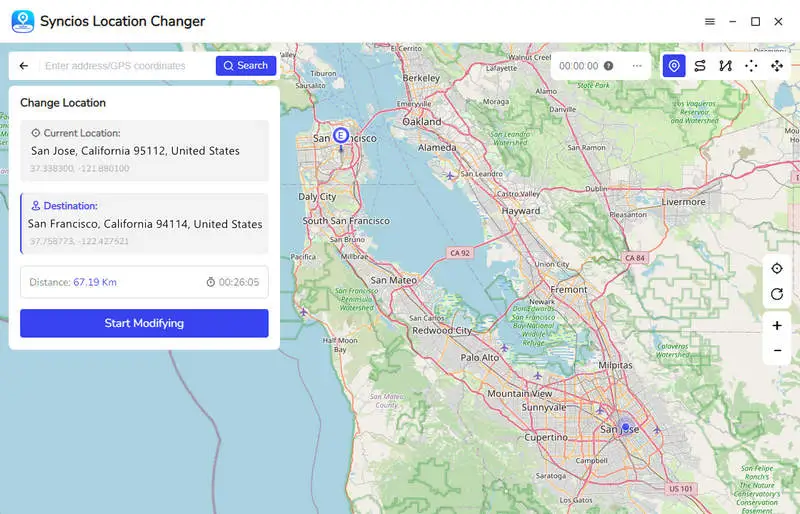
- Step 1: First download and install Syncios Location Changer on your computer. Then, connect your iOS or Android device that uses Life360 to your computer via a USB cable.
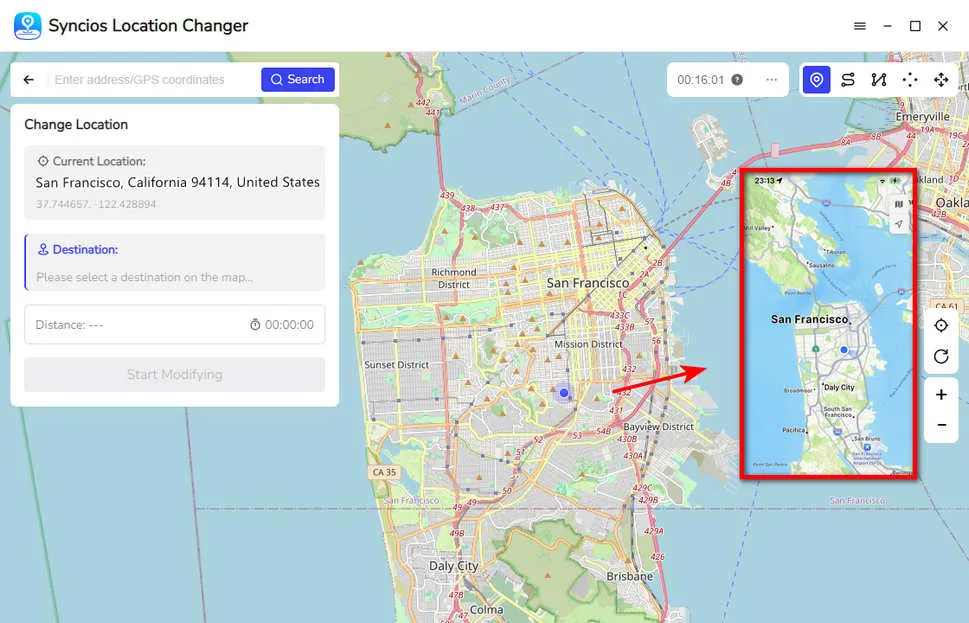
- Step 2: When the connection is successful, you will see a virtual map. On the upper-right corner, it shows you 5 spoofer modes, including Teleport Mode, Two-Spot Mode, Multi-Spot Mode, Jump Mode and Joystick Mode. To pause location on Life360, it is recommended to click the "Teleport Mode".
- Step 3: Now you can use your mouse to zoom in and zoom out the map, locate the specific destination you want to freeze on Life360.
- Step 4: When you decide on the spoofed location, click the "Start Modifying" button to change your GPS location. Meanwhile, your phone location will changed simutaneously.
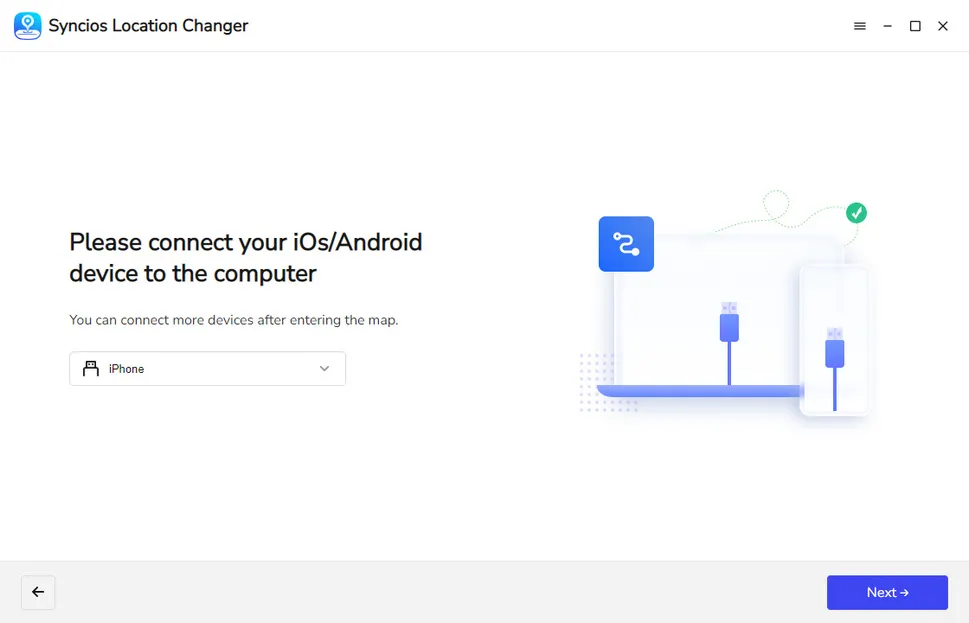
NOTE: The current default location displayed on the map may differ from your actual GPS location, which will not affect normal use.

2. Use the Bubble Feature
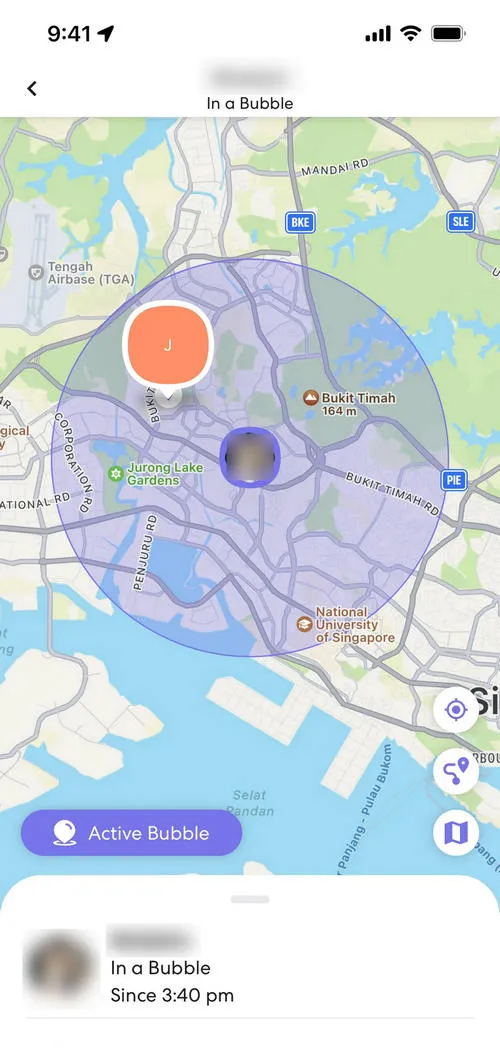
There is actually a feature in Life360 that is easy to overlook, namely Location Bubble. To pause location on Life360, it can draw a stationary range around your current location, instead of turning off positioning entirely. In this case, your location will basically not update while you are moving, as long as you don't get out of this Bubble. This method is best for short go-out use, such as when you just walk around the neighborhood and don't want family members to know exact position.
How to use the Bubble feature:
- Step 1: If you have already logged in Life360 account on your phone, just open this app.
- Step 2: Tap Settings icon in the bottom right corner.
- Step 3: Scroll down to find Location Sharing from the menu list.
- Step 4: Look for Location Bubble feature.
- Step 5: When you open it, you will see a slider that allows you to adjust the range size, usually around 0.1 to 5 miles.
- Step 6: Save after setting up, as long as you stay in this range, your location will not be updated frequently and no one will detect this.
- Step 7: If you don't need it afterwards, just go back to the same place and turn off Bubble.
3. Stop Location Sharing
If you don't mind letting family members in your circle know you have paused location, turning off location sharing is the easiest way to pause location on Life360. The key is that there is nothing hidden about this method, and others can see that you have turned it off. It is suitable for situations where you want to make it clear.
How to stop location sharing:
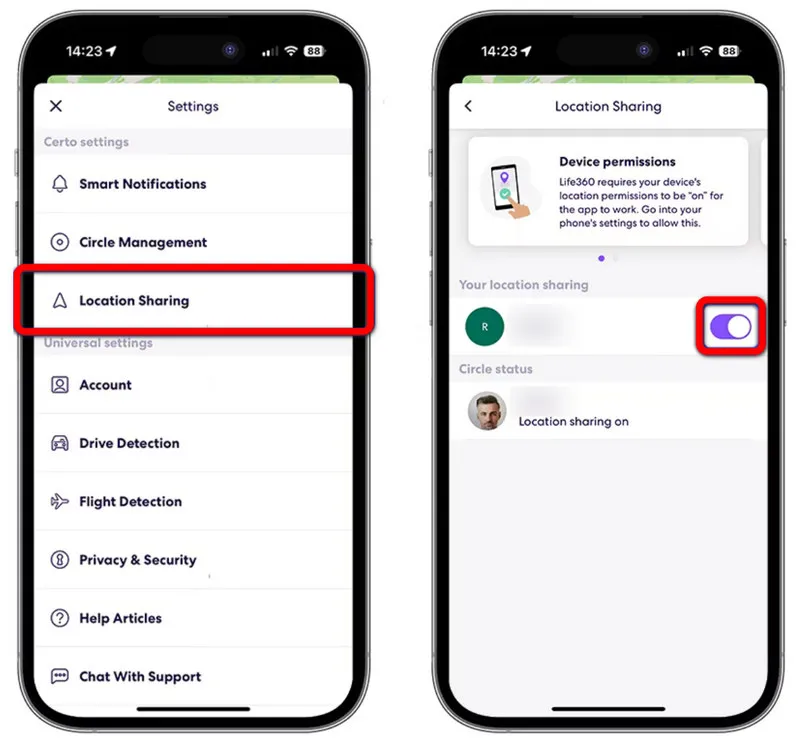
- Step 1: Open the Life360 app on your phone and navigate to the Home tab.
- Step 2: Next, tap your profile at the top of the screen.
- Step 3: Select Location Sharing option from the dropdown menu.
- Step 4: Toggle the Share My Location button to the off position.
- Step 5: And then a pop-up will prompt asking you to confirm, you need to select Stop Sharing.
- Step 6: If you want to resume sharing later, simply toggle the switch back on and confirm with Start Sharing.
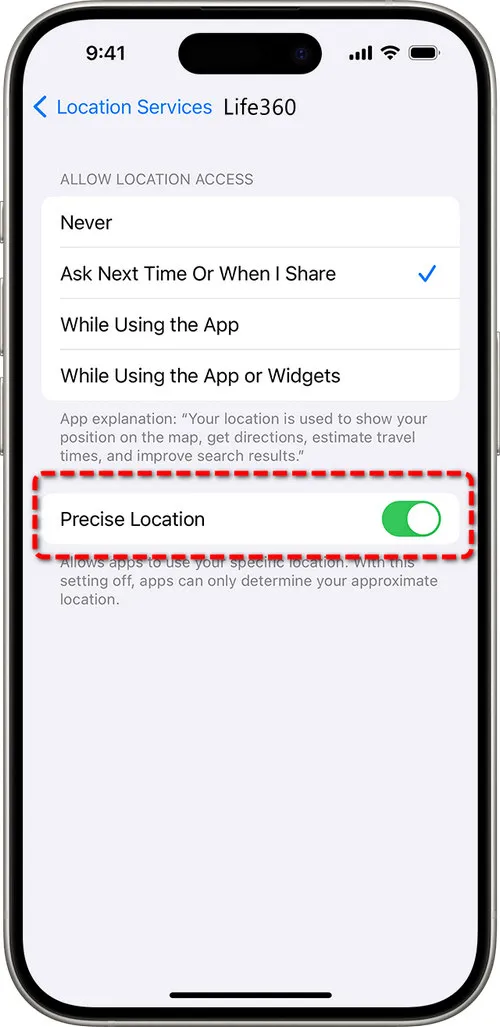
4. Turn Off Precise Location
Another effective method to pause location on Life360 is to turn off the precise location. Your phone can disable precise location for individual apps, including Life360, which means it will only get a rough estimate of your position, instead of your exact address. But you need to know that this method is not the full pause, but making your location blur and less specific.
How to turn off Precise Location:
- Step 1: Go to your phone’s Settings app and tap Privacy & Security.
- Step 2: Select Location Services. Scroll down and find Life360.
- Step 3: Turn off Precise Location.
- Step 4: When turned off, Life360 will only show a general area.
5. Change Location Access
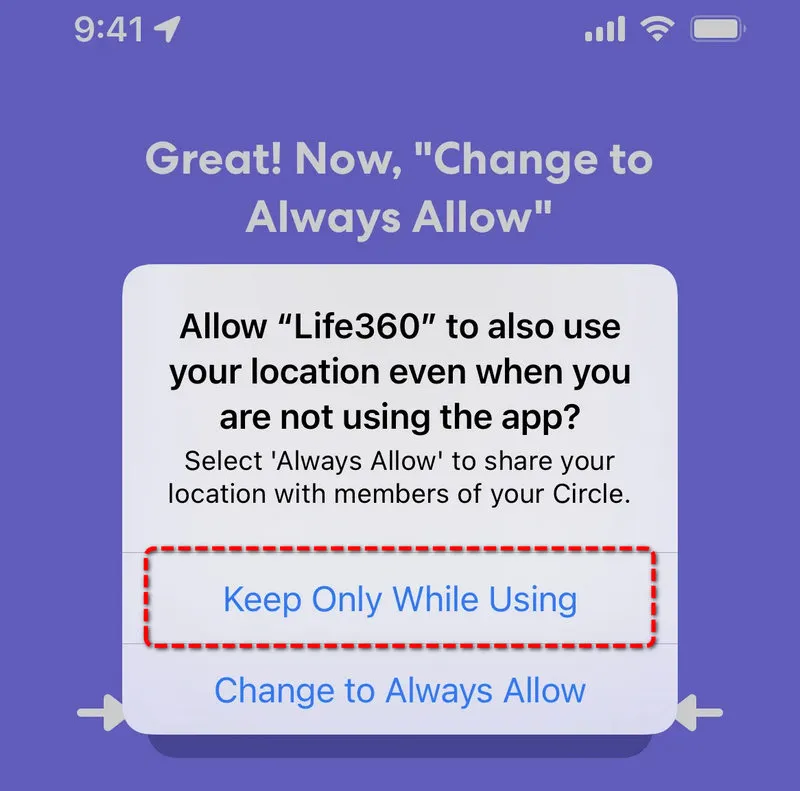
Adjusting Life360’s location access settings lets you control when the app can track your location, making it a good option to freeze the location. You can simply set it to While Using the App, instead of Always Allow, so it will limit the frequency of updating your GPS location to others.
For iPhone:
- Step 1: Go to Settings > Privacy & Security > Location Services > Life360.
- Step 2: Change the current access setting as While Using the App.
- Step 3: When you choose While Using the App, Life360 will only track you when you open it.
For Android:
- Step 1: Open Settings > Apps > Life360.
- Step 2: Go to Permissions > Location.
- Step 3: Select Only while using the app, or Deny. And which one you choose, depending on how much you want to restrict.
6. Turn Off Location Services
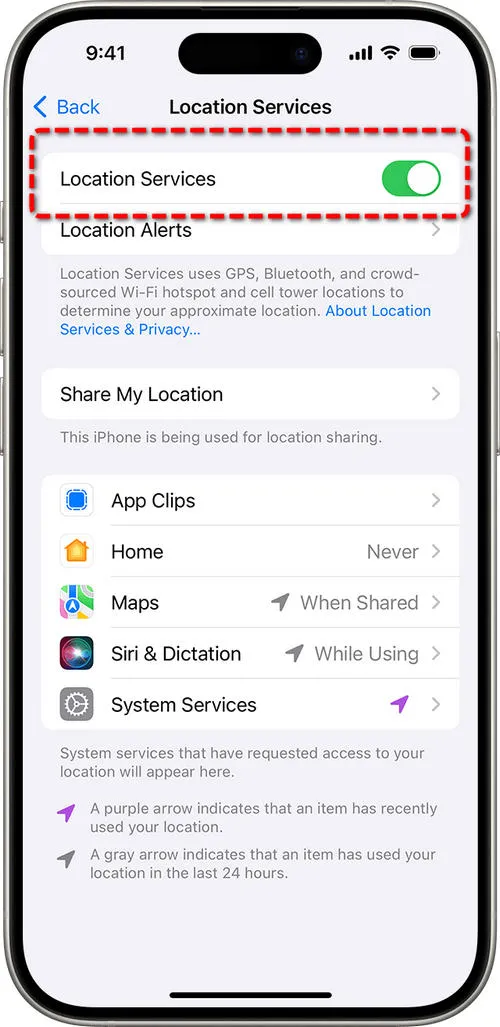
If you just don't want to be tracked temporarily, turning off your phone's location function is the most hassle-free. Once the GPS is turned off, Life360 cannot be updated. Of course, this will affect other apps, so remember to open them after using them.
For iPhone:
- Step 1: Swipe down from the top right corner to open Control Center.
- Step 2: Tap the location icon to make it gray.
- Step 3: Alternatively, go directly to Settings > Privacy & Security > Location Services to turn it off.
For Android:
- Step 1: Pull down Quick Settings.
- Step 2: Click the GPS icon off.
- Step 3: Or, You can also turn it off in Settings > Location.
7. Enable Airplane Mode
Airplane mode is a "hard pause". It disconnects all network connections, Life360 can't send the new location, and the map stops in place. The disadvantages are also obvious because your calls, text messages, and the Internet will stop together.
How to enable Airplane Mode:
- Step 1: Open Control Center.
- Step 2: Just tap the airplane icon and turn it orange.
- Step 3: When you need to restore, tap Close again.
8. Offload the Life360 App
If you don't want to delete the app, meanwhile, don't want it to run in the background, you can just offload Life360 to let it stop.
For iPhone:
- Step 1: Open Settings > General > iPhone Storage.
- Step 2: Find Life360.
- Step 3: Click Offload App to confirm.
- Step 4: The app will be removed, but the data will still be there, and you can reinstall it later.
For Android:
- Step 1: Open Settings > Apps > Life360.
- Step 2: Click Force Stop.
- Step 3: You can clear the cache but don't clear the data.
- Step 4: As long as you don't reopen the app, it won't update the location anymore.
9. Use a Burner Phone
This method is relatively high risky, but it is indeed used by some people. Since Life360 only recognizes the phone it has installed, so you can install Life360 on a backup machine, place it in a fixed location, such as at home, and use your main phone on a daily basis.
- Step 1: Prepare an inexpensive spare phone.
- Step 2: Install Life360 on your spare machine and log in to your account.
- Step 3: Put the spare machine in a fixed position and do not move.
- Step 4: The main phone does not have Life360 installed, or the location is turned off.
- Step 5: Life360 will only show you the location of the standby.
🔏Your privacy matters. Check for more tips:
FAQs About How to Pause Location on Life360
Yes. In most cases, people can know that you pause location on Life360. For example, if you turn off location sharing in Life360 app or change the location access, other members will be notified "Location sharing paused" or "Location permissions off". But there are still chances that no one will notice your location suspicion if you use the right method.
Syncios Location Changer lets you spoof your real GPS location and simulate movement in Life360 without detection. When members check your safety, they can only see your changed location or routes, while you are actually in another place. What's more, using the Bubble feature if you move in a short distance, or preparing a burner phone are also good options for not being detected.
Although Life360 does not have the official ghost mode, you can create a virtual location by using a location changer tool. This is the safest and most reliable method to help you ghost in Life360 without anyone knowing. Furthermore, when you enable the Bubble feature, you can move around without updating the location, making it look like you are ghosting your circle.
Yes. When you turn off your phone, Life360 will be turned off as well. It is unable to access your GPS and update the location to your circle, but shows your last known location, such as "Last seen 10 minutes ago". Besides, Life360 will show your battery status so your members will know that your phone is dying of a low battery or shut down intentionally. When you turn on your phone, the location will update soon, so it's not recommended to use this method as a long-term solution.
Yes, Airplane Mode will stop Life360 tracking, and it shows your last known position. Your location will freeze on the map until you enable the Airplane Mode. But other functions on your phone, such as calls and texts, will be affected.
Different methods can help your Life360 location stay in one spot. But if you want to freeze the location decreetly, it is highly recommended to use Syncios Location Changer and set a fixed location secretly. To make it more real, you can mimic the GPS movement creating a route to move automatically in map. Your family or friends will not be notified at all.
Final Words
Life360 keeps you safe and sound, but privacy cannot be ignored. With the 9 effective methods, you can pause location on Life360 discreetly or clearly. Syncios Location Changer can be your best bet, offering a secure and simple solution to take control of your digital footprint when you don't want to raise anyone's attention. With the spoofed location, now you can enjoy safety and personal space without hurting someone's feelings on Life360.
What's next? Download Syncios Location Changer now!

Ethan Mercer | Senior Writer
Related Articles
Related Solutions
Change your iPhone or Android GPS location with joystick control for games, dating, and social apps.