

How to Use Syncios Mobile Manager for Mac
Download PDF User Guide

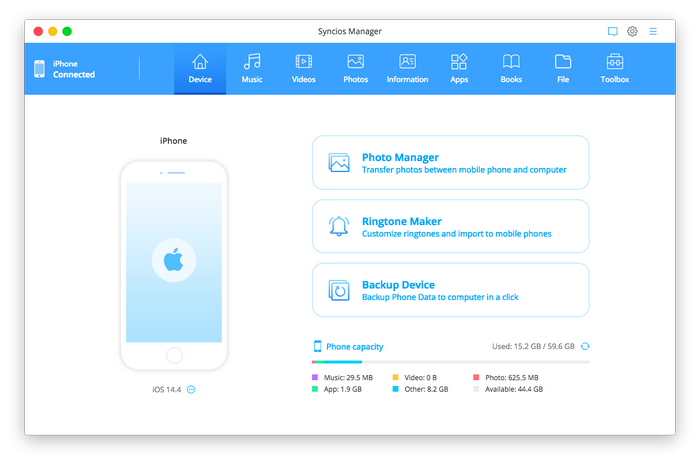
Step 1: Simply connect your iPod touch, iPhone, iPad or Android phone to your Mac, then launch Syncios Mobile Manager.
Step 2: You will see five items "Add", "Export", "Delete", "Refresh", "De-duplicate" under the main window.
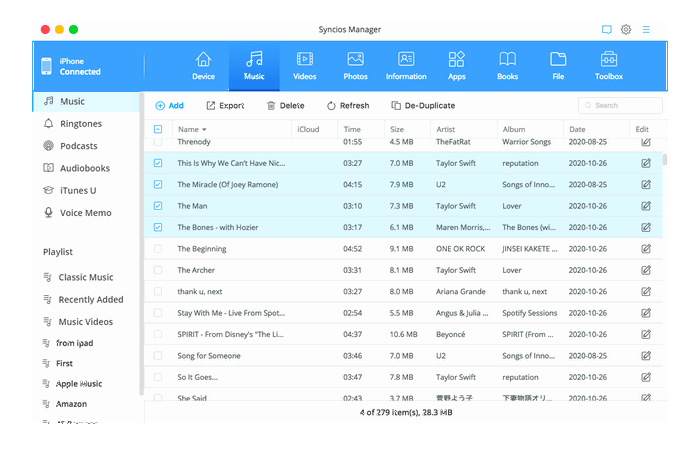
Step 3: Simply press Add button. Now, a dialog box will pop up, shows "Add file" and "Add folder". You can import music files selectively via "Add file", or import entire music album to your phone via "Add folder". Select songs from your mac computer and tap "OK" to start transferring music from mac to your iOS or Android devices.
Step 4: Under "Music" option, choose the songs you want to backup to your computer and click Export button. Choose the backup path and click OK. You can also check the default path via menu > settings.
Step 5: Under "Music" option, choose all the songs you have on your devices and click De-duplicate button. Syncios then will pop out a windows to allow you delete or merge duplicated songs.
Simply connect your iPod touch, iPhone, iPad or Android phone to your Mac, then launch Syncios Mobile Manager. Go to Video on main interface.
You will see five items "Add", "Export", "Delete", "Refresh" under the main window.
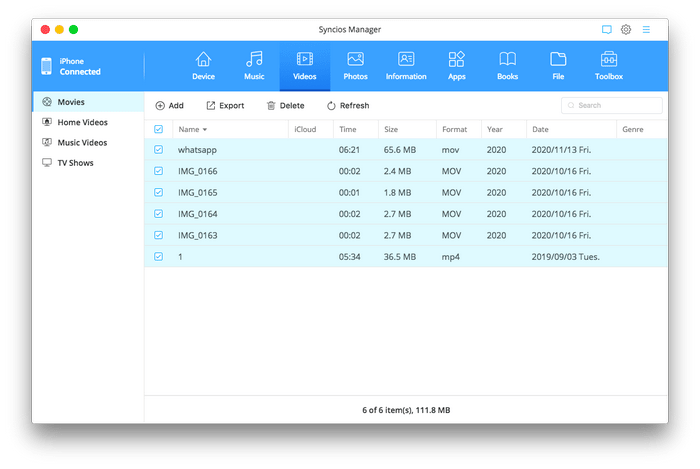
Step 1: Import Video from Mac to devices.
Simply press Add button. Now, a dialog box will pop up, shows "Add file" and "Add folder". You can import video files selectively via "Add file", or import entire video folder to your phone via "Add folder". Select videos from your mac computer and tap "OK" to start transferring video from mac to your iOS or Android devices.
Step 2: Export Video from Devices to Mac.
Under "Video" option, choose the videos you want to backup to your computer and click Export button. Choose the backup path and click OK. You can also check the default path via menu > settings.
Simply connect your iPod touch, iPhone, iPad or Android phone to your Mac, then launch Syncios Mobile Manager. Go to Photo on main interface. Then Syncios will show you all the photo album you have. Choose a desired one or your can directly import entire photo folder via "Add > Add folder"
You will see five buttons "Select all", "Import", "Export", "Delete", "Refresh" after you entered an album.
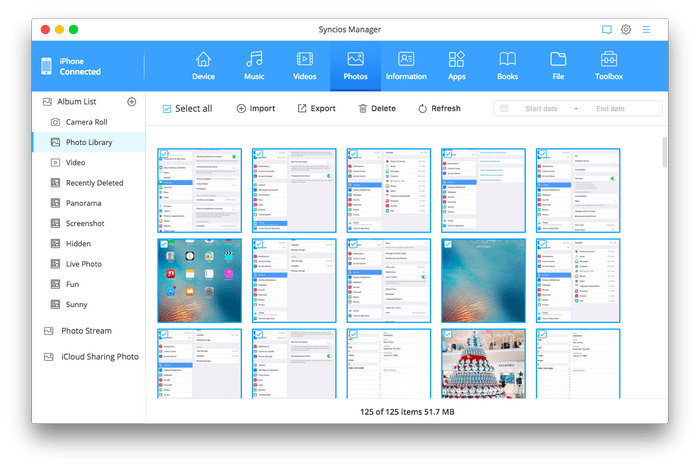
Step 1: Import Photo from Mac to devices.
Simply press Import button. Now, Syncios will allow you to choose photos from your computer. Select the photos and tap "OK" to start transferring photos from mac to your iOS or Android devices.
Step 2: Export Photo from Devices to Mac.
Choose the photos you want to backup to your computer and click Export button. Choose the backup path and click OK. You can also check the default path via menu > settings.
Simply connect your iPod touch, iPhone, iPad or Android phone to your Mac, then launch Syncios Mobile Manager. Go to Information on main interface. Then Syncios will show you all three options: Contact, Messages and Call history.
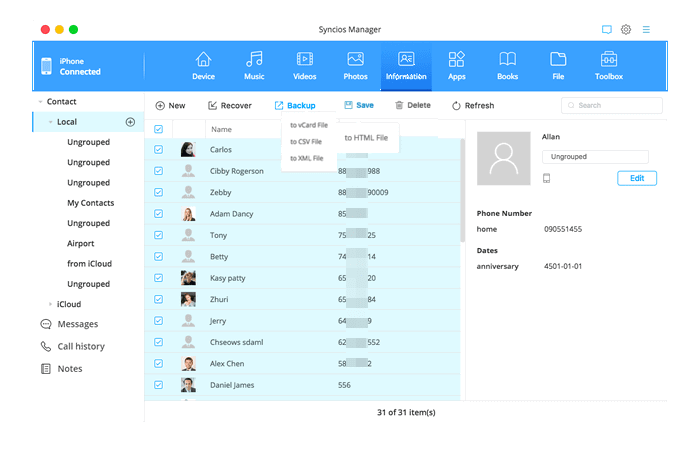
Step 1: Backup/Restore/Delete/Edit Phone Contacts.
Under Contact option, you can see five buttons: "New", "Recover", "Backup", "Delete" and "Refresh".
New: click this button, you can create a new contact to your phone. The contact details will show on the right panel. Click "Edit" button to add more information to your contacts, such number, email, address, fax, etc.
Backup: you can choose the contacts and click "Backup" button to save your contacts to mac.
Recover: recover contacts from the backup you made via Syncios Manager.
Delete: selectively remove contacts from your phone.
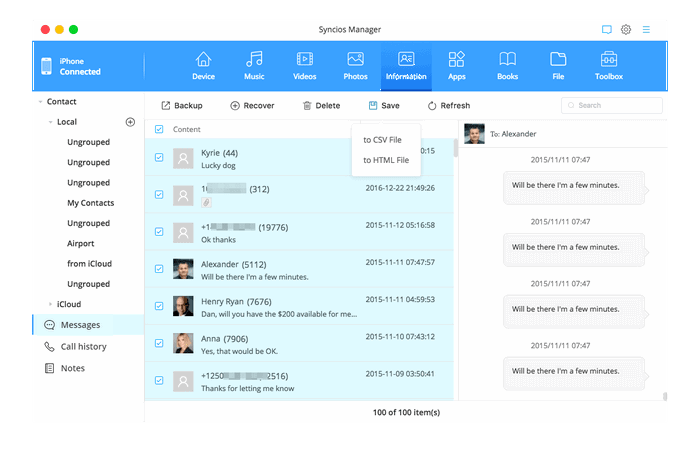
Step 2: Backup/Restore/Delete Phone Messages.
Under Messages option, you can see 4 buttons: "Backup", "Recover", "Delete" and "Refresh".
Backup: you can choose the messages and click "Backup" button to save your messages to mac selectively, including SMS/MMS/message attachments.
Recover: recover messages from the backup you made via Syncios Manager.
Delete: selectively remove messages from your phone.
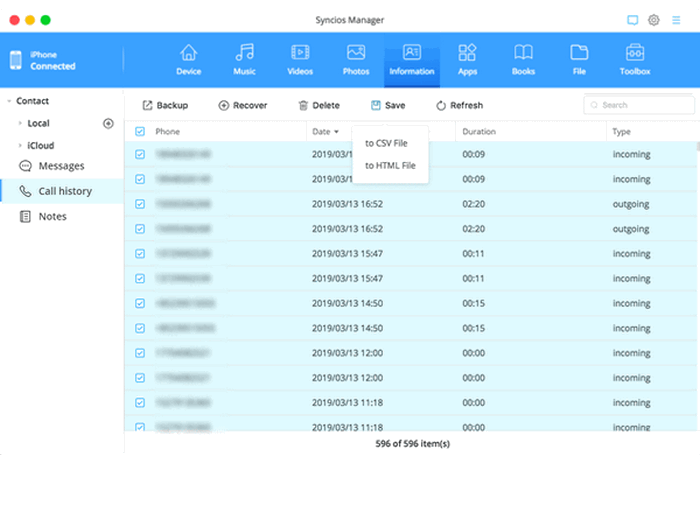
Step 3: Backup/Restore/Delete Call History.
Under Call history option, you can see 4 buttons: "Backup", "Recover", "Delete" and "Refresh".
Backup: you can choose the call history and click "Backup" button to save your call history to mac selectively, including incoming & outgoing call logs.
Recover: recover call history from the backup you made via Syncios Manager.
Delete: selectively remove call history from your phone.
Simply connect your iPod touch, iPhone, iPad or Android phone to your Mac, then launch Syncios Mobile Manager. Go to App on main interface. Under App option, you can see 4 buttons: "Add", "Uninstall", "Backup" and "Refresh".
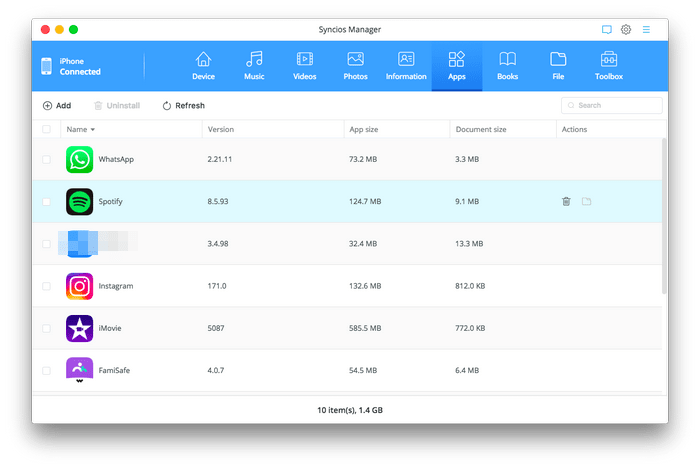
Add: select and install app from mac to your mobile devices.
Uninstall: selectively remove apps from your phone.
Backup: you can choose the apps and click "Backup" button to save your apps to mac. Please note Syncios doesn't support to backup apps on iOS 9+ devices.
Simply connect your iPod touch, iPhone, iPad or Android phone to your Mac, then launch Syncios Mobile Manager. Go to File on main interface. Under File option, you can see 4 buttons: "Add", "Export", "New", "Delete" and "Refresh".
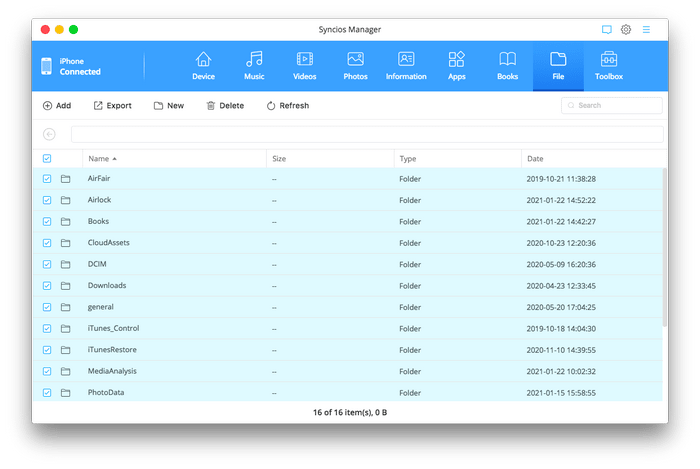
Add: import files or file folder from mac to your mobile devices.
Export: selectively transfer files or file folder from your phone to mac.
New: create new file folder.
Delete: selectively remove files or file folder from your phone.
User Say
Louis White, Canada
"It’s a very simple phone transfer tool. Transfer any data, you only need one click, and with no extra help of other tools. Great!"