>
How to >
>
How to >
How to Remove Passcode from iPhone [5 Safe Methods]
Forget your iPhone passcode? Inherited a locked iOS device? Can't unlock due to a broken screen? Before the device locks you out entirely, you need to take action to access your phone again. The good news is there are 5 safe and easy methods to remove passcode from iPhone, whether you have the password or not. This guide introduces step-by-step instructions that work for most iPhone models. Let's dive in.
- Method 1: Remove Passcode from iPhone Using Settings
- Method 2: Remove Passcode from iPhone Using iTunes
- Method 3: Remove Passcode from iPhone Using iCloud
- Method 4: Remove Passcode from iPhone Using Erase iPhone
- Method 5: Remove Passcode from iPhone Using iPhone Unlocker
- FAQs About Remove Passcode from iPhone
| Method | Pros | Cons | Password? | Other Requirements |
|---|---|---|---|---|
| 1. Settings | Password needed | |||
| 2. iTunes | No password needed | |||
| 3. iCloud | Password needed | |||
| 4. Erase iPhone | Password needed | |||
| 5. iPhone Unlocker | No password needed | Need a computer |
Method 1: Remove Passcode from iPhone Using Settings
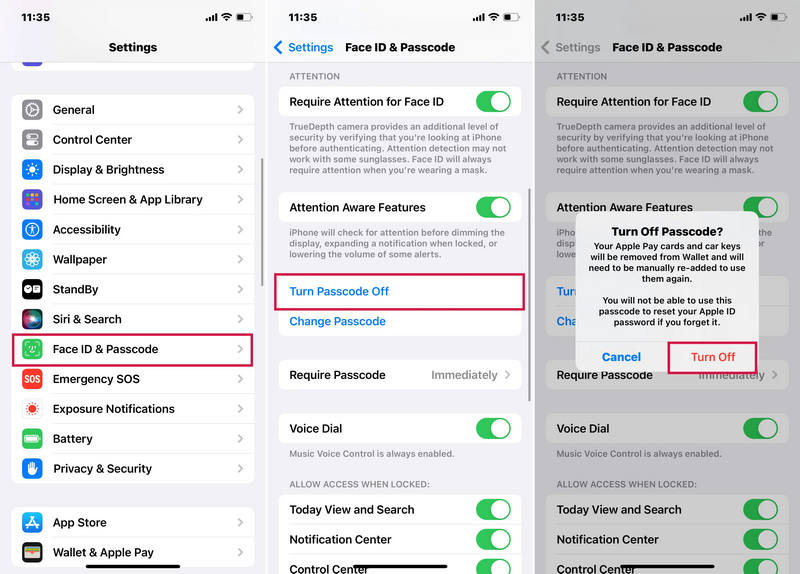
To remove passcode from iPhone, turning passcode off is the simplest and fastest method. But this works only if you can unlock your iPhone first. It’s ideal if you want to disable the passcode voluntarily, switch to Face ID only or fix a glitchy passcode prompt.
- Step 1: When you know the password exactly, unlock your iPhone first.
- Step 2: Open the "Settings" app, then tap "Face ID & Passcode". For older models, tap "Touch ID & Passcode".
- Step 3: Select the option "Turn Passcode Off".
- Step 4: Enter your current passcode to confirm your choice.
- Step 5: Choose "Turn Off" when prompts. Now you remove passcode from the iPhone successfully.
NOTE: This method won’t work if you are locked out of your device. You can skip to the following methods for locked iPhones, or simply remove it with a few clicks using iPhone Unlocker. Best for beginners and those who don't want to read words and are in urgent need.
Method 2: Remove Passcode from iPhone Using iTunes
If you don't remember the passcode and can’t unlock your iPhone, using iTunes is a classic and official way to remove passcode from iPhone. You should have a computer that you have previously synced your iPhone with.
- Step 1: You should update iTunes to the latest version and open it on your computer.
- Step 2: Connect your locked iPhone to the computer using a USB cable.
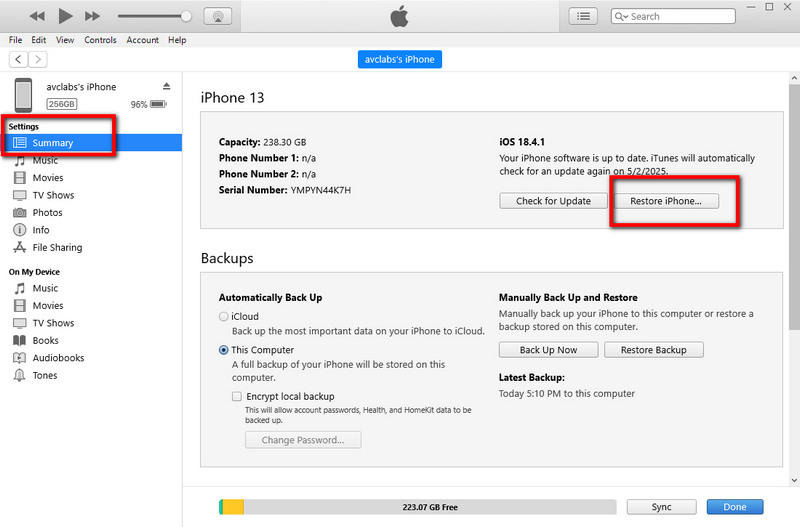
- Step 3: If iTunes recognizes your iPhone, you can directly click "Summary" > "Restore iPhone" to restore your device.
- Step 4: But iTunes may not show your device because you can't access your iPhone and tap "Trust" when prompted to "Trust This Computer" on your iPhone. Under these circumstances, you need to put your device into recovery mode.
- For iPhone 6s or earlier: Hold Home + Side button until the recovery screen appears.
- For iPhone 7/7 Plus: Hold Volume Down + Side button until recovery mode shows up.
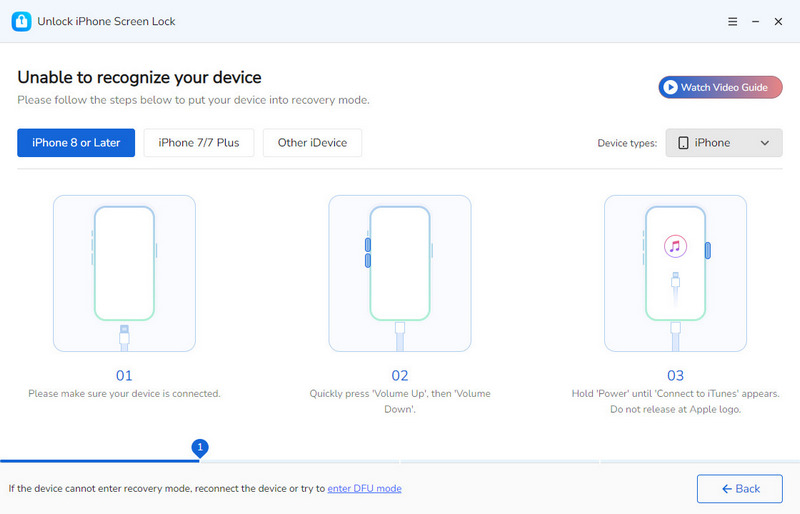
- For iPhone 8 or later: Press and quickly release Volume Up, Volume Down. Then hold the Side button until the recovery mode screen appears.
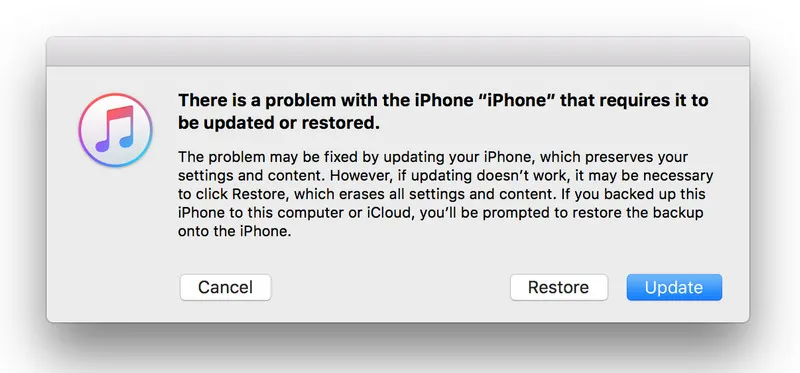
- Step 5: When you enter the recovery mode, a pop-up will appear in iTunes saying "There’s a problem with the iPhone that requires it to be updated or restored". You can directly click the "Restore" button.
- Step 6: iTunes will download the latest iOS firmware and restore your iPhone. Note that this process erases all data, including removing passcode.
- Step 7: After restoring, you can set up your iPhone as new or restore from a backup to recover your data.
Method 3: Remove Passcode from iPhone Using iCloud
Compared to iTunes, using iCloud to remove passcode from iPhone works remotely and requires no computer. This method requires you to have Find My iPhone enabled on your locked device and it's ideal if your iPhone is lost or stolen.
- Step 1: Go to icloud.com/find from a web browser on any device. Computer, tablet, mobile phone, etc.
- Step 2: Then you need to sign in with your Apple ID and password associated with your locked iPhone.
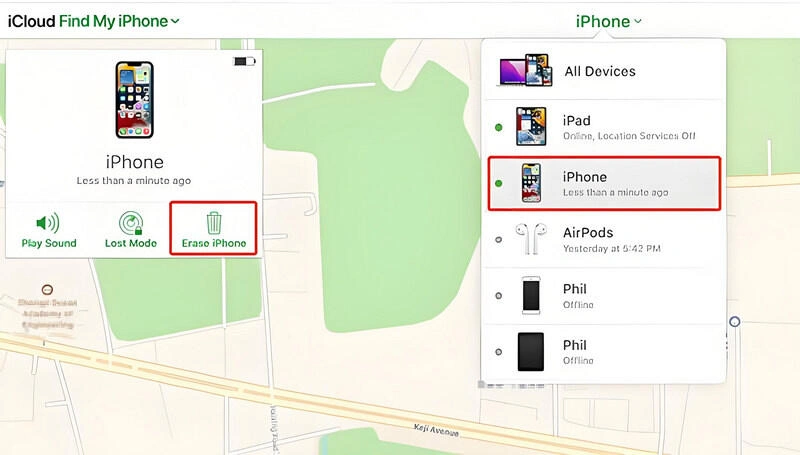
- Step 3: Click "All Devices" at the top of the screen, then select your locked iPhone from the list.
- Step 4: Click "Erase iPhone".
- Step 5: Once the erase is complete, your iPhone will restart. And then you can set it up as new.
NOTE: If Find My iPhone is disabled on your iPhone, or you don't have the password, try Syncios Passcode Unlocker in Method 5. Remove passcode from iPhone without password. Safe and fast.
Method 4: Remove Passcode from iPhone Using Erase iPhone
When it comes to remove passcode from iPhone, the Erase iPhone feature introduced in iOS 15.2 can be very useful. It lets you erase the passcode directly from the lock screen, no computer or iCloud needed, which is incredibly convenient, but requires your iPhone to be connected to a WiFi or cellular network.
NOTE: Similar to iTunes or iCloud, using this feature cannot avoid any data loss. To prevent any accidental lockout and data loss, it is suggested to use data management tools like Syncios Mobile Manager to selectively backup or one-click backup your iPhone regularly.
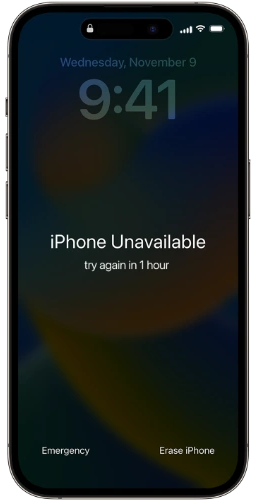
- Step 1: To trigger this feature, you need to enter the wrong passcode on your iPhone purposely 10+ times. And then the screen will show "iPhone Unavailable" or "Security Lockout".
- Step 2: Wait for the Erase iPhone option to appear at the bottom of the screen (this may take a few minutes).
- Step 3: You can tap "Erase iPhone", then tap it again to confirm.
- Step 4: You need to enter your Apple ID password to sign out of Find My iPhone.
- Step 5: Finally your iPhone will erase all data and the passcode, then restart.
Method 5: Remove Passcode from iPhone Using iPhone Unlocker
If all the above methods fail, professional tools like Syncios Passcode Unlocker are perfect for you to remove passcode from iPhone, whether you know the password or not. Disabled iPhone, unavailable iPhone, or locked iPhone with a broken screen, just resort to Syncios. More easier than iTunes, more convenient than iCloud or Erase iPhone when you forget the password, this robust tool allows you to remove 4/6-digit passcode, Touch ID, and Face ID with a few clicks. Besides, it can also bypass Apple ID and screen time. Why not directly choose Syncios Passcode Unlocker?
Syncios Passcode Unlocker
- Unlock 4/6-digit code/Face ID/Touch ID all screen lock without password.
- Unlock iPhone Apple ID with one click.
- Recover and reset Screen Time passcode without losing data.
- Remove Screen Time passcode without passcode.
- Support all iPhone models and iOS versions.

- Step 1: Launch.
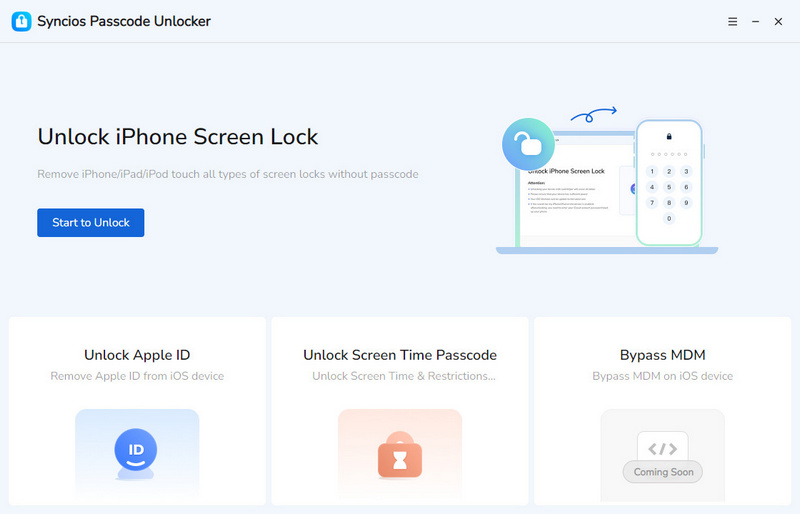
- Download and install Syncios Passcode Unlocker on your computer. Launch it and choose "Unlock Screen Lock" mode.
- Step 2: Connect.
- Connect your locked iOS device to your computer via a USB cable.
- Step 3: Match.
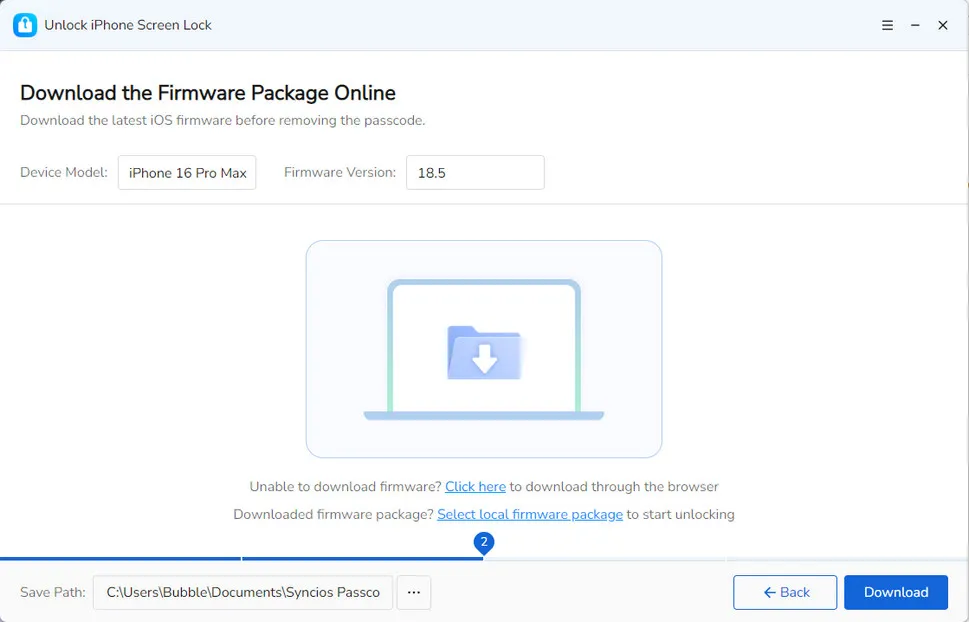
- If the connection is successful, Syncios will automatically match you with a compatible firmware package.
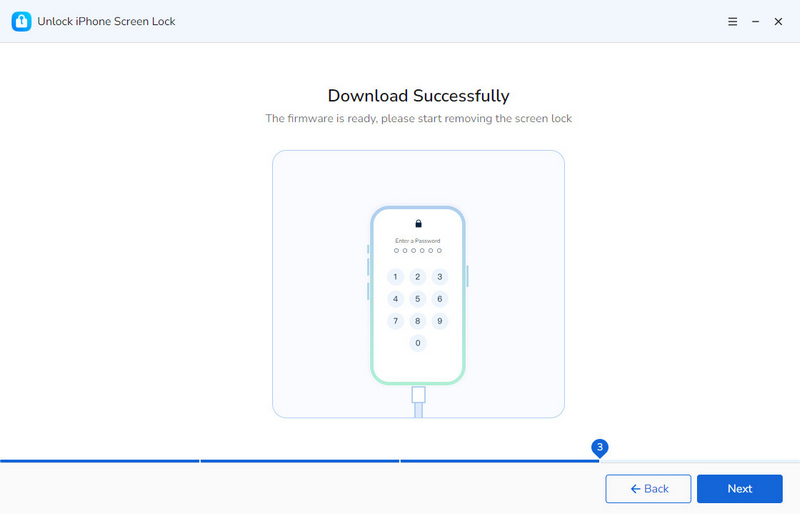
- Click to download and wait for a while.
- Step 4: Confirm.
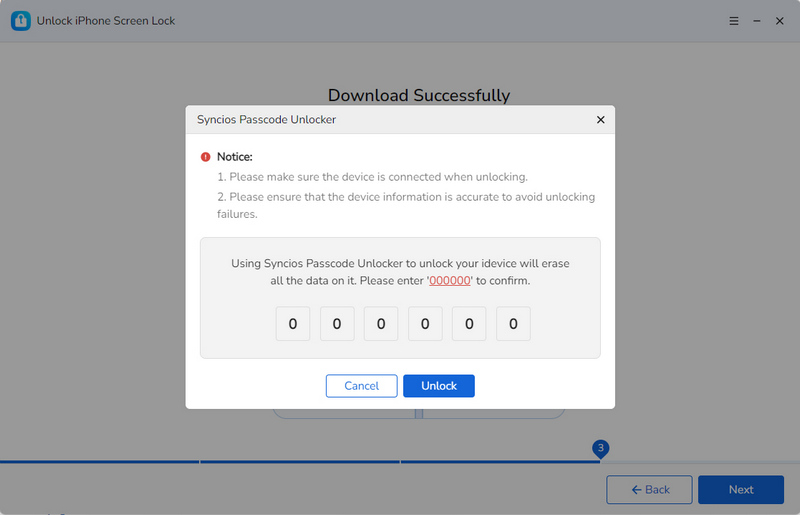
- Syncios Passcode Unlocker will inevitably erase your data. Type "000000" to confirm the unlock process.
- Step 5: Unlock.
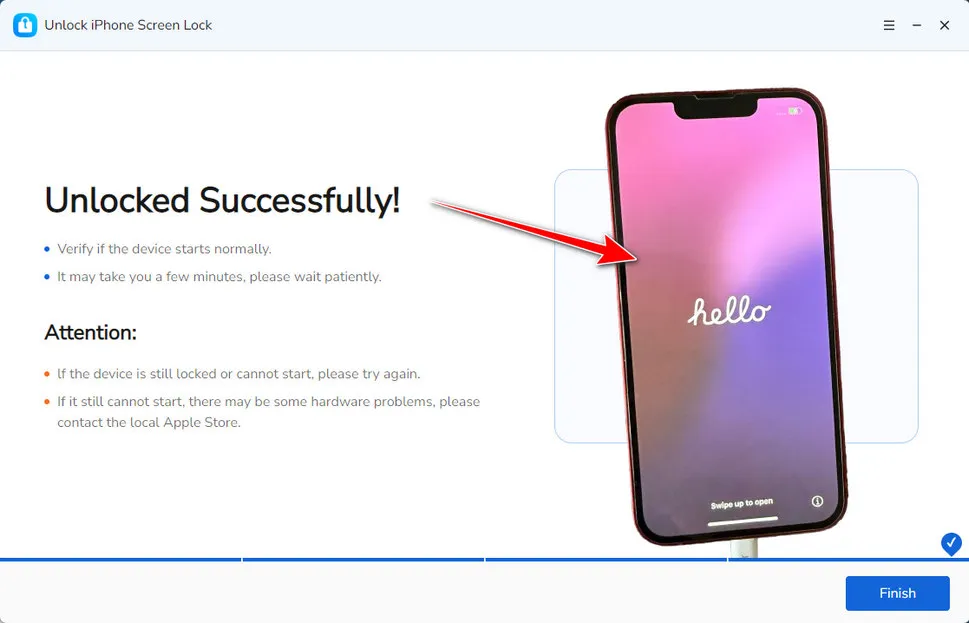
- Wait patiently and the passcode will be removed from your device.
FAQs About Remove Passcode from iPhone
To remove passcode locks for individual apps, you can simply locate this app on your Home screen, and then hold the icon until you see a menu. Tap "Don't Require Face ID (or Touch ID/Passcode)" to turn it off.
To turn off screen time on your iPhone, go to Settings > Screen Time > Change Screen Time Passcode > Forgot Passcode. And then enter your Apple ID and password to reset the Screen Time passcode. If you don't have the password or cannot see the "Forget Passcode" option, try Syncios Passcode Unlocker. Quicky removes screen time without losing data.
> > > Step-by-step guide
> > > Video tutorial
Obviously you can’t change your iPhone passcode directly from the lock screen, you need to unlock the device first. If you remember your current passcode, to change the screen passcode, you can unlock your iPhone and go to Settings > Face ID & Passcode > Change Passcode. You need to enter your old passcode before setting a new one. If you are locked out, remove it first and then change.
Final Words
This guide explains 5 reliable ways to remove passcode from iPhone. If you remember the passcode, the easiest fix is go to Settings and turn it off. For those who are locked out accidentally and have no password, Syncios Passcode Unlocker is your best choice. Safe and reliable. Most importantly, always remember to backup your iPhone regularly, ensuring you don’t lose important data when erasing your passcode.
What's next? Download Syncios Passcode Unlocker now!

Ethan Mercer | Senior Writer
Related Articles
Related Solutions

Remove iPhone screen passcode, Apple ID, Face ID, and more in minutes.