>
How to >
>
How to >
How to Use FaceTime Share Screen on iPhone, iPad, Mac
"Why can't I share screen on FaceTime?"
FaceTime Share Screen is one of the most useful collaboration and communication features on iPhone, iPad, and Mac, but many users struggle with how it works or how to fix issues when the Share Screen button is missing or grayed out. If you ever wondered how and why, then this complete guide is for you. It explains how to use FaceTime Share Screen on every Apple device, the most common problems and solutions. Let’s jump in.
Part 1: Can FaceTime Share Screen?
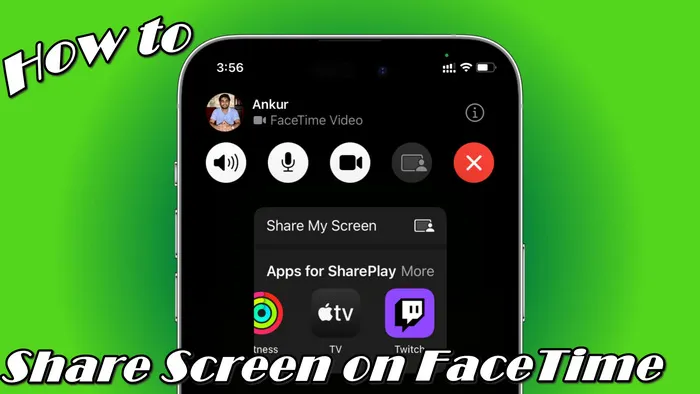
Yes, FaceTime can share screen. Across iPhone, iPad, and Mac, the built-in screen sharing feature on FaceTime allows users to share content in real time during video calls. Without installing additional apps and compromising quality, you can easily access and use screen sharing on FaceTime with just a few taps or clicks.
What Does Share Screen Do On FaceTime
If you share screen on FaceTime, it broadcasts your entire device screen to the other person in a FaceTime call, and anyone on the call can see exactly what you are viewing on your screen in real time. It can be used in multiple scenarios:
- Work collaboration: Share photos, videos, documents or presentations.
- Troubleshooting: Fix issues remotely by requesting control of the shared screen.
- Interaction: Watch streaming content together using SharePlay.
Before You Share Screen on FaceTime
FaceTime screen sharing sounds like a good thing, right? But don't hurry, to ensure a glitch-free screen sharing experience, check the following key points before use.
- Verify device operating system.
- Sign into iCloud.
- Ensure a stable internet connection.
- Enable SharePlay support.
- Have necessary subscription.
First, to share screen on FaceTime, you and the other person should use Apple device, not a Windows or Android device. Then, make sure you and the caller have iOS 15.1 or later on iPhone/iPad, and macOS Monterey 12.1 or later on Mac.
After verifying the supported OS, both of you should sign into iCloud with a valid Apple ID.
To avoid any lag or interruptions, a strong WiFi or 5G cellular data connection is crucial for FaceTime screen sharing.
If you need to share content from media apps like Apple TV+, Apple Music, Paramount+, Hulu, Max, Prime Video, Disney+, etc., your device should also have SharePlay supported. You can enable this feature by Settings > Apps > FaceTime, and toggle on SharePlay.
If you want to watch or listen together with someone by FaceTime share screen, both of you need to install the same app compatible with SharePlay. For example, the above mentioned apps are compatible, while Netflix and Spotify are not compatible with SharePlay and block any screen sharing to protect their content from privacy. Besides the supported app, both of you should have a subscription to the content. Otherwise, the screen sharing turns black.
Part 2: How to Use FaceTime Share Screen on iPhone or iPad
Using FaceTime share screen on iPhone or iPad is quite easy, with a straightforward process to start sharing your screen or take over someone else’s. Below is a step-by-step guide to both actions, best for iOS users of all technical levels. Let's get started.
2.1 Share Your Screen on iPhone or iPad
- Step 1: Start or join a FaceTime call.
- Open the FaceTime app on your iPhone or iPad, you can either select a contact to start a new call, or tap an incoming call to join. You can screen share with 1 or multiple participants. Note that FaceTime supports up to 32 people in a group call, and they all can view your shared screen.
- Step 2: Tap the Share Screen icon.
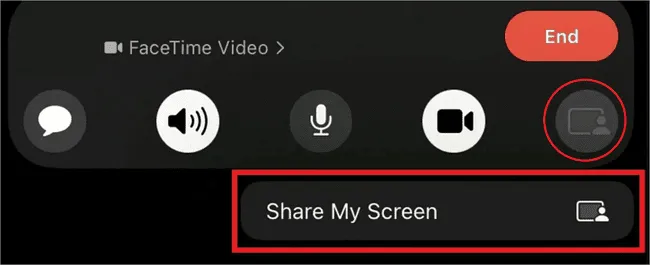
- Once the call is connected, you can look for the Screen Share icon in the control panel at the bottom of the screen. On iPhone: the icon looks like a rectangle with a person in front of it. On iPad: you may need to tap the screen to reveal the control panel first and will see a square icon with an arrow pointing up.
- Step 3: Start sharing the screen.
- After you tap the Share Screen icon, select "Share My Screen" from the pop-up menu. A 3 seconds countdown will appear, and then your entire screen will be shared with the call participants. And you will see a small green or blue indicator at the top of the screen, confirming that screen sharing is active.
- Step 4: Interact while sharing.
- While sharing your screen, you can use your iPhone or iPad as you normally do, such as opening apps, scrolling through pages, typing, or playing videos. All actions will be visible to the other participants.
- Step 5: Stop sharing screen.
- When you are done, you can stop sharing by tapping the Share Screen icon again.

NOTE: You can open shared content before starting the FaceTime call. For sensitive content like private documents or messages, consider closing those apps or tabs to avoid accidental sharing.
2.2 Take Over Screen Sharing on iPhone or iPad
If the caller is sharing their screen and you need to help them edit a document or fix a setting, you can take over the screen sharing.
- Step 1: Request control.
- While the other person is sharing their screen, you can tap "Share My Screen". A notification will be sent to the person sharing their screen, asking for permission to let you take control.
- Step 2: Wait for permission.
- The person sharing their screen will see a pop-up message asking if they want to allow you to control their screen. They can tap "Allow" or "Deny".
- Step 3: Replace Existing.
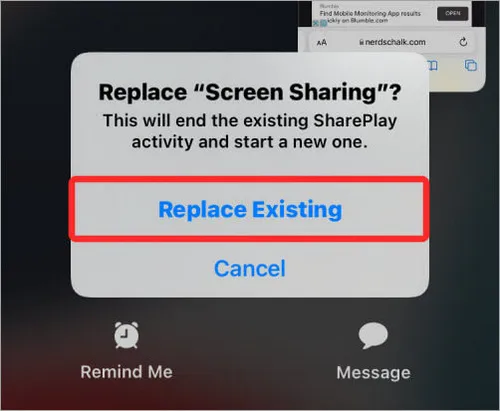
- If they allow you to control the screen, tap "Replace Existing" to take over. Once you have control, you can interact with the other person’s screen.
- Step 4: Stop controlling.
- To stop controlling the other person’s screen, tap the Share Screen icon. Alternatively, the person sharing their screen can end your control by tapping a stpo button.
Part 3: How to Use FaceTime Share Screen on Mac
FaceTime share screen can also be used for Mac. It can not only share your entire screen as iPhone/iPad users do, but also support sharing a specific app window, which is a useful feature for avoiding accidental sharing of sensitive content. The detailed steps of how to share your screen, and take control of another participant’s screen on Mac are as follows.
3.1 Share Your Screen on Mac
- Step 1: Launch FaceTime to start a call.
- Open the FaceTime app on your Mac and then select a contact to start a call, or click an incoming call to join.
- Step 2: Locate the screen-sharing option.
- Once the call is active, look for the Screen Share button. Click it and a menu will appear with two options: "Share Screen" or "Share Window".
- ● Share Screen: Click this option, and anywhere in the screen to share the entire screen.
- ● Share Window: Select a specific app window, then click to Share. This is ideal for keeping other tabs or apps private.
- Step 3: Start the screen sharing.
- Once sharing starts, you can see a green indicator in the top-left corner of the shared screen, which means that screen sharing is active.
- Step 4: Stop sharing.
- To stop the screen sharing on Mac, simply click the Share Screen option again, and then select the "Stop Sharing" from the menu list. Also, you can press Command, Control, and Esc keys on your keyboard to end sharing.


3.2 Take Over Screen Sharing on Mac
Taking control of another caller's shared screen on Mac is just as simple as on iPhone or iPad.
- Step 1: Request control during a screen share.
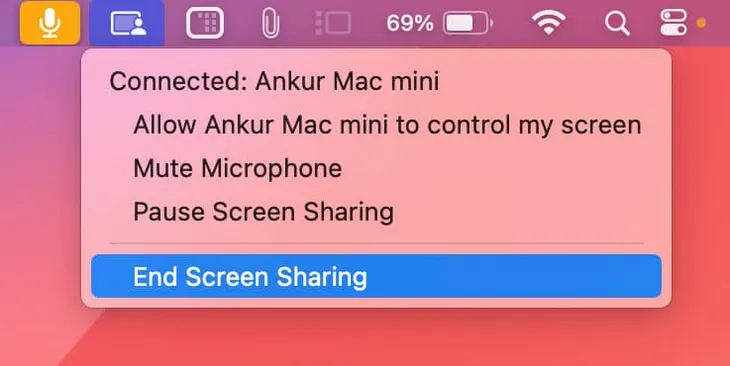
- When someone else is sharing their screen from a Mac, go to Screen Share icon and click "Share My Screen" to send a permission request to the screen sharer.
- Step 2: Gain control after approval.
- Once the person shares the screen "Allow" your request, you can simply click the "Replace Existing" option to take over this screen.
- Step 3: End control.
- If they allow you to control the screen, tap "Replace Existing" to take over. Once you have control, you can interact with the other person’s screen.
Part 4: Why Can't I Share My Screen on FaceTime?
It’s frustrating when you try to use FaceTime share screen and it doesn’t work. But don't panic, because most issues have simple fixes. This part introduces the most common reasons why screen sharing might fail, along with effective solutions to resolve them.
1. Outdated Operating System
As mentioned earlier, FaceTime screen sharing requires at least iOS 15.1 and macOS Monterey 12.1. If your Apple device is running an older OS, the screen-sharing feature won’t be available. To fix this, please keep your device updated.
- iPhone or iPad: Go to Settings > General > Software Update > Download and Install the latest version.
- Mac: Click the Apple menu > System Preferences > Software Update > Update Now.
2. FaceTime Not Enabled
If FaceTime is disabled on your device, you won’t be able to make calls or use screen sharing. Additionally, disabling SharePlay also prevents you from successful media sharing. Please check if you enabled FaceTime, and signed in your Apple ID.
- iPhone or iPad: Settings > FaceTime > Toggle on.
- Mac: FaceTime > Preferences > Turn On FaceTime.
3. Poor Internet Connection
Using a weak or unstable internet connection can cause a failed screen sharing. And this is also a top culprit for other issues like freezing, lag, or the screen sharing button being greyed out. Try following tips to fix this.
- Switch to faster WiFi.
- Close background apps.
- Reduce video quality in FaceTime settings.
4. Screen Time Restrictions
Sometimes Screen Time restrictions can disable screen sharing. If you have "Share My Screen" restricted, go to Settings > Screen Time > Content & Privacy Restrictions > Share My Screen > select Allow.
NOTE: If you are using a supervised iPhone or iPad, or forgot the password to change settings, simply use Syncios Passcode Unlocker to bypass it, without data loss. Simple, fast and secure. No more restrictions for your own device!
🛠️ Here are other most frequent issues you may encounter and corresponding fixes, hope you could have a happy screen sharing every time.
| Common Issues | Reasons | Fixes |
|---|---|---|
| Share Screen icon is grayed out | ||
| Others can’t see your shared content | ||
| SharePlay not working | ||
| FaceTime Share Screen can't work anyway |
Bonus Tips: How to Unlock Your iPhone or iPad Without Password
When your iPhone or iPad is restricted by Screen Time, you may lose access to share screen. In this case, you can simply change settings and enjoy FaceTime screen sharing again. But what if you have a parent-supervised iOS, or unfortunately forgot the screen time passcode? Syncios Passcode Unlocker can assist you.
Syncios Passcode Unlocker is a robust tool, capable of removing all locks from iPhone, iPad, or iPod Touch. It can not only bypass screen time restrictions with all data intact, but also help you delete Apple ID, bypass Face ID, Touch ID, and various screen passcode. No more complicated steps, best for both beginners and experienced users. If you have a locked iPhone, it's time to regain full access by using Syncios without a password.
Syncios Passcode Unlocker
- Unlock 4/6-digit code/Face ID/Touch ID all screen lock without password.
- Unlock iPhone Apple ID with one click.
- Recover and reset Screen Time passcode without losing data.
- Remove Screen Time passcode without passcode.
- Support all iPhone models and iOS versions.

- Step 1: Launch.
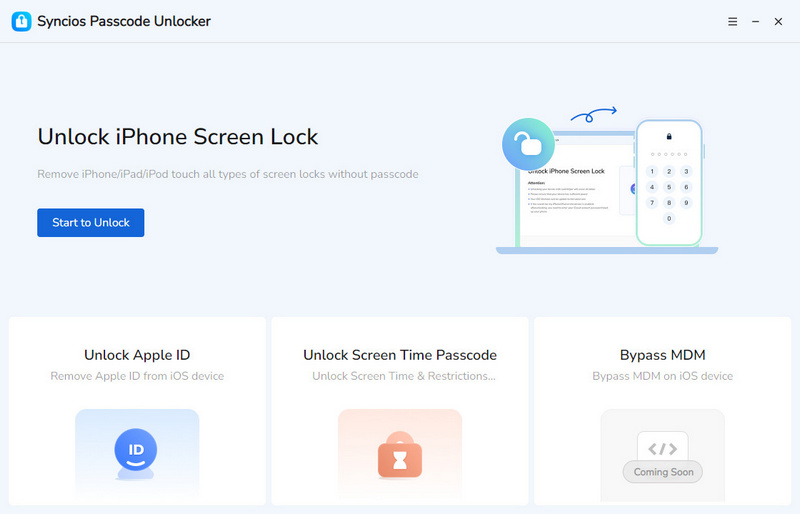
- To unlock your iPhone or iPad without password, install and start Syncios Passcode Unlocker on your Windows or Mac. In the following main interface, you can see that Syncios offers various modes, and you can choose one according to your situation. For example, let's try the screen lock.
- Step 2: Connect.
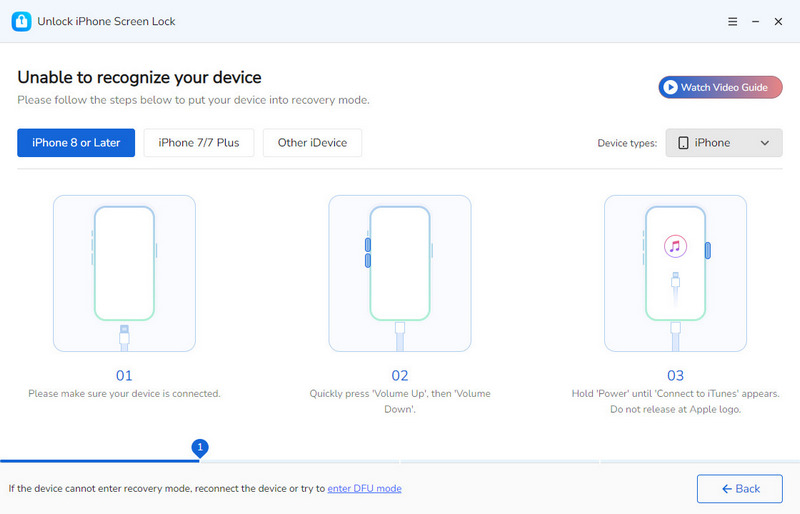
- Connect your device to your computer using a USB cable. If it fails, refer to the video guide from the upper right corner.
- Step 3: Match.
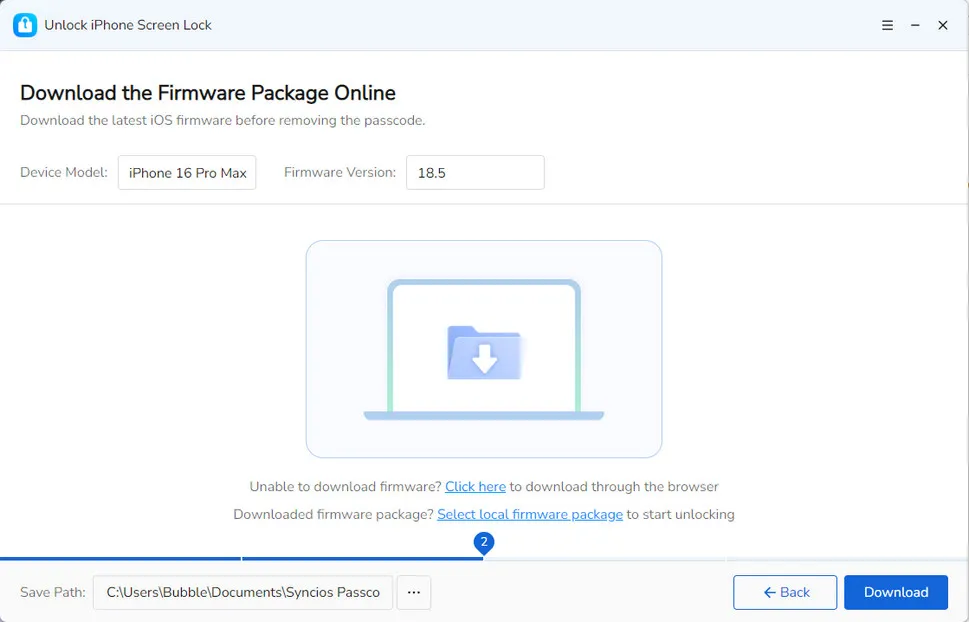
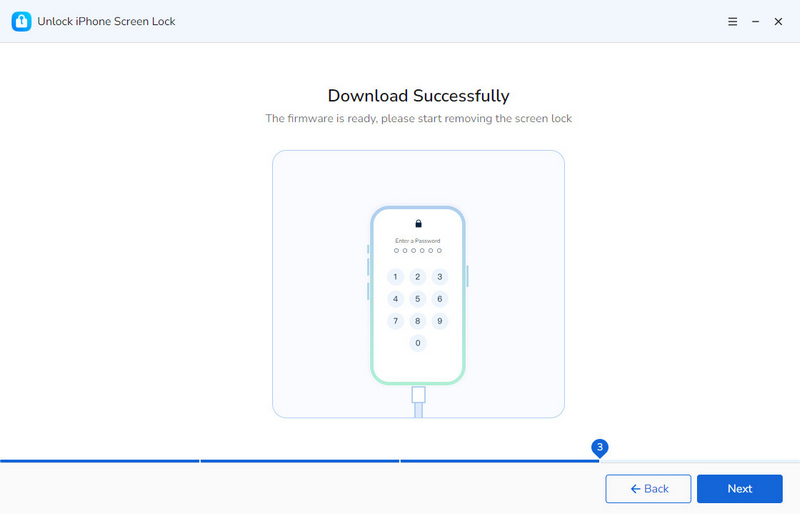
- When the connection is successful, Syncios automatically matches you with a compatible firmware based on your iPhone model. Click to download.
- Wait patiently and keep your device connected well.
- Step 4: Confirm.
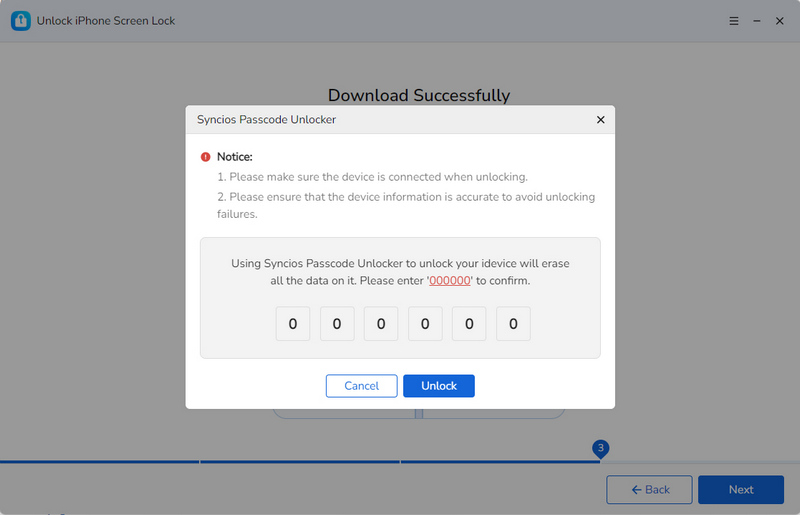
- Before the removal, you need to type "000000" manually to confirm that you want to unlock.
- Step 5: Unlock.
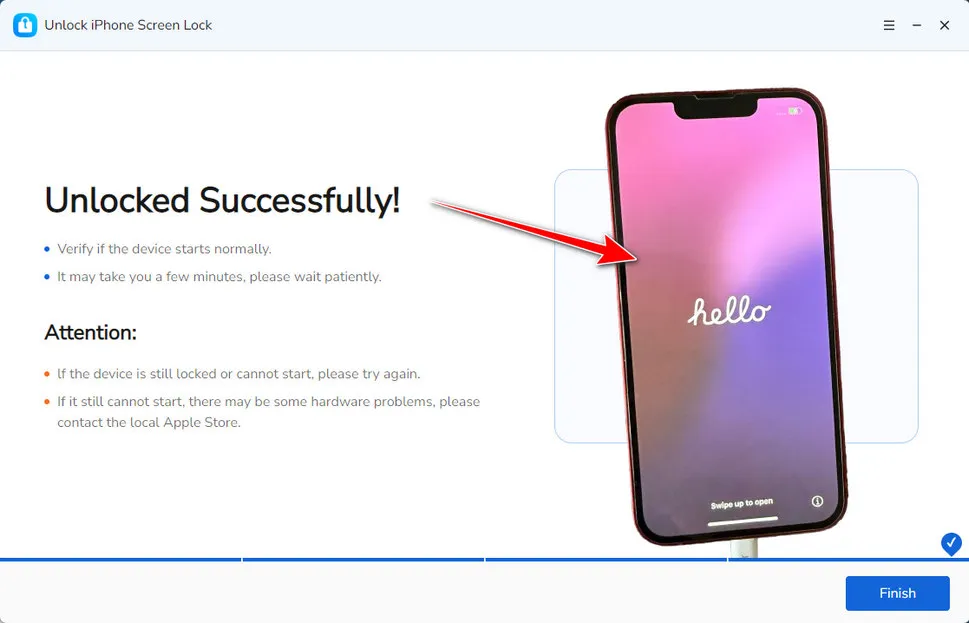
- A few seconds later, your device will restart and you will find that the screen lock has removed already!
FAQs About FaceTime Share Screen
In fact, enabling screen sharing on iPhone doesn’t require a separate "enable" switch.
As long as your iPhone is running iOS 15.1 or later, you can simply start a FaceTime call, tap the "Screen Share" icon (rectangle & person), and then select "Share My Screen". After that, you can use FaceTime to share screen, no extra toggles needed. >>> How to Share Screen on iPhone
First, make sure you have enabled SharePlay. Next, you can start a FaceTime call, open a SharePlay-supported app, such as Apple TV+, Hulu, Max, etc. When playing video or music, tap the pop-up "SharePlay" to sync playback. Everyone can pause or rewind together. Remember that all users should have the app’s subscription.
"Allow Control" means that the call recipient temporarily operate your device for collaboration or remote help. And you can take back control anytime to revoke access.
⚠️ Please note that the controller can make various actions on your device, including sending messages, deleting items and more. But it's forbidden from any settings made through Apple ID, Face ID or Touch ID. Even so, it is suggested to only allow your trusted contacts to take over your device.
Yes, but only with your permission. You can grant access and revoke it anytime. As mentioned in Question 3, they can’t unlock your device or access your password or Apple Pay.
There are various reasons for your FaceTime share screen being greyed out, such as app cache, poor internet, outdated OS, and more. Please check this table to learn more.
Yes. Like most streaming services, Amazon Prime Video supports FaceTime Share Screen. But before sharing, make sure all participants have the necessary subscriptions to access the content.
No. FaceTime only works between iPhone, iPad and Mac. Android users need to resort to other cross-platform apps for screen sharing.
Final Words
FaceTime Share Screen is a powerful tool for helping others, collaborating, or sharing moments remotely. With the detailed steps and solutions to common issues, you can enjoy it seamlessly across iPhone, iPad, or Mac. If you have friends or family who struggle with FaceTime, share this complete guide. Most importantly, for any Screen Time restrictions for FaceTime or passcode problems on iOS devices, feel free to connect Syncios Passcode Unlocker to wipe your troubles!
What's next? Download Syncios Passcode Unlocker now!

Ethan Mercer | Senior Writer
Related Articles
Related Solutions

Remove iPhone screen passcode, Apple ID, Face ID, and more in minutes.