>
How to >
>
How to >
How to Check If iPhone is Unlocked [5 Methods]
If you are buying a second-hand iPhone, planning an international trip, or switching to a new carrier, knowing whether your device is unlocked is critical. Then how to check if iPhone is unlocked? This guide will explain 5 reliable and easy methods to help you verify your iPhone status, plus steps to unlock it if needed.
What is Considered A Locked iPhone?
An unlocked iPhone lets you use any compatible SIM card or eSIM from different carriers, while a locked one is tied to a specific service provider.
If your iPhone is purchased through carrier contracts or installment plans, then it may be a locked iPhone, restricted to work only with a specific carrier’s SIM card or eSIM. While if your iPhone is directly purchased by Apple or authorized retailers, it generally is the unlocked iPhone without carrier ties. Thus, an unlocked iPhone is always essential to travel globally or switch carriers anytime.
- It shows "SIM locked".
- Get the "SIM not supported" error message.
- Unable to activate the device with a non-original carrier’s SIM.
- There is carrier’s logo on the lock screen that you can’t remove.
Method 1: Check By Settings
When it comes to how to check if iPhone is unlocked, checking the Settings app is the simplest and quickest method, requiring no extra tools. Grab your iPhone and follow the steps to check now.
- Step 1: Open your iPhone then go to the "Settings" app.
- Step 2: Tap "General" > "About" > "Carrier Lock".
- Step 3: Check: if you see "No SIM restrictions", then congratulations your iPhone is unlocked; if you see "SIM locked or Carrier locked", unfortunately you got a locked iPhone.
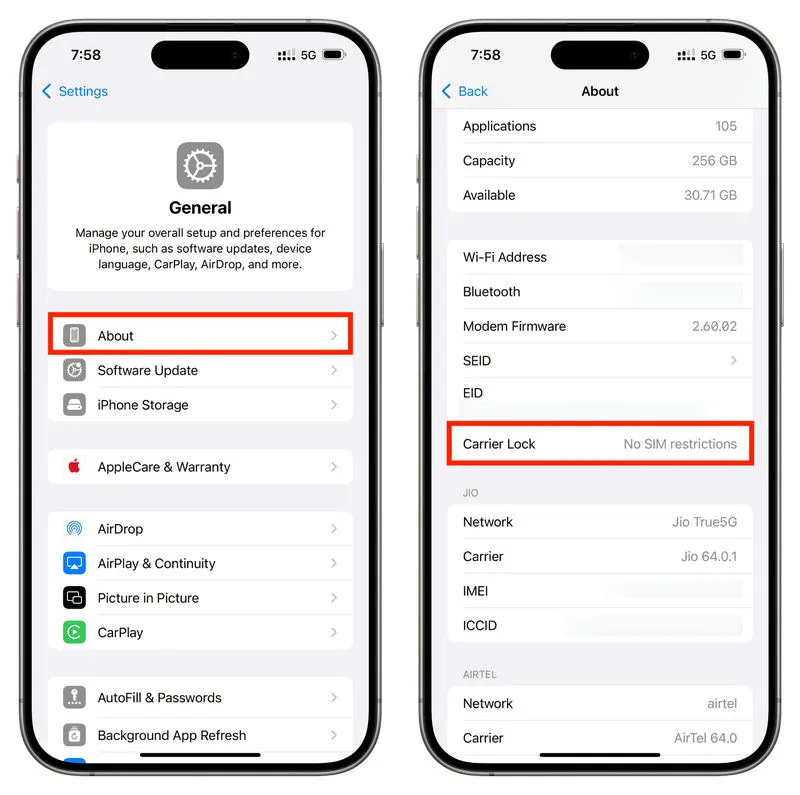
NOTE: This simple method is also available for checking eSIM compatibility. If it says "No SIM card restriction", in theory eSIM can also be used, except for few carriers.
Method 2: Check By IMEI Number
Every iPhone has a unique 15-digit IMEI number that carriers use to track device lock status. This method on how to check if iPhone is unlocked works for both SIM and eSIM iPhones, and you can do it from any browser.
- Step 1: First you need to locate your iPhone's IMEI number. You can go to "Settings" > "General" > "About" and then find the IMEI number. Also, you can open the Phone app, and dial
*#06#, which will show you the IMEI number automatically, no need to press call button. - Step 2: Open a web browser and go to a reputable IMEI checker website. Note that Apple does not offer an official page to check IMEI, so you need a third-party tool. Some people may want to contact Apple Support to verify the lock status, but they will suggest you check Settings by yourself, instead of telling you directly.
- Step 3: On the IMEI checker, enter your IMEI number and click Check or Verify.
- Step 4: Wait for the results. The tool will clearly state if your iPhone is "Unlocked" or locked to a certain carrier.
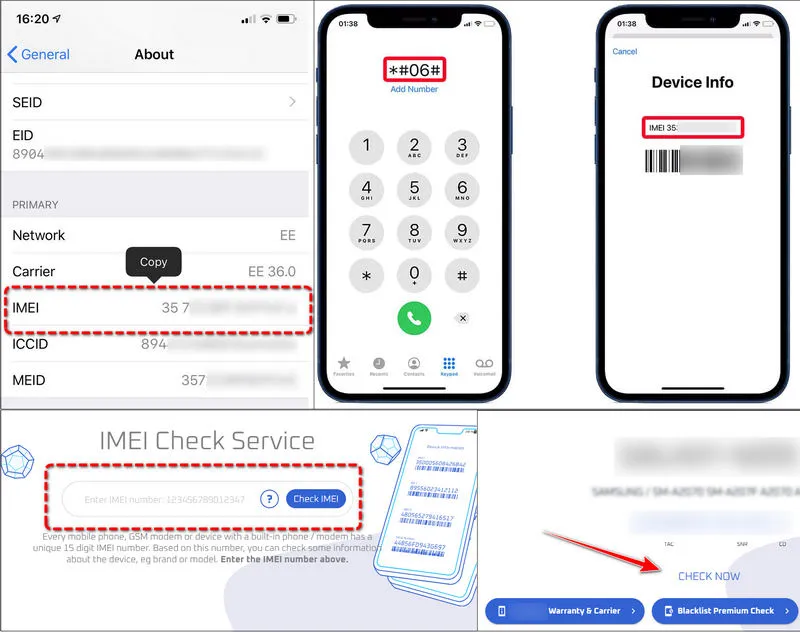
NOTE: Always use well-reviewed IMEI checkers to avoid scams because some unreliable sites may steal your IMEI information.
Method 3: Check By Carrier
Besides checking by Settings app, another accurate way to confirm your iPhone’s lock status is to contact your original carrier directly. Carriers have full access to your device’s history and can tell you if it is eligible for unlocking too.
- Step 1: Contact your carrier via calls, website chat support, or local carrier store.
- Step 2: Provide your iPhone details, including IMEI number, your account information, and the device’s serial number, which also can be found in "Settings" > "General" > "About".
- Step 3: Then they will check their system, and tell you if your iPhone is unlocked.
Method 4: Check By A Different SIM Card
How to check if iPhone is unlocked? This is a classic, hands-on method that works for all iPhones with a physical SIM tray. You will need a SIM card from a carrier different from your current one.
- Step 1: First you should shut down your iPhone. Then use a SIM ejector tool to open the SIM tray on the side of the device.
- Step 2: Next, remove your current SIM card and insert the SIM card from the new carrier.
- Step 3: Then close the SIM tray and power on your iPhone.
- Step 4: Wait and after your iPhone finishes searching for the network signal, check: if you see the new carrier’s name in the status bar and can make a call or send a text, your iPhone is unlocked; if you get a "SIM Not Supported" error message, or the device shows "No Service" with a valid SIM, then your iPhone is locked.
👉 Even if the physical SIM is unlocked, eSIM may not be directly usable, as some carriers have additional restrictions on eSIM activation. For those who use eSIM, attempting to add a new eSIM plan from a different carrier can help check if the device is fully unlocked.
- Step 1: Go to "Settings" > "Cellular" > "Add eSIM".
- Step 2: Scan a new QR Code or input the eSIM activation code to set up the eSIM plan.
- Step 3: If your iPhone successfully activates the new eSIM and you can make calls or use cellular data, your device is unlocked. But if you get an error like "This iPhone is locked" or "Unable to activate eSIM", then it is obviously carrier-locked.
Method 5: Check By iTunes or Finder
If you have a computer, you can use iTunes or Finder to check your iPhone’s lock status. This method is kind of outdated and complicated in terms of how to check if iPhone is unlocked. It triggers a confirmation message from Apple's servers when you perform a restore.
- Step 1: Make sure you have the current backup of your iPhone because this process will wipe your data.
- Step 2: Connect your iPhone to the latest iTunes using a USB cable.
- Step 3: Click the "Restore iPhone" option.
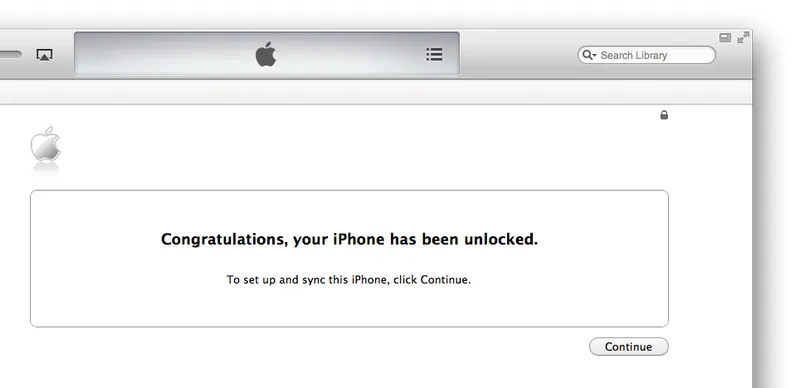
- Step 4: If you receive the message "Congratulations, your iPhone has been unlocked", then this is an unlocked device; if not, it indicates that your iPhone is still locked.
How to Unlock A Locked iPhone
After learning how to check if iPhone is locked, what if you do find that your iPhone is locked? Don’t panic, as you can unlock it in most cases. This part explores how to unlock a locked iPhone, whether you are stuck at carrier lock or screen lock. Let's jump in.
For Carrier Lock
Carrier locks are the most common, and usually you can unlock your iPhone by meeting your carrier’s requirements.
- Step 1: You can directly contact your original carrier and request an unlock. Don't forget to provide your IMEI number and account details.
- Step 2: Meet the carrier’s unlock requirements, for example, the device is fully paid off, or it hasn’t been reported stolen.
- Step 3: Once approved, the carrier will unlock your iPhone. Follow the instructions and then restart your iPhone. You will have an unlocked iPhone.
For Screen Lock
If you are forbidden to access your iPhone by screen lock, use a dedicated tool to remove it. Whether you have a disabled iPhone, got an "iPhone is unavailable" message, or just forgot your screen passcode, Syncios Passcode Unlocker offers you a hassle-free solution.
Syncios Passcode Unlocker not only allows you to remove 4/6-digit screen passcode, Touch ID, Face ID, but also features delete Apple ID, bypass screen time restrictions and more. A few clicks make your iPhone accessible again, friendly to both beginners and experienced users. Unlock your iOS device now without a passcode!
Syncios Passcode Unlocker
- Unlock 4/6-digit code/Face ID/Touch ID all screen lock without password.
- Unlock iPhone Apple ID with one click.
- Recover and reset Screen Time passcode without losing data.
- Remove Screen Time passcode without passcode.
- Support all iPhone models and iOS versions.

- Step 1: Start.
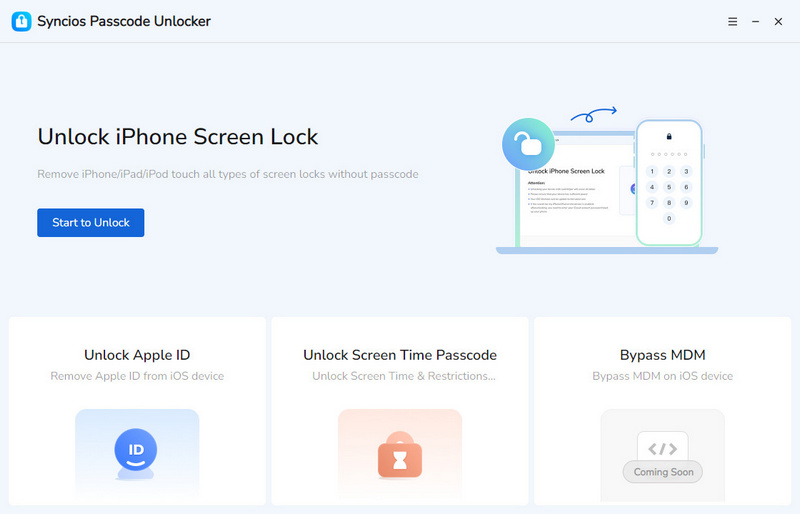
- To remove the screen passcode, Touch ID, Face ID, launch Syncios Passcode Unlocker on your computer and choose the "Screen Lock" mode.
- Step 2: Connect.
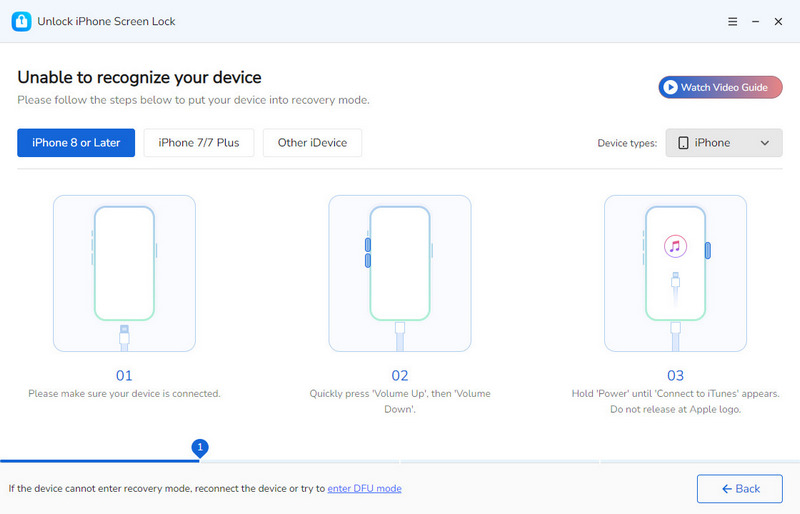
- Follow the on-screen instructions to successfully connect your iPhone to PC via a USB cable.
- Step 3: Match.
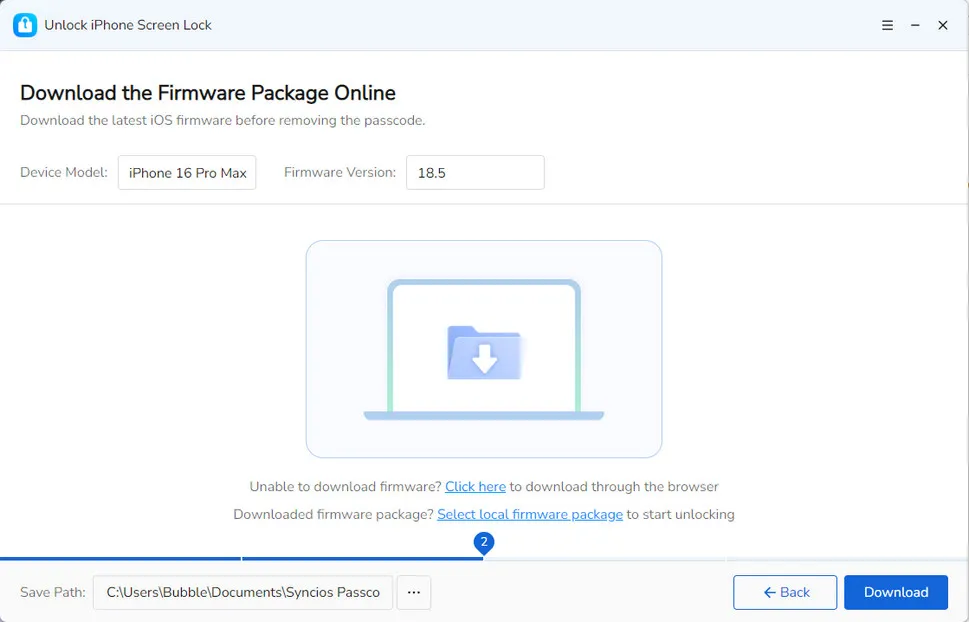
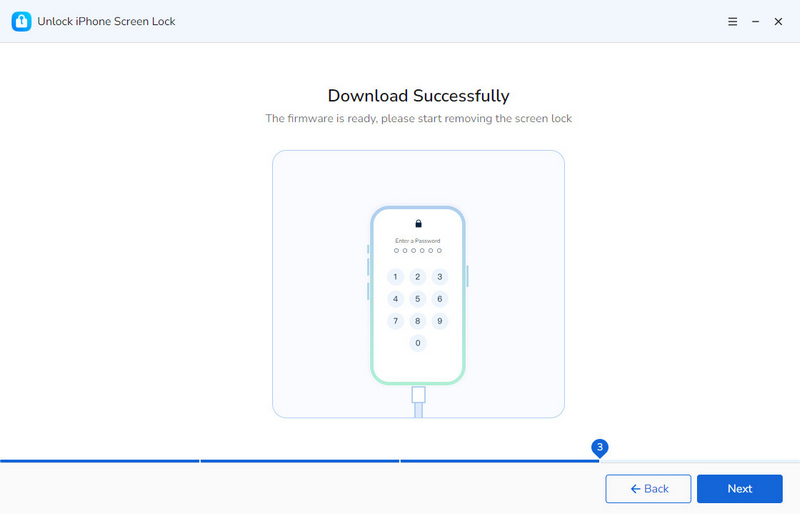
- Download a compatible firmware package that Syncios automatically matches for you.
- Wait a few moments. During the process, please make sure you have a strong network connection.
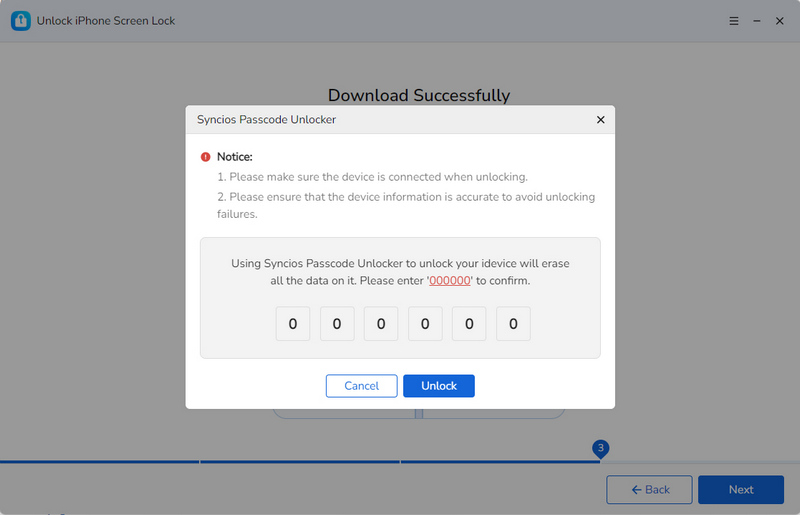
- Step 4: Confirm.
- Manually input "000000" to confirm that you need to remove the screen lock.
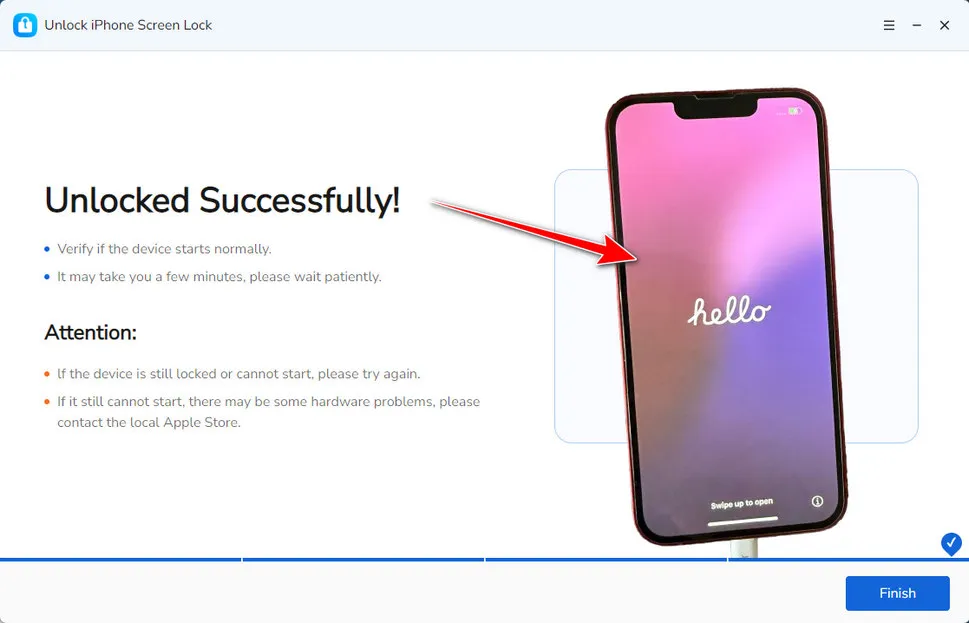
- Step 5: Unlock.
- Make device is connected well and it will be unlocked soon.
FAQs About How to Check If iPhone is Unlocked
If you don't have a SIM card, it is recommended to use the Settings app, IMEI Checker, or ask your carrier to check if your phone is unlocked. iTunes is not recommended due to its outdated operation.
Yes. There are many reputable free tools such as IMEI.info. Note that although Apple doesn’t have a public IMEI checker, but your carrier can check it for free if you contact their support.
Dialing #21# on your iPhone is an interrogation code that checks your call forwarding settings. It has nothing to do with checking your device’s unlock status, but shows if calls are being forwarded to another number.
Final Words
If you are wondering how to check if iPhone is unlocked, the 5 methods in this guide cover every scenario, working for a physical SIM and eSIM. Checking Settings, or inserting another SIM card, and contacting your carrier are straightforward methods. If your iPhone is locked, remember that carrier locks can be removed by contacting your provider, while screen locks require a tool like Syncios Passcode Unlocker to remove instantly. An unlocked iPhone is important, so take a few minutes to check its status today.
What's next? Download Syncios Passcode Unlocker now!

Ethan Mercer | Senior Writer
Related Articles
Related Solutions

Remove iPhone screen passcode, Apple ID, Face ID, and more in minutes.