>
How to >
>
How to >
[Fixed] Enter Password to Unlock 30/30 Attempts Remaining
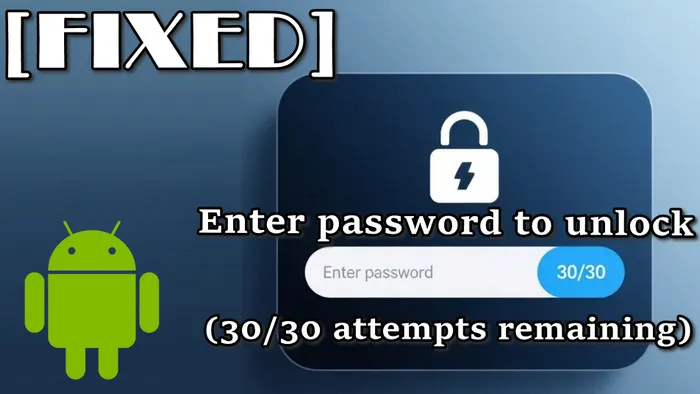
Have you ever seen the "Enter password to unlock (30/30 attempts remaining)" message on your Android phone? Whether you accidentally trigger the secure startup feature, or someone input wrong passcode too many times on your phone, this message could be alarming and frustrating, especially when you are using LG phones.
Don't panic. This ultimate guide will explore everything you need to know about "Enter password to unlock 30/30 attempts remaining", from its real meaning to 4 ways to fix it effectively. Tips to prevent it in the future are also included. Before you are locked out of your Android devices permanently, do something!
- What Does "Enter Password to Unlock 30/30 Attempts Remaining" Mean?
- Why Does "Enter Password to Unlock 30/30 Attempts Remaining" Appear?
- What Happens If You Use All 30 Attempts?
- How to Avoid Lockouts on Android in the Future
- Bonus Tip: Unlock iOS Instantly Without A Password
- FAQs About Enter Password to Unlock 30/30 Attempts Remaining
What Does "Enter Password to Unlock 30/30 Attempts Remaining" Mean?
"Enter password to unlock 30/30 attempts remaining" showing on your Android phone is the system security alert. It simply means that you can access your device only by entering the correct passcode, leaving you 30 failed attempts to try. Each time you enter the wrong passcode, the remaining times will be reduced.
This exact message is usually seen on old models running Android 9 or below, typically on LG phones. However, in newer Android devices, messages similar to it still exist, with a different expression but the same essence, requiring you to unlock the system encryption. Such a hint is more hidden and secure without telling you the exact attempts.
- "Enter your password to start Android".
- "Too many attempts. Try again later".
- "This device is locked due to too many attempts".
- "Too many incorrect unlock attempts".
Why Does "Enter Password to Unlock 30/30 Attempts Remaining" Appear?
Various reasons could trigger the message "Enter password to unlock 30/30 attempts remaining", even when you don't enable "Secure Startup".
1. Wrong Password
When you forget the screen passcode, or your children or family members accidentally have too many incorrect unlock attempts, this message will be triggered.
2. Full-Disk Encryption (FDE)
Older Android models like LG phones adopt full-disk encryption or secure startup to encrypt data on your device. So when you enable this feature, the protected device requires the original password to unlock after a reboot, startup or update. Meanwhile, the newer Android devices no longer use FDE, but file-based encryption (FBE) to encrypt individual files, which still triggers similar messages.
3. Second-hand Phone
If you bought a second-hand device that still activates the previous owner's credentials, you will be asked to enter the original password to fully control the phone.
4. System Glitches
Sometimes the system glitches may be the result of "Enter password to unlock 30/30 attempts remaining", which indicates unexpected errors on your device.
What Happens If You Use All 30 Attempts?
After having a basic understanding of "Enter password to unlock 30/30 attempts remaining", many users are curious about what will happen if use all 30 attempts. That depends on different Android models, but the possible results are not quite positive, so it is recommended not to enter your password blindly when you don't remember it.
- Temporary lockout with a waiting period. When the time is out, you can try again.
- Permanent lock and you need the factory reset to reaccess your Android phone.
- To prevent your device from stolen, automatic data wiping might happen when you use all 30 attempts.
4 Fixes on "Enter Password to Unlock 30/30 Attempts Remaining"
If you encounter the "Enter password to unlock 30/30 attempts remaining" message on your Android devices, don't rush to waste times to try again and again. The good news is that we have 4 effective solutions for you to get rid of this situation when you don't have the password. Unfortunately, it's not very possible to fix it without erasing data.
| Fixes | Phone Data | Requirements | Suitable Occasions | Success Rate | Ease of use |
|---|---|---|---|---|---|
| Fix 1: Wait for the Timeout | No data loss | Low | ⭐⭐⭐⭐⭐ | ||
| Fix 2: Verify Google Account | Depends | High | ⭐⭐⭐⭐ | ||
| Fix 3: Use Find My Device | ❗Data loss | High | ⭐⭐⭐ | ||
| Fix 4: Factory Reset | ❗Data loss | High | ⭐⭐⭐ |
Fix 1: Wait for the Timeout
When you see the "Enter password to unlock 30/30 attempts remaining" pop-up or similar messages on your Android device, other Face ID or Touch ID will be unavailable to prevent any unauthorized access. The safest and simplest method is to try to recall the possible correct PIN or pattern, which is the only reliable way to access your device without losing any data.
But you need to have some strategies, instead of being blind. When you have several incorrect attempts, it may notify you that your phone has been locked temporarily and you have a timeout ranging from seconds to hours. At this time, you should calm down and wait for the timeout. After the timeout expires, the first thing you should do is to stop guessing or wasting attempts. Next, connect in mind the password you ever used, including special numbers, dates, or patterns.
NOTE: If you have no related thoughts about what the password is, then it is not recommended to try the timeout. A certain Android phone may not have the temporary lockout, so multiple wrong password could directly make your device locked permanently in the end.
Fix 2: Verify Google Account
If you are very clear that there is no way to figure out the correct password, try this fix. There are two different situations for verifying your Google account. One is that your device offers you the option like "Forgot Password" or any sign-in prompt, which allows you to unlock the device and keep data. The other situation is more commonly used after a factory reset to pass Factory Reset Protection (FRP) and set up the phone again, which involves data loss.
- Step 1: For devices running Android 9 or lower, you can look for the option "Forgot Password" on the screen face of "Enter password to unlock 30/30 attempts remaining". If there isn't, trigger the prompt by trying the wrong PIN or patterns on purpose.
- Step 2: When the option is available, you can input your Google account credentials and wait for the verification to unlock your device.
- Step 3: For the newer Android models, there will be no such prompt even if you try more. Under these circumstances, you face the prompt only when you have already factory reset or erased your Android phone.
- Step 4: Enter your Google account credentials to bypss Factory Reset Protection (FRP). Now you can use your Android device as you want.
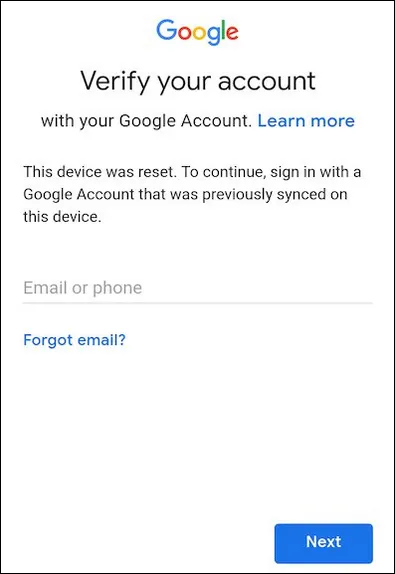
👉 Both Google’s Find My Device and factory reset will erase all data and trigger Factory Reset Protection (FRP). After reset, you must sign in with the original Google account to use the device again.
Fix 3: Use Find My Device/Find Hub
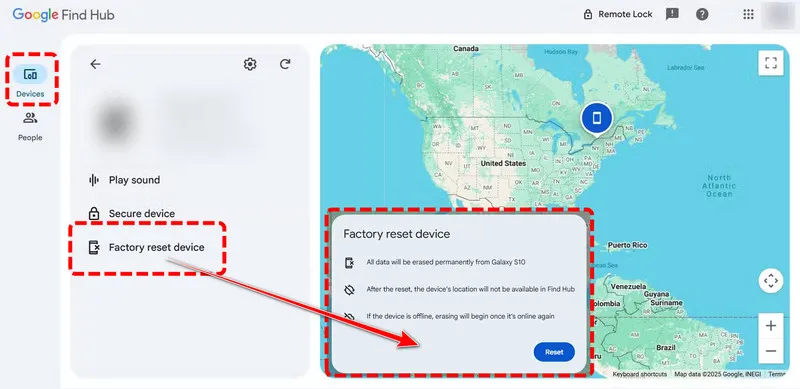
If you still can't get over "Enter password to unlock 30/30 attempts remaining" with the above methods that preserve data, you'd better abandon your phone data and consider this fix. Using Find My Device can help you wipe Android device remotely, making it accessible again. You should note that Google’s Find My Device cannot unlock a phone without erasing data. It can only help you reset the device if you are willing to lose all stored data. See detailed steps below:
- Step 1: You need another device to visit the website of Google's Find My Device, namely Find Hub now.
- Step 2: Sign in Find Hub with your Google account. You should ensure Find Hub is enabled, your Android is on and connect with the Internet.
- Step 3: From the Find Hub list, locate "Devices" and select the phone that you want to erase.
- Step 4: Click the "Factory reset device" option and then confirm this action by entering the password again.
- Step 5: After the erasure, your device will unlock and disappear from the Find Hub, and most importantly, your phone data will be deleted forever.
- Step 6: When you set up your Android phone, you still need to verify Google account to bypass FRP.
Fix 4: Factory Reset
Similar to Find My Device, factory reset is your last resort to fix "Enter password to unlock 30/30 attempts remaining" and it will erase all your data. This fix requires button operation, let's check the following steps.
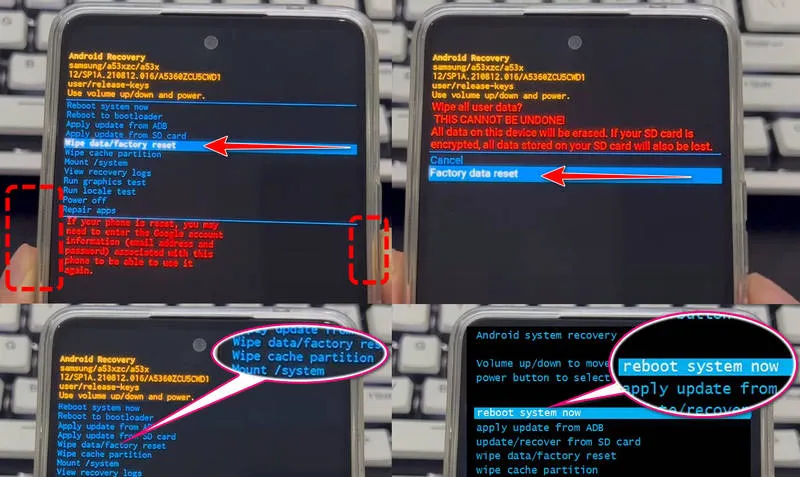
- Step 1: When you are stuck at the locked screen and ready to reset your device, you need to press the Power button first to shut it down.
- Step 2: Press and hold the Power + Volume Down/Up buttons to enter the recovery mode. The button sequence varies depending on the specific Android model.
- For most Android phones: Power + Volume Up
- For older Samsung and LG phones: Power + Volume Down
- Step 4: When your brand logo or the recovery menu appears, you may now release the buttons.
- Step 5: Use the volume keys to select the option "Wipe data/factory reset".
- Step 6: Then press the Power button to confirm your action.
- Step 7: Choose the "Factory Reset" again and "Yes".
- Step 8: Next, when you jump into the recovery menu, choose the "Wipe cache partition" to reset completely.
- Step 9: When this finish, you can finally use the keys to select "Reboot system now".
- Step 10: Now your device will be erased and restart. It will take some time, so wait patiently.
- Step 11: After the reboot, you can set up your Android and the locked message will disappear.
- Step 12: Still, you will encounter Factory Rest Protection (FRP). Verify your Google account and you can regain access.
How to Avoid Lockouts on Android in the Future
With the feasible 4 solutions and detailed steps here, you can fix "Enter password to unlock 30/30 attempts remaining" issue effortlessly. But you know that most fixes are at the cost of your valuable data. Thus, the best way is to prevent any lockouts from your Android phone in the future. Here are a few pro tips.
1. Backup Phone Regularly
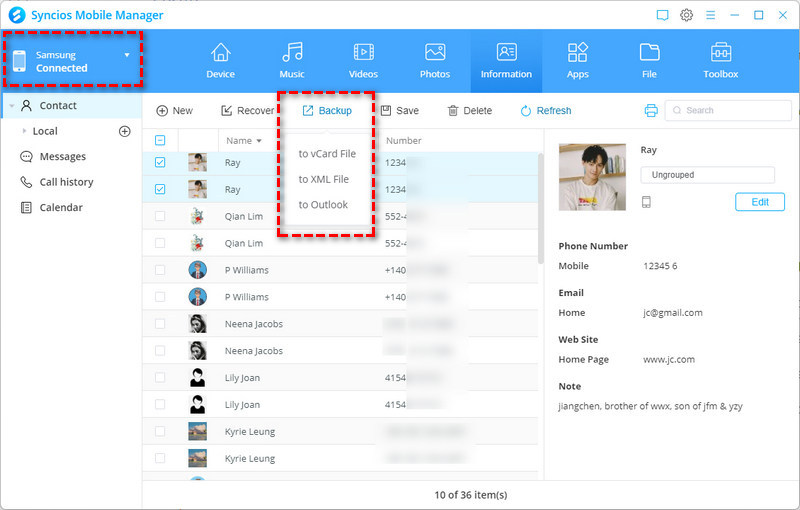
If you don't want to lose your data, the safest method is to backup your phone regularly. Whether you factory reset the device or switch to a new phone, you can restore data from the backup anytime.
Fortunately, Syncios Mobile Manager offers you a completely free option to backup your Android safely and easily. It supports importing and exporting various data between mobile phone and PC, including videos, photos, audio, ebooks, contacts, sms messages, apps and more. Besides the one-click backup and one-click recovery feature, you can choose the items selectively by previewing them one by one. How long has it been since your last backup? Today is the time.
2. Disable Secure Startup
One of the most common reasons to get stuck at the "Enter password to unlock 30/30 attempts remaining" screen is the secure startup. This feature will be enabled by default on Android 9 and below devices. To not trigger an unexpected lockout, it is suggested to disable secure startup by Settings > General > Lock Screen & security > Encryption & Credentials > Secure Startup > No.
3. Use Extend Unlock
Extend Unlock, namely Smart Unlock on Android devices, allows you to unlock devices in trusted situations. You can select to keep your phone unlocked by trusted places (workplaces or home), trusted devices (Bluetooth connected), or on-body detection (when it recognizes it's you).
When you enable this feature. you will not worry about the screen lock and need to unlock it again and again. To use Extend Unlock on Android, navigate to Setting > Security & privacy > More security & privacy > Extend Unlock.
Bonus Tip: Unlock iOS Instantly Without A Password
Not only Android users encounter the locked screen, but it can also happen to iOS users. What if you forgot the passcode, or you see Disabled iPhone or iPhone Unavailable? We have a simple and direct way to help you get out of this trouble.
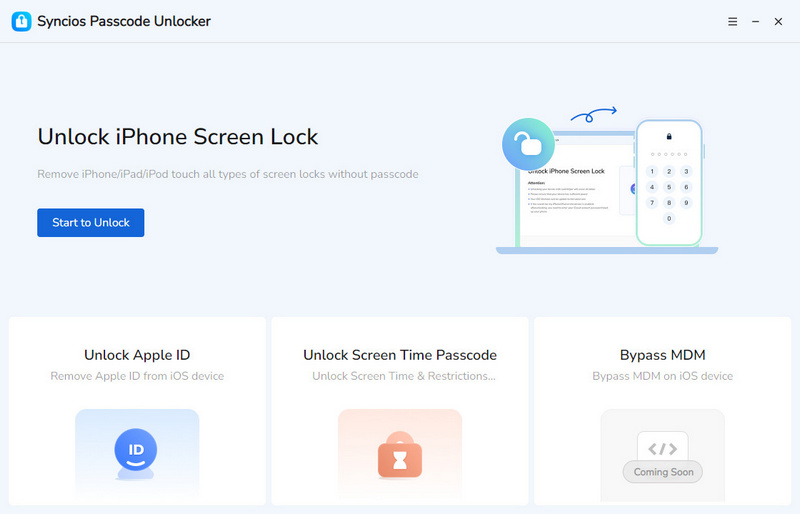
Whether you are locked out by numeric password, Touch ID, or Face ID, reliable tools like Syncios Passcode Unlocker allow you to unlock iPhone, iPad, and iPod Touch with a few clicks. You don't need to struggle with the correct password or any other complicated unlocking methods, Syncios Passcode Unlocker can do this for you without jailbreaking. Besides, it stands out for removing Apple ID and bypassing screen time. For anyone who has devices linked with an unknown Apple ID or can't turn off screen time, the all-in-one tool is your ideal choice.
Syncios Passcode Unlocker
- Unlock 4/6-digit code/Face ID/Touch ID all screen lock without password.
- Unlock iPhone Apple ID with one click.
- Recover and reset Screen Time passcode without losing data.
- Remove Screen Time passcode without passcode.
- Support all iPhone models and iOS versions.

- Step 1: Launch.
- Launch Syncios Passcode Unlocker on your computer and select one unlocking mode. It allows you to remove screen lock, Apple ID, screen time and more.
- Step 2: Connect.
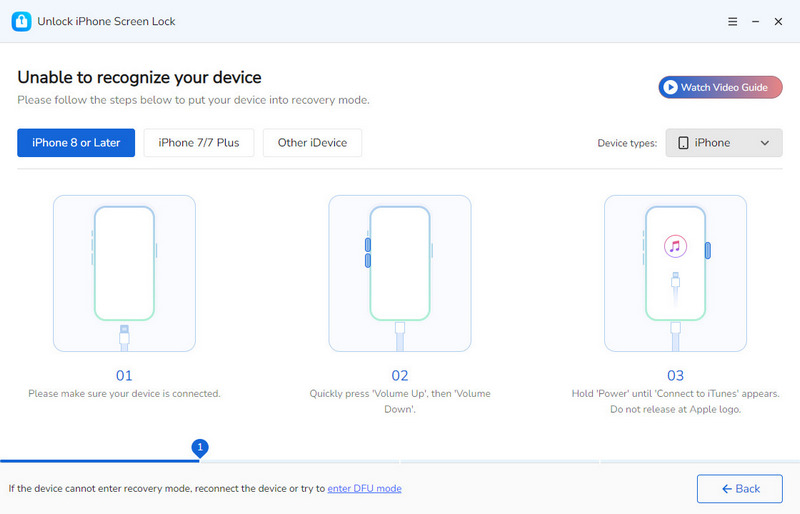
- You need to connect your locked iPhone, iPad or iPod Touch to your computer using a USB cable.
- Step 3: Match.
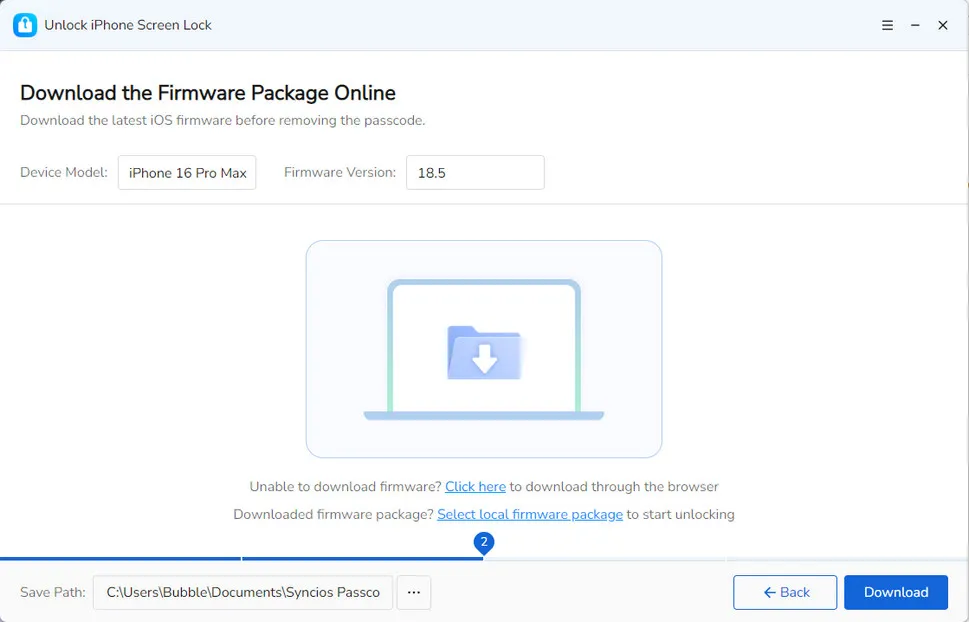
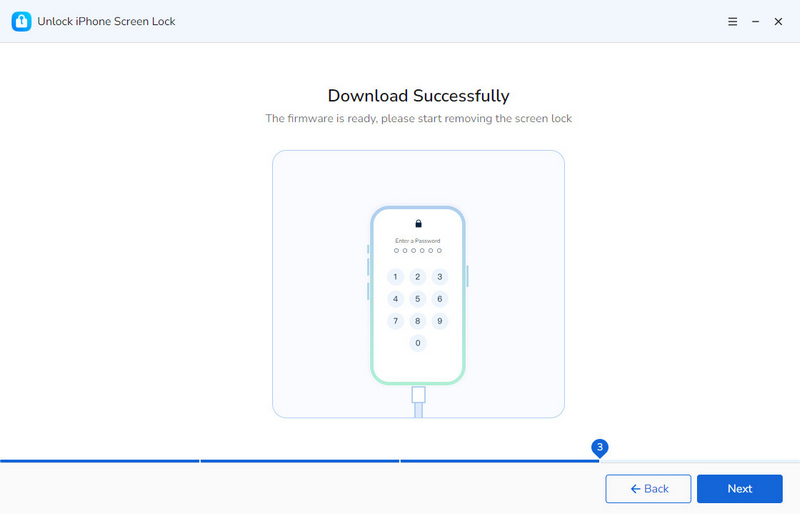
- Before the unlocking, Syncios automatically matches a compatible firmware package for your device.
- Click to download and wait. Make sure your iOS device is well-connected.
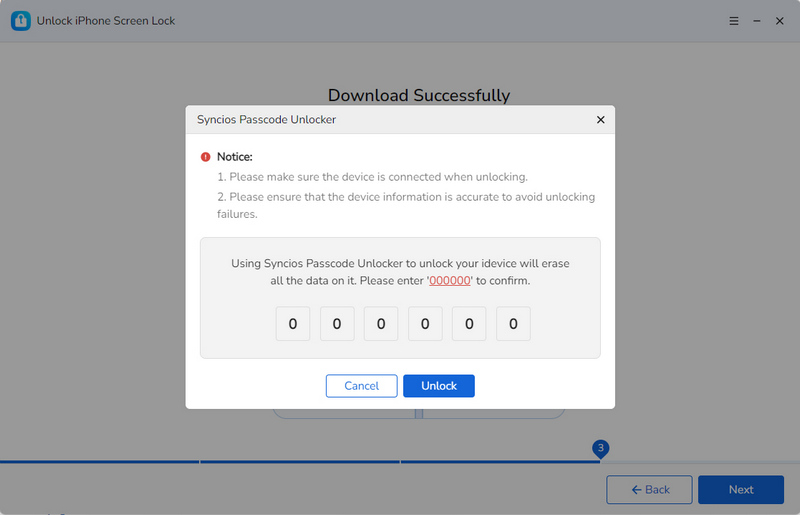
- Step 4: Confirm.
- Manually type "000000" to confirm the unlock.
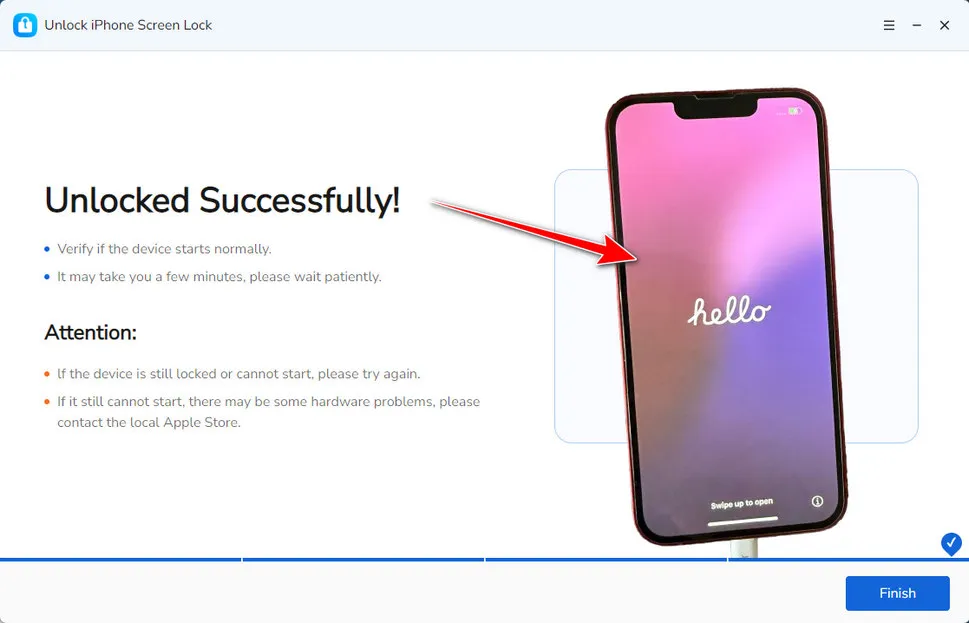
- Step 5: Unlock.
- A few moments later, your device will be unlocked successfully, and your device will restart.
FAQs About Enter Password to Unlock 30/30 Attempts Remaining
Unlike LG phones, Samsung devices don't show you the exact attempts. But when you enter 5 incorrect attempts, it temporarily locks for 30 seconds. The more wrong times you try, the longer timeout will be.
Don't panic because nothing will happen. What you can do is to wait for the timeout and try to input the correct password in the next attempt after 24 hours. But be careful, wrong again may result in the permanent lock. If unfortunately so, you can only erase phone or factory reset it.
When you can't unlock, many Android users seek the master unlock code for LG. But unfortunately, there is no master unlock code. Try the above 4 solutions, which may help.
LG Bridge is LG's official tool for data backup, restore, transfer and software updates. If you encounter "Enter password to unlock 30/30 attempts remaining" screen, unlocking through the LG bridge is actually through the factory reset. Instead, compared to the normal factory reset, it has obvious limitations. It only works when you have already enabled USB debugging before and the Android version is low. So this method is not recommended.
To turn off or disable the lock screen on Android, you can simply go to Settings > Security & privacy > Screen lock, and then toggle it off.
👉 For iOS users: Learn how to turn off screen lock.
Final Words
With this detailed guide, next time when you have "Enter password to unlock 30/30 attempts remaining" message on your Android phone, calm down and try to verify Google account. If all fixes fail, you can only resort to a factory reset, which usually wipe all data. So to prevent any unexpected data loss, don't forget to backup phones regularly with Syncios Mobile Manager. Also, if iOS users encounter lockouts, Syncios Passcode Unlocker offers a hassle-free solution.
What's next? Download Syncios Passcode Unlocker now!

Ethan Mercer | Senior Writer
Related Articles
Related Solutions

Remove iPhone screen passcode, Apple ID, Face ID, and more in minutes.